
Sections in this article
- How To Add a Service
- Service Settings
- Disabling Conflict Detection for Services
- Creating a Hierarchy of Services
- Related articles: Spaces, Resources, Services Navigation | Event Scheduler
- Item | Editing & Deleting Items (Spaces, Resources, Services) in eSPACE
Specifics About Adding a New Service
A Service requires human interaction such as Housekeeping, Childcare, Food Service, Security, etc. To add a service, follow the instrcutions below, however, if you have multiple locations and you want your services to be shared with all locations, do not assign the Service to a specific location...leave blank.
You may want to consider adding an Approval Area to match each service, so that the person(s) responsible for the service can be made a Sub-Administrator(s) and approve events requiring their service (area of responsibility) on their Dashboard.
How to Add a New Service
-
Navigate to Settings > Basic > Services
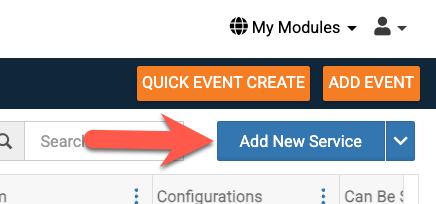
- Click Add New Service in the top right hand side
-
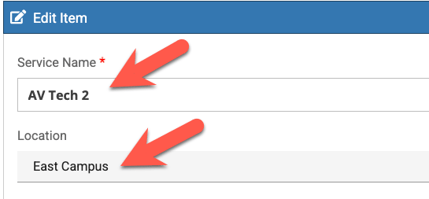
Add a name and assign the service to a location.
Availability Schedule
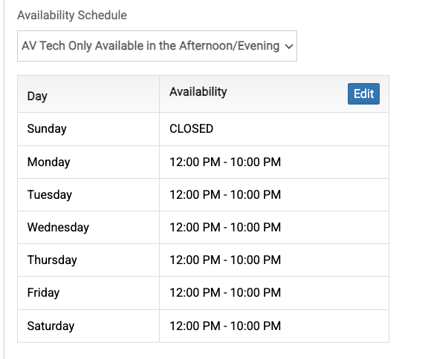
- Next, you can add an Availability Schedule to the space, you can select from the drop-down menu. This will restrict users and sub-admins to reserve this service only during the time that set as available.
Approval Area
It highly recommended that services be in an approval area since they have to do with people being available to perform the service.
- If you are using Sub-Admins to approve certain items (Spaces, Resources, Services), you can select from the drop-down the Approval Area that you'd like to associate with the Space (optional). NOTE: Approval Areas must be created first: Approval Areas - Parsing Out Items for Sub-admin Approval

Tags
- Associate One or Multiple Tags so that users can easily filter them within Items to find the item that will work for them (see attached below).

- Assign a form and make it required, if desired. These are forms that you have created and that are stored in Settings > Advanced > Form Builder. The required form will be attached to the service, and will be required to be completed when the service is selected during the event creation process and on the Setup tab (assuming the forms has required questions on it).
Example of a form that would be added to a service

Schedulable and Requires Approval
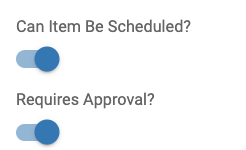
- The “Can Item be Scheduled?” and “Requires Approval” both default to being checked, adjust if desired.
- These settings are not applicable whenever an Item becomes a "Parent" because it then has children and therefore cannot be scheduled. Instead, choosing the "Parent" item on an event will automatically schedule all the "child spaces" underneath.
Description
- Admins can add a description for the item; however, it can only be seen within Settings and Item.
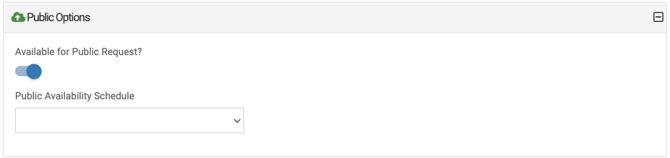
Public Options
- If you are using an event request form on your Public Calendar and want the requester to be able to select the item, you must check this box to make it available to the public.
- You can also associate an availability here for the item.
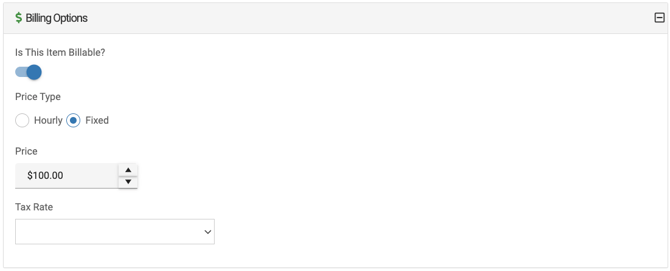
Billing Options
- If you are on a subscription tier that includes Billing & Invoicing, you will have the option to make your item billable.
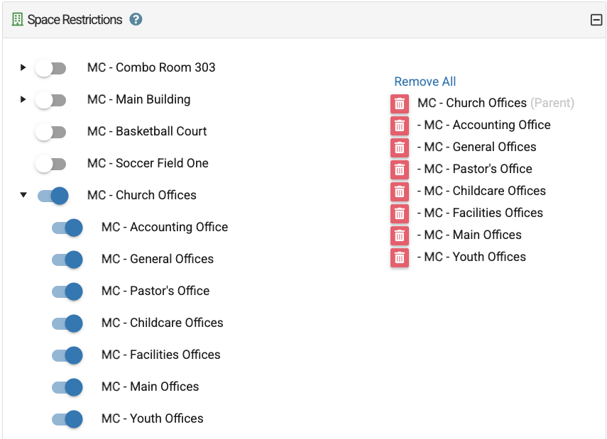
Space Restriction
You can designate which spaces this service is restricted to which will mean that a user will only be able to select this service f they have the right spaces selected first.
- Read this Knowledge Base article for more: Space Restrictions - Restricting Resources or Services to Certain Spaces
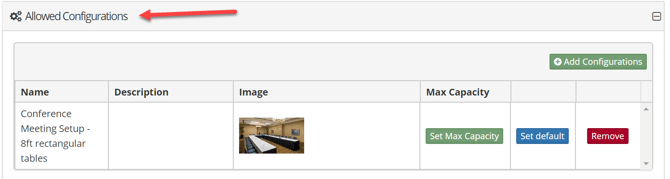
Allowed Configuration
This is an optional feature and only necessary if you plan to offer various configuration descriptions per room.
- Click "Allowed Configurations" to expand, view and select configurations that you want to attach to an item. To delete a configuration, click on the red remove button. To set a configuration as the default, select the blue "Set default" button.
- Once this has been done, the default configuration will show for the space within the Setup tab of event creation.
Adding Documents
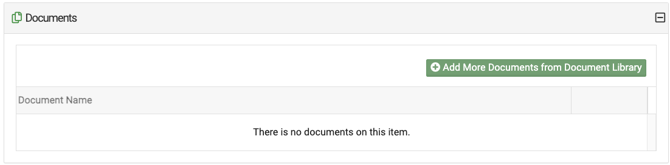
- This is an optional feature. Click on "Documents" to expand, view and select documents from your document library to attach to any item such as a space.
Upcoming Closures
- If there are closures that affect your space, you will be able to view the closure name, description, date and times of closure.

Once you have completed adding your information, be sure to select SAVE!
Disabling Conflict Detection for Services
- You have the option to disable conflicts for services(see below). Go to Settings > Advanced > General > Conflicts to find these options.
- You cannot select certain service or services to disable conflict detection for, this applies to ALL or NONE. (This allows you to manage services outside of the system without having to address conflicts for those items within eSPACE.)
Creating a Hierarchy of Services
- Admins can rearrange the order and/or hierarchy of services in Event Scheduler in order to list them in a preferred order or group services by building, floor, or building section. Once completed, all users will see the services in that hierarchy on the Item tab of events.
- Learn more in this article: Rearrange Spaces, Resources, & Services into a Hierarchy