
Sections in this article:
- Which Grids Each User Will See
- Dashboard Settings
- Expand Events to See Additional Details
- Icons Displayed On the Dashboard Events
- Automatic Refresh
Which Grids Each User Will See
Your dashboard shows the events that need your attention. Which grids you see depends on your user level and your account's settings.
All Users
Every user, sub-admin and admin has a dashboard showing their own events that are pending approval, approved, in conflict or short on resources.
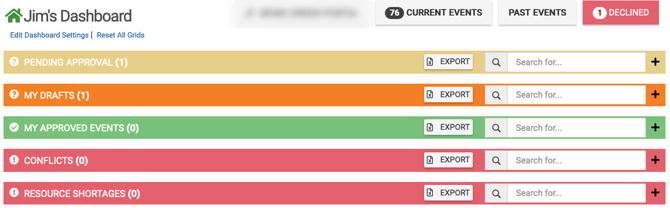
- My Drafts appears only when you have at least one event in draft.
- Resource Shortages shows events only while they are pending the standard approval (by a sub-admin or admin, not pre- or final approval) and have no conflicts. Once approved, the event moves to Pending Final Approval or Upcoming Events.
- Conflicts always shows events with items double-booked with another event, wherever they are in the approval process.
Sub-admins and Admins
Sub-admins and admins also see Upcoming Events – Next 30 Days. Admins see every event there. Sub-admins see only fully approved events with items in their approval area.

-
This grid is not meant to match your calendar. It lists only fully approved events with an occurrence ending in the next 30 days. Calendar views show every occurrence in the date range, past dates included.
To see all events, any user can:
- open any calendar view in the left menu
- run a report from Reports in the left menu
- go to Events > All Events in the left menu
Additional Approval Layers
If an admin turns on Requires Pre-Approval or Requires Final Approval under Settings > Advanced > General > Event Creation, admins and sub-admins given access see those grids. From there they pre-approve or final-approve the whole event.

Event Request Forms Grid
Admins and sub-admins who manage an external Event Request Form see its submissions in the Open Event Requests grid.
-
Learn more in this article: External Event Request Forms | Allow Non-eSPACE People to Request an Event

Events with Invoices Grid
If your subscription includes Billing & Invoicing, admins and sub-admins with access to it can show the Open Rental Requests and Invoices grids on their dashboard.

- Learn more in these articles:
Dashboard Settings
- Under your dashboard name, click Edit Dashboard Settings.
- Pick a font size for your grids, and drag grids up or down to change their order.
- Click Edit to the right of a grid, change its settings and click Save.
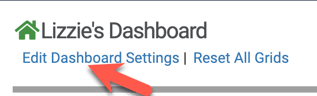
5. Set if you want any grid to be completely hidden
6. Set if you want any grid to be collapsed when initially loaded
7. Set which column of the grid you want to be the primary sort (for Desktop)
8. Set another column of the grid to be the secondary sort (for Desktop)
9. Set which column of the grid you want to be the primary sort (for Mobile)
10. Set another column of the grid to be the secondary sort (for Mobile)
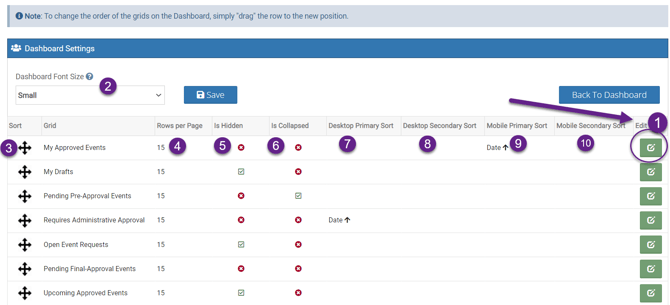
After clicking Edit, all settings can be modified for each grid (see below), then click Save.
Expand Events to See Additional Details
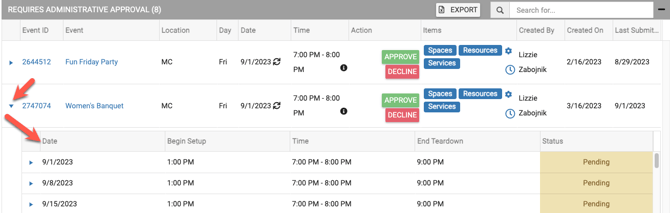
Click the arrow next to an event to see its occurrences. This helps admins and sub-admins see what they're approving before they click Approve.
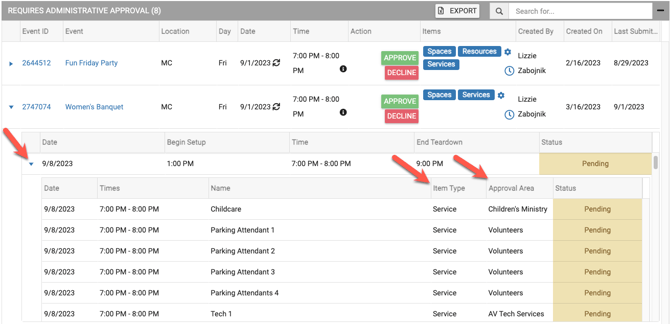
Expand an occurrence to see each requested item, its approval area and its status.
Icons Displayed On the Dashboard Events
- Schedule icon: next to the Event ID when the event has more than one schedule.
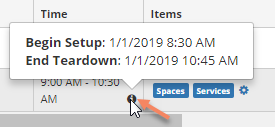
- Information icon: next to the time when the event has a setup or teardown. Hover over it to see the times.

There is also an information icon to the right of the time when there is a setup or tear-down associated to the event (shown on attached above). When you hover over the icon, this is what you will see:
- Red conversation icon: next to the Event ID when the event has an unread event conversation.

Clock icon: admins and sub-admins click it on an approval grid to see every item still waiting for approval on that event.

Automatic Refresh
Grids refresh on their own when someone creates, updates or deletes an event, so you don't need to reload the page.