
Sections in this article:
- How to Add a New Space
- Most-Used Space Settings
- Optional Space Settings
- Creating a Hierarchy of Spaces
A space is any room or area people can reserve for an event, like a sanctuary, fellowship hall or classroom. Admins add and edit spaces under Settings > Basic > Spaces.
Related articles: Spaces, Resources, Services Navigation | Event Scheduler · Items | Editing & Deleting Items (Spaces, Resources, Services) in eSPACE
How to Add a New Space
- Go to Settings > Basic > Spaces.
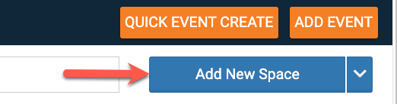
- Click Add New Space at the top right. (you can also rearrange spaces in the hierarchy, see bottom of the article for more)
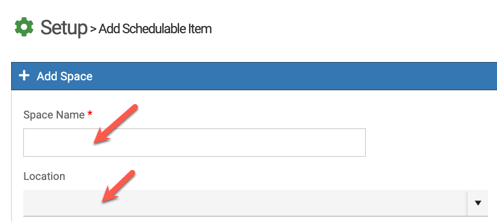
- Enter the space name and, if you have more than one location, choose its location.
- Fill in any other settings you need. Each one is explained below.
- Click Save.
To change a space later, go to Settings > Basic > Spaces, hover over the space, click the three dots and choose Edit.
Most-Used Space Settings
Name & Location
Enter the space name. If your account has more than one location, choose the location this space belongs to.
Availability Schedule
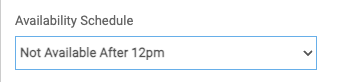
Choose an availability schedule if this space can only be reserved at certain times. Users and sub-admins will only be able to book it during the times you set as available. Learn more: Adding Availability Schedules to Spaces, Resources, Services, Locations
Approval Area
If sub-admins approve certain spaces, choose the approval area this space belongs to. You need to create approval areas first. Learn more: Approval Areas | How to Give Sub-admins Approval for Certain Items

Tags
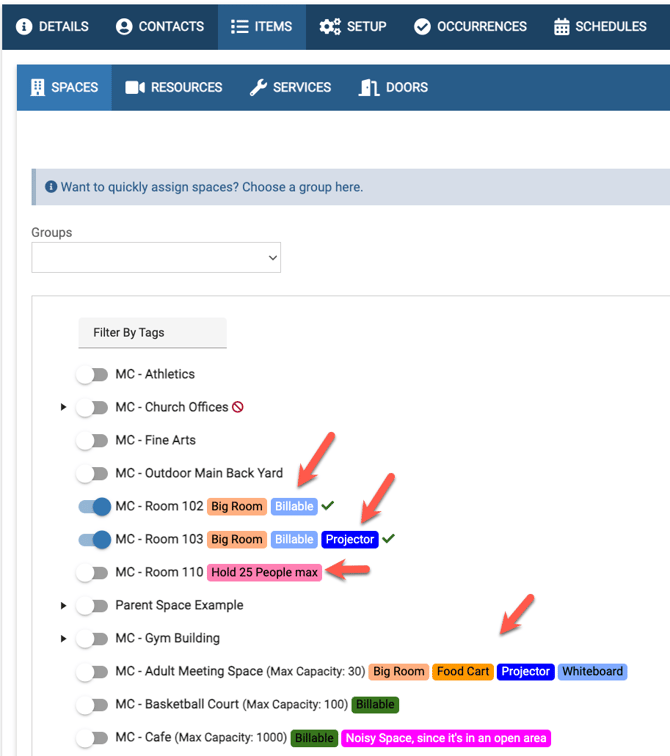
Add one or more tags (like TV, Whiteboard or No Food Allowed). People can filter by tags on the Items tab of an event to find a space that fits their needs.
Internal Form
Attach a form you built under Settings > Advanced > Form Builder, and make it required if you want. Anyone who adds this space to an event will be asked to fill it out, both when creating the event and on the Setup tab.

Can Be Scheduled & Requires Approval
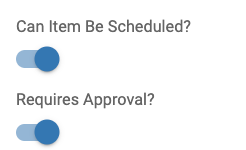
Both settings are turned on by default. Turn off Can Item Be Scheduled? if people shouldn't book this space, or Requires Approval? if bookings don't need approval.
These settings don't apply to a parent space (a space with child spaces under it). A parent can't be scheduled on its own; choosing it on an event books all of its child spaces.
Capacity
Max Capacity (optional, recommended): the most people the space holds. It helps people pick a space that fits their group and powers the Find a Space search.

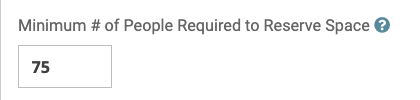
Minimum # of People Required to Reserve Space (optional): people can't book the space for an event with fewer attendees than this. It keeps large rooms free for large groups. If someone's event is too small, they'll see the space as unavailable with a "# of People" reason.
Optional Space Settings
Description
Add a short description of the space for your admins. It only shows in Settings, not to people booking events.
Public Options
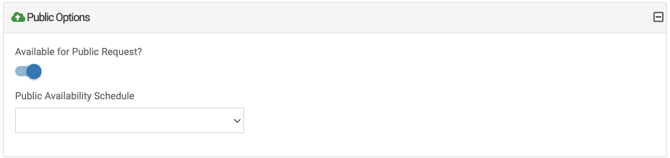
Turn on Available for Public Request? if people should be able to pick this space on your public event request form. You can also choose a Public Availability Schedule to limit when the public can request it. Learn more: External Event Request Forms
Billing Options
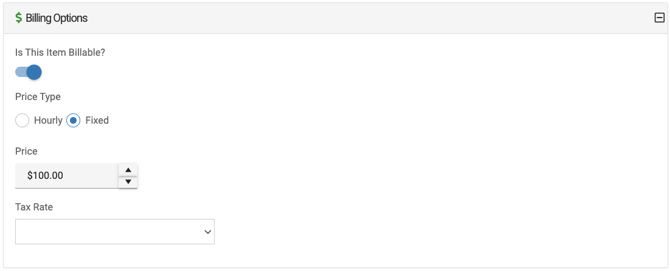
If your subscription includes Billing & Invoicing, you can make the space billable and set an hourly or fixed price and a tax rate.
Allowed Configurations
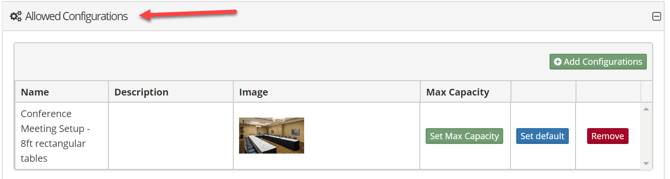
Configurations are standard room setups (like rounds of 8 or classroom style) that people can pick on the Setup tab of their event. Click Allowed Configurations to expand it, then add the ones that fit this space. Click Set default to show one automatically, or Remove to take one off. Learn more: Configurations | Add and Manage Standard Setups
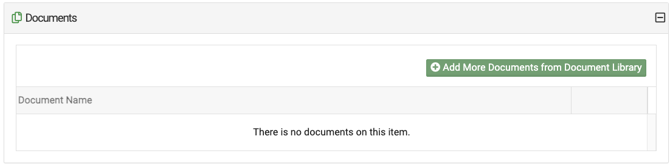
Documents
Click Documents to expand it, then attach files from your document library, like a room diagram or usage guidelines.
Upcoming Closures
Shows any closures that affect this space, with the closure name, description, dates and times. Learn more: Adding Closures for Holidays & Maintenance

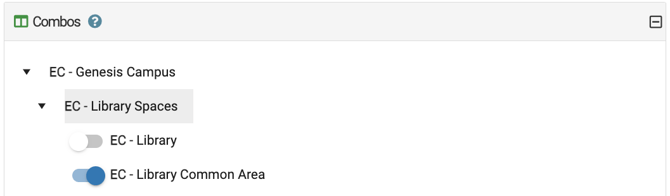
Combo Spaces
If a large room can be divided into smaller rooms (like a fellowship hall with partitions), set up the combinations here. Booking one part then shows a conflict on the spaces it overlaps. Learn more: Items | Combo Rooms
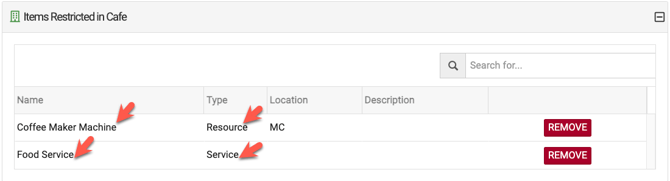
Restricting Resources & Services
You can limit certain resources and services so they can only be booked with this space, like a coffee maker that stays in the café. Learn more: Items | Restricting Resources or Services to Certain Spaces
HVAC Units
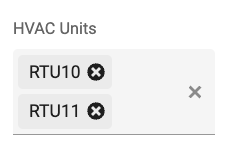
If you have COOLSPACE connected to your building's HVAC system, choose the HVAC unit(s) that heat and cool this space. Your events will then schedule that unit automatically. For thermostats (like Honeywell), assign spaces under My Modules > FACILITeSPACE > HVAC instead.
When you're done, click Save.
Creating a Hierarchy of Spaces
Admins can put spaces, resources and services in a preferred order, or group them by building, floor or wing. Everyone then sees them in that order on the Items tab of events.
Learn more: Items | Rearrange Spaces, Resources & Services into a Hierarchy