Sections in this article:
- How Space Notifications Work
- Step 1: Make the User a Sub-admin
- Step 2: Create an Approval Area and Add Their Spaces
- Step 3: Turn On the "Event Created" Email Notification
- Approving the Spaces
How Space Notifications Work
A common question is how to make sure a certain person is told whenever a specific space, like a gym, chapel, or kitchen, is requested on an event. In eSPACE, you do this by making that person a sub-admin, assigning them to an approval area that contains those spaces, and turning on their "Event Created" email notification.
Once all three are in place, the user gets an email whenever a new event request is submitted that includes a space in their approval area.
A few things to know:
- Space notifications only work through approval areas, so the user must be set up as a sub-admin.
- The user is only notified about the spaces in the approval areas they're assigned to.
- Being a sub-admin lets the user approve or decline items in their approval area, but it doesn't let them edit the event.
Step 1: Make the User a Sub-admin
- Go to Settings > Basic > Users.
- Find the user and set them up as a sub-admin in Event Scheduler.
- Click SAVE.
Step 2: Create an Approval Area and Add Their Spaces
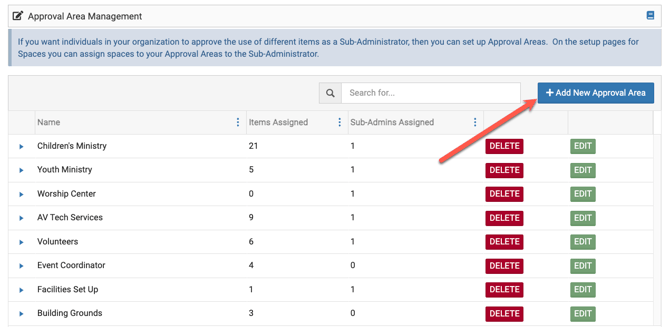
1. Go to Settings > Advanced > Approval Areas and select "Add New Approval Area."
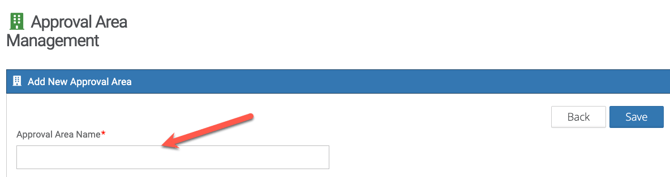
2. Enter a name for the approval area.
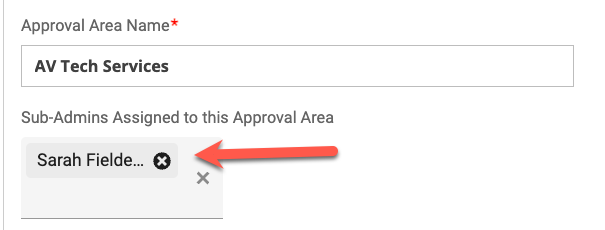
3. Start typing the sub-admin's name and select them to assign them to the approval area.
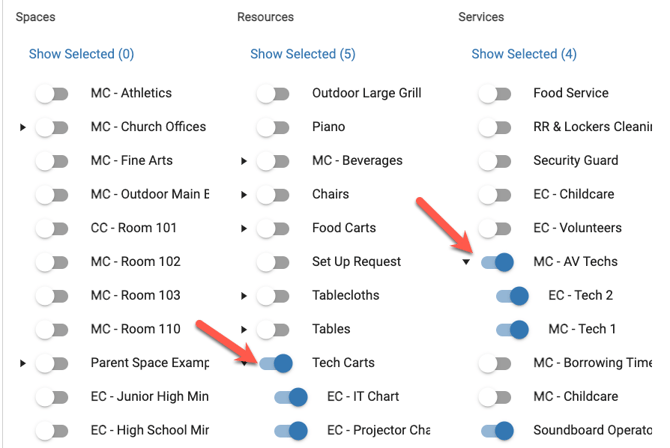
4. Choose the spaces you want this user to be notified about.
5. Click SAVE.
For more detail on approval areas, see Approval Areas | How to Give Sub-admins Approval for Certain Items.
Step 3: Turn On the "Event Created" Email Notification
The user also needs the "Event Created" email notification turned on to be alerted when a new event request is submitted.
- Have the user log into eSPACE and click their profile icon.
- Select My Notifications, then Notification Preferences.
- Turn on the email notification called "Event Created."
- Save the changes.
Approving the Spaces
Once the user is notified, the spaces in their approval area can be approved in one of two ways.
Option 1: The sub-admin approves their spaces.
-
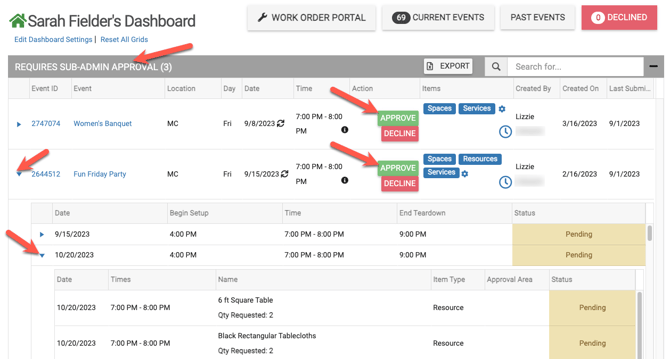
The sub-admin logs into eSPACE and finds the event in the Requires Sub-Admin Approval grid on their dashboard. Clicking Approve there approves only the spaces in their approval area.
Option 2: An admin approves on the sub-admin's behalf.
-
If the sub-admin only needs to know about the booking, they can simply read the notification. An admin can then click Approve on the event from their own eSPACE dashboard, which approves the spaces on behalf of the sub-admin.
Tip: If you use Option 2, for admins approving events, we recommend waiting until all other sub-admins have approved the items in their own approval areas before the admin approves the event.
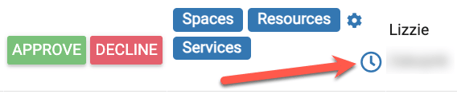
Admins can check to see which items are still waiting for sub-admin approval by clicking the clock icon on the event on their dashbaord.