You can deactivate a user at any point in time in order to save them in the system, but prevent their login from being active. This is helpful in cases where the person plans to return later, but is "out of office" for awhile and you want to secure their account while they are not using it.
How to Deactivate a User
Go to the left navigation bar Settings>Basic>Users and then click to edit any user in order to deactivate them.
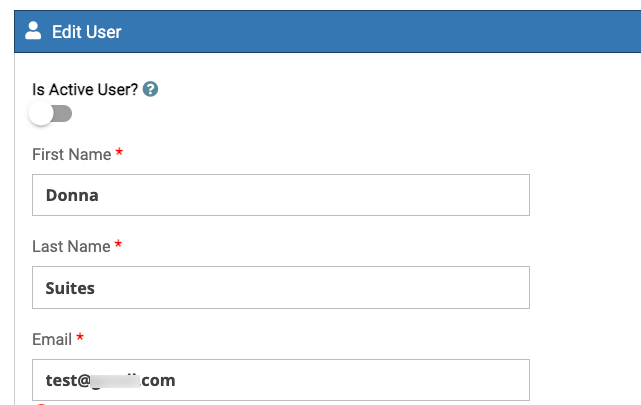
Above their name, you will see a toggle switch where you can set them as active or NOT active.
What Happens Next
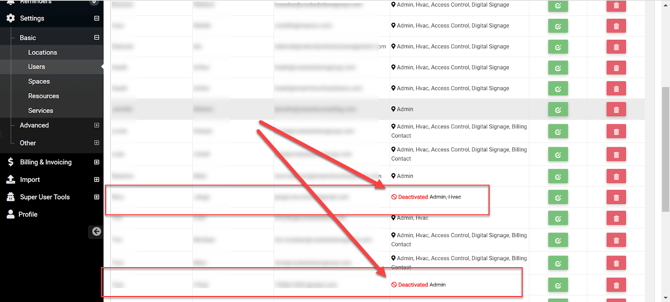
When Users are marked as Deactivated, this will appear in the list of Users but with a message that says deactivated.
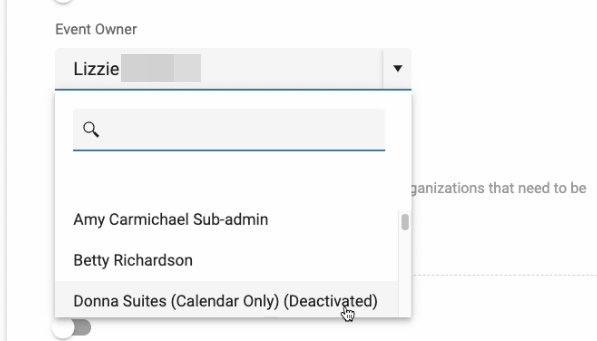
They will also appear in the list of options for "Event Owners" and "Event Editors" on the main Details tab of events.
Exporting Users to Excel
Under Settings > Basic > Users you will also see an EXPORT TO EXCEL button on the top of the page.
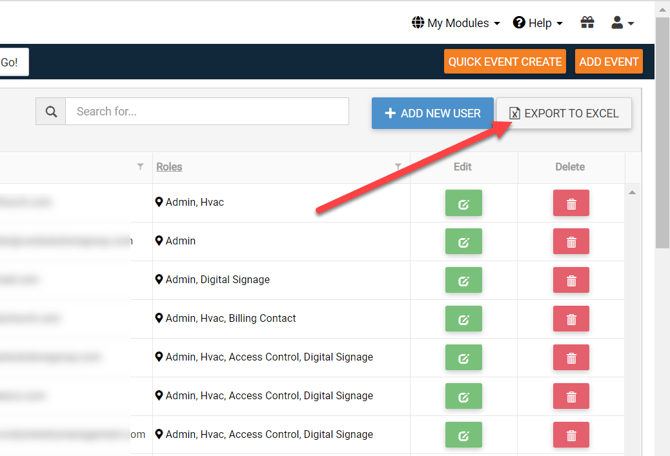
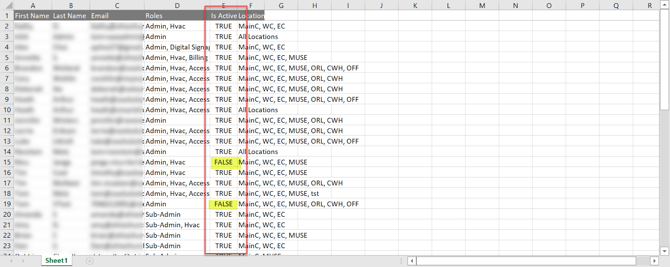
When clicked you are provided an Excel Spreadsheet of all of your User Data including a column that shows you whether a user is active or not.