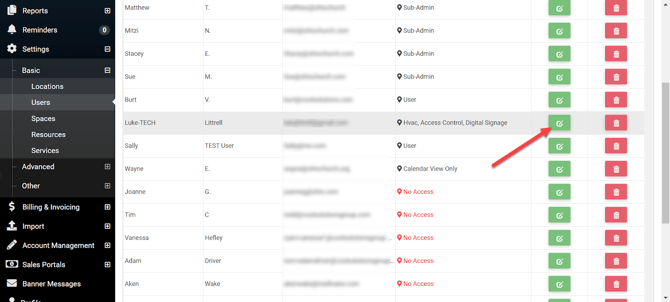
Admins in Event Scheduler can force any other admin, sub-admin, regular user, or Calendar View Only user to change their password the next time they log in. To do so admins can go to Settings > Basic > Users, click the green edit button to the right of the desired user and then select "Change Password" as shown below.
- Related article: How An Admin Can Reset a User's Password
Go to the left navigation bar > Settings > Basic > Users and choose to Edit a User.
Once in a User's profile, there is a new toggle for "Require password change at next login"
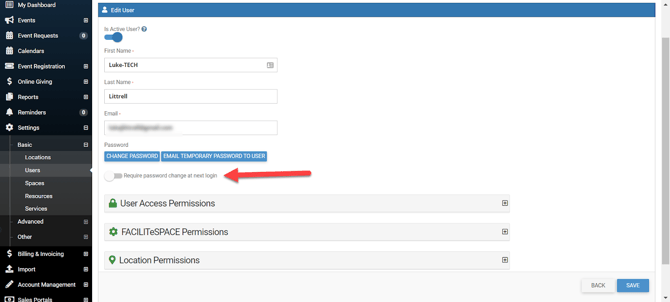
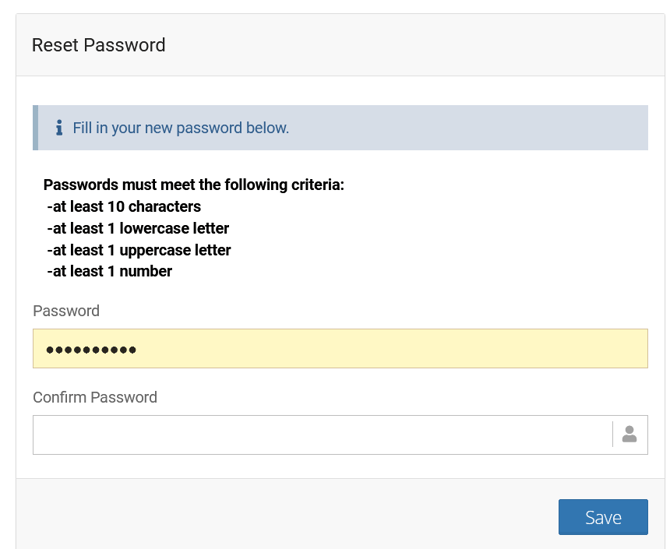
After toggling on and clicking Save, the user is required to change their password at their next attempt, where they will see the following prompt:
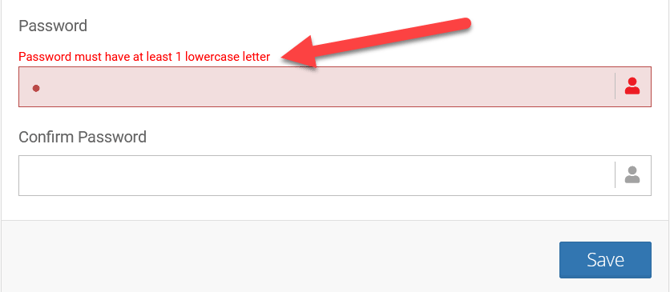
If the password does not meet the above criteria, a help message appears:
Once the user successfully enters a new password, the page for their Dashboard will load.