If there are people who only need to view all events, including public and private events at one or more of your locations, then you can add them as a user with access to only the internal calendar views! This is called a "Calendar View Only" user!
What They Can View In Their Account
All Calendar View Only users will immediately be navigated to the internal calendar in eSPACE when they log in.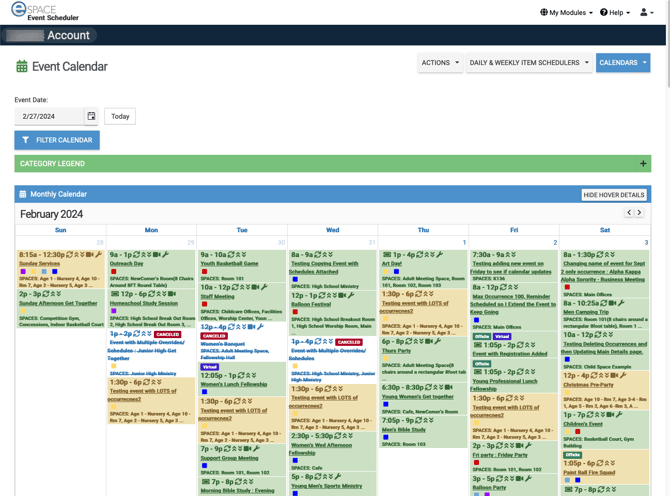
On the calendar, they will be able to use the same filter options as a regular user, sub-admin, or admin.
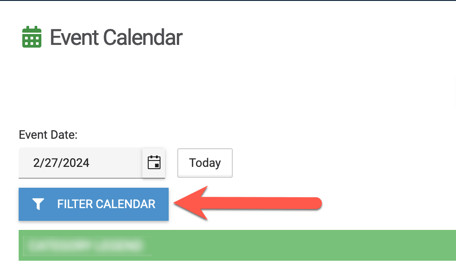
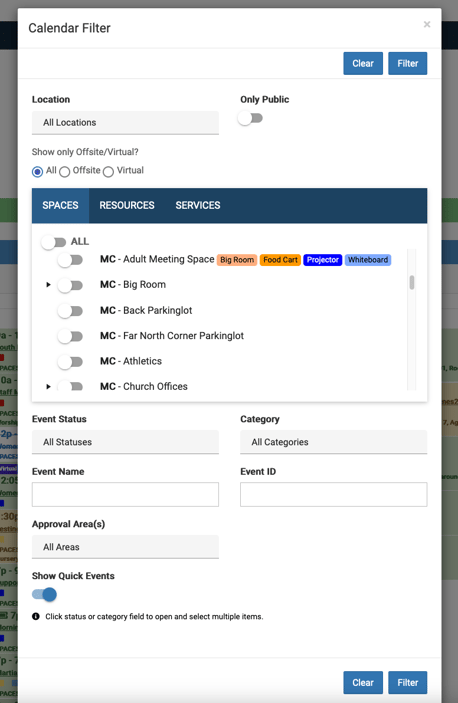
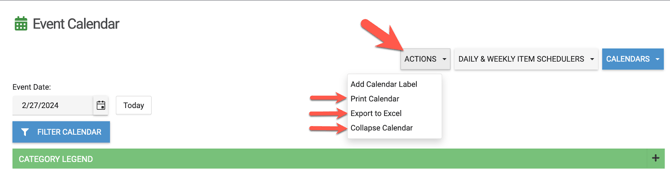
Many of the internal calendar views will show additional options under Actions.
- All the different internal calendar views can be printed except for the Daily and Weekly Views design as those two views often are too crowded with event information.
They can switch between the different calendar views.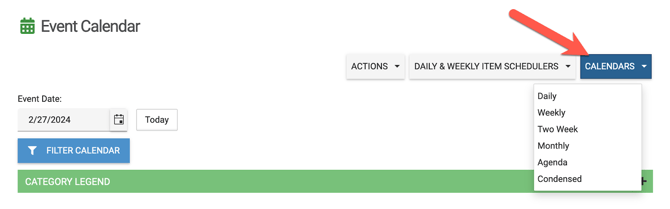
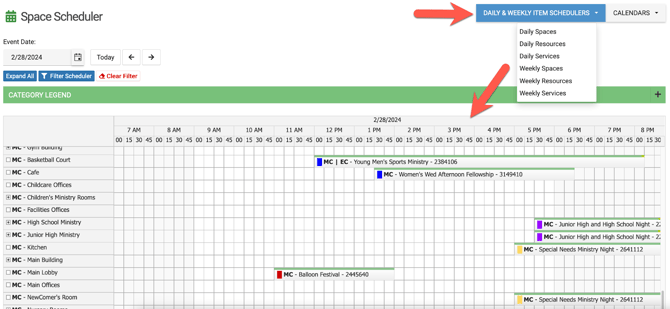
They will also be able to see events based on which spaces, resources or services es are on events, but they will not be able to double-click like a regular user, sub-admin, or admin and add an event on this view.
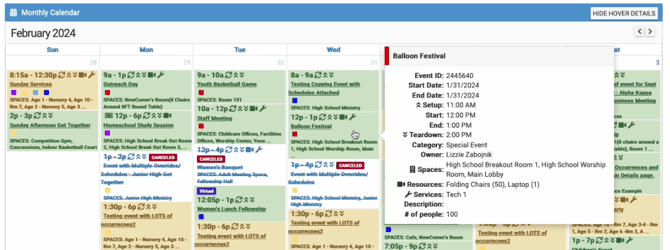
When "Calendar View Only" users are viewing events on the calendar, they will be able to hover over the events to see additional event information like other users; however, there is no hyperlink to the event itself. Therefore, they cannot drill down into the event to view the setup, occurrences, history, etc. which is why this view is NOT recommended for facility staff members.
Adding Calendar View Only Users
To add a new user with "Calendar View Access Only", go to Settings > Basic > Users, then select "Add New User".
Enter the user's first and last name, email, and then under "User Access Permissions", enable "Calendar View Access Only" (see image below), then go to "Location Permissions" to enable their location(s) permissions and SAVE.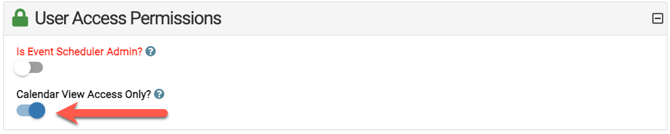
All users need access to at least one location, even if you are a one-location organization.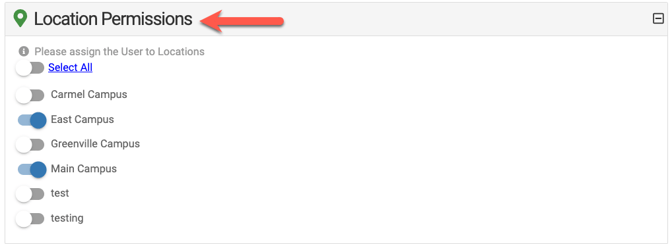
Once this option is checked, the user will be able to login and only VIEW all the calendars (and schedulers) only. This type of user can NOT add events or see all of the set-up details on events. The purpose is to give users a view of the basic details of events.
If you do NOT see the "Calendar View Access Only" option within User Permissions, please un-check "Has Access to the Event Scheduler" first.