The space, resource, and service pages under Settings > Basic are designed to give you an easy overview of what settings or features you are using for each individual space, resource, and service. You can then hover over one, click the three dots, and choose Edit to then see all the customizable features for each individual space, resource, and service and use the ones that help your organization.
- It's important to know that many of the features need to first be created under Settings > Advanced such as Approval Areas, Forms Builder (internal forms), Configurations...and then added to individual spaces, resources, and services.
- Related articles:
In this article, we use the Space as the example, but the Resource and Service pages work very similarly.
From the Spaces page:
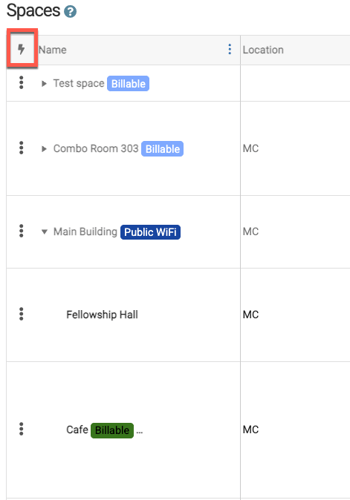
- 1. You will see a lighting bolt in a column header indicates a column that has a dynamic tool to manage each Space.
- In order to see all spaces, make sure to expand any "parent" space. "Parent" spaces are sued to group similar child spaces together like files in a folder.
- The location column indicates to which Location your Space belongs.
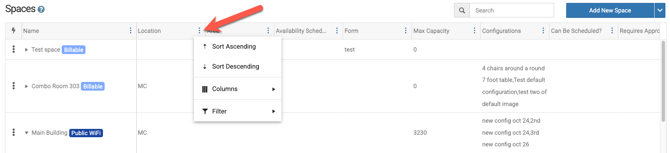
- On the space page (or resource page or service page) any column can be sorted or filtered in order to see the spaces that you need.
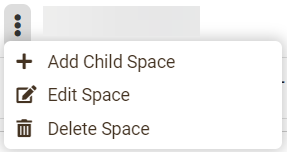
- 2. In order to see the settings of a space, click the three dots and then select an option.
- 3. Scroll horizontally to see each detail of your Space shown in each column
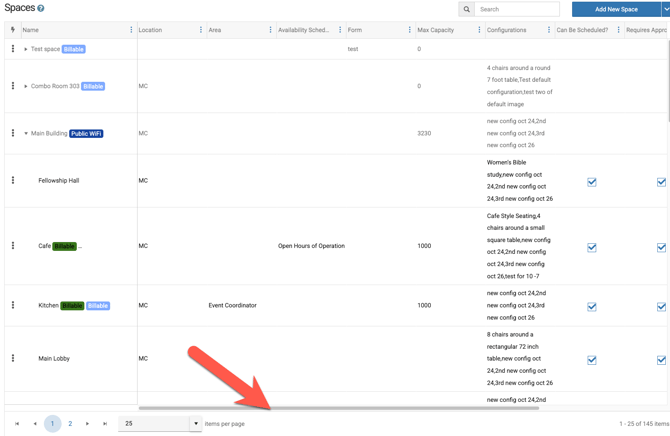
- 4. Search the entire Spaces page, including any of the specific spaces.
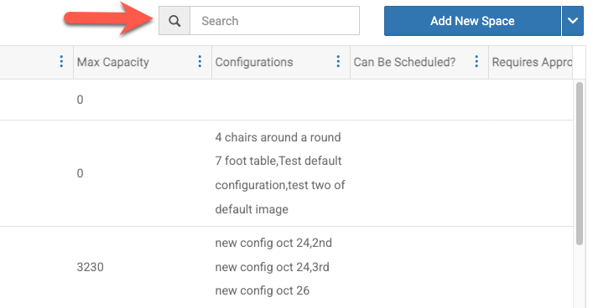
- 5. On this page you can also add a new space or click the drop down arrow to select the export option or the click and drag option, which allows yu to reorder your spaces.
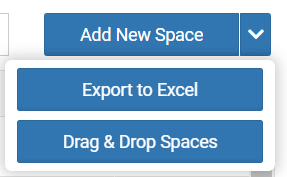
If you sort or filter your spaces before exporting, the export will NOT match your sorting and filtering that you applied. However, after you export the spaces, then you can sort and filter in the Excel.
Resources and Services work the same as the above example with Spaces.