
- Different eSPACE Subscription Tiers include Different Features Including Single Sign On
- In order to know if this feature is included in your eSPACE subscription tier, please contact support@espace.cool.
- In order to know if this feature is included in your eSPACE subscription tier, please contact support@espace.cool.
- Viewing Your Subscription Details
- Each eSPACE admin with access to Billing can view what subscription tier your organization currently has and everything that is included in their account under Settings > Other > Billing > Manage.
For those who are on an eSPACE subscription tier that includes Single Sign On, you will be able to configure your organization's eSPACE account to be accessed and users to be authenticated via your network provider. For more information general on how SAML SSO works with eSPACE, please read this article: How SAML Single Sign-On Works
- Only eSPACE Admins can get to the SSO Integration Setup page in eSPACE
The following instructions will help you configure eSPACE to allow Single Sign-on through your Azure AD account.
-
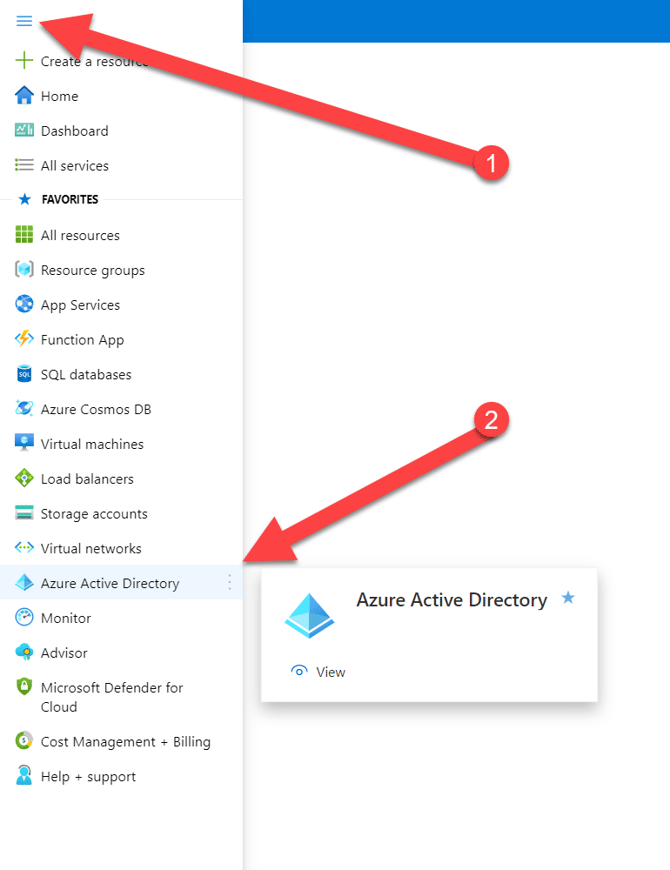
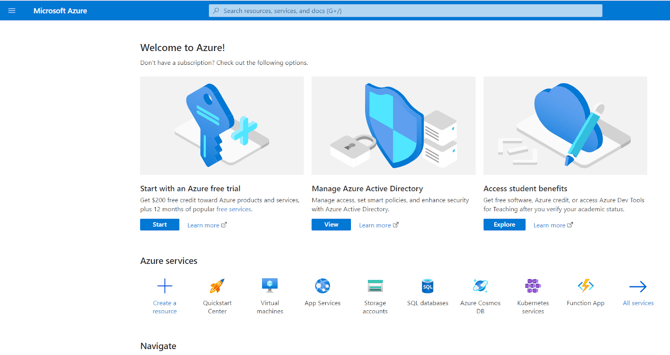
Click Azure Active Directory
-
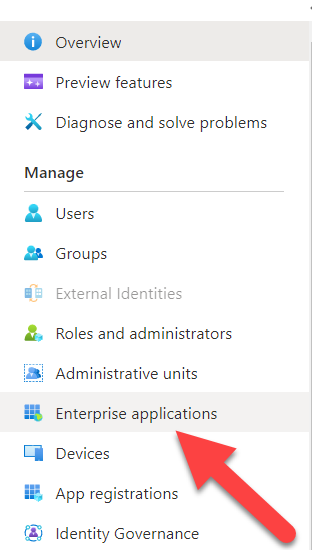
On left side, click Enterprise Applications
-
-
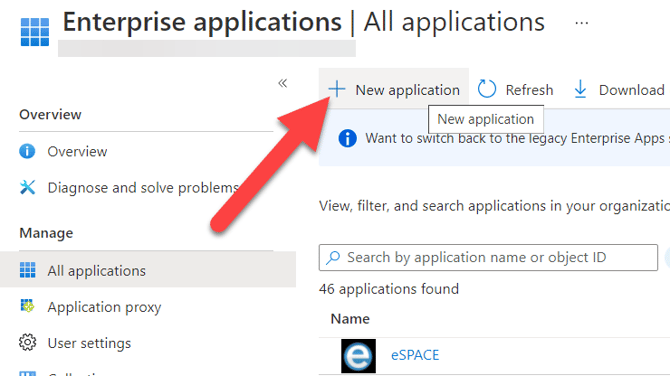
Click "+ New Application"
-
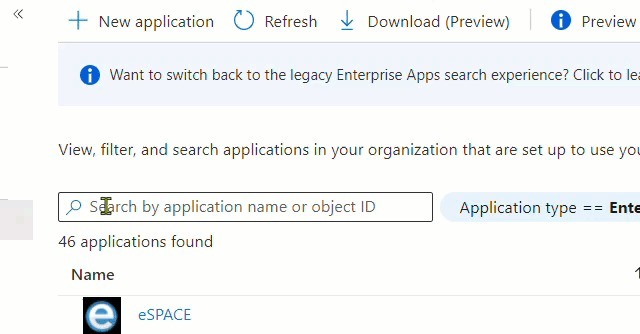
Search for "Azure AD SAML" and click "Azure AD SAML Toolkit", the click "Create"
- You can also choose to "Create your own application" (select the "Non-Gallery" option).
- You can also choose to "Create your own application" (select the "Non-Gallery" option).
-
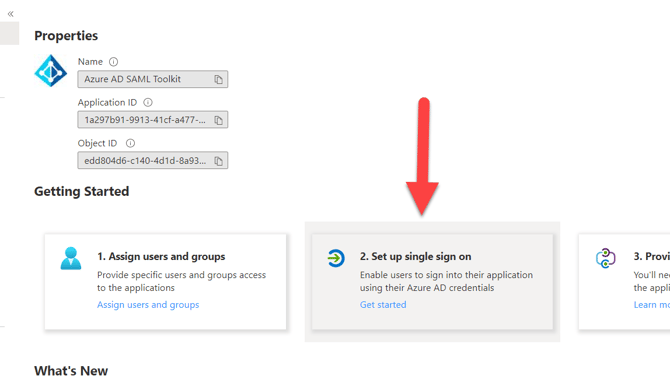
Click "Set up single sign on" option under Getting Started
-
Click SAML option
-
Edit the Basic SAML Configuration panel
-
For Identifier, set to https://app.espace.cool
-
For the Reply URL (ACS URL) enter the value from eSPACE SSO Setup page
-
For Sign-on URL enter https://app.espace.cool/Account/SSOAuth
-
Click "Save" for the panel
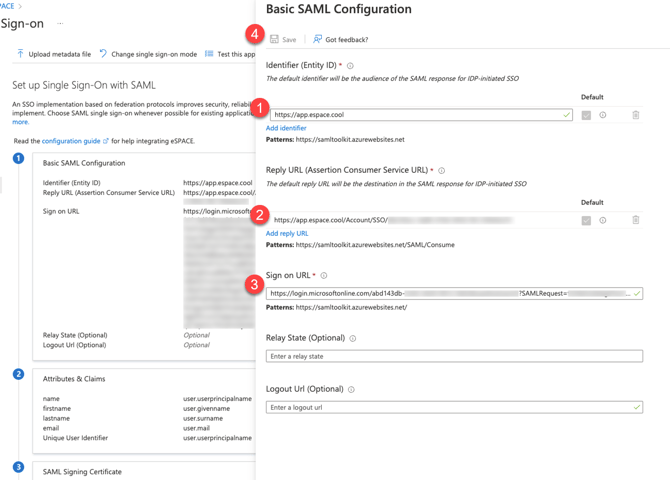
-
-
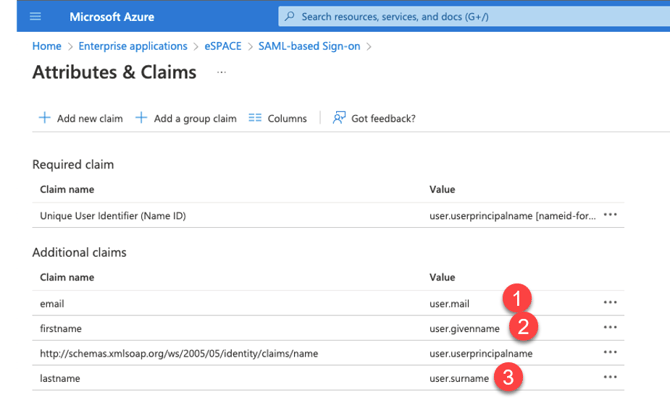
Edit the "Attributes & Claims" panel
-
In the Additional Claims:
-
Click the row with Value "user.mail" and update the following (and "Save" when done):
-
Name is email
-
Namespace is blank
-
-
Click the row with Value "user.givenname" and update the following (and "Save" when done):
-
Name is firstname
-
Namespace is blank
-
-
Click the row with Value "user.surname" and update the following (and "Save" when done):
-
Name is lastname
-
Namespace is blank
-
-
-
-
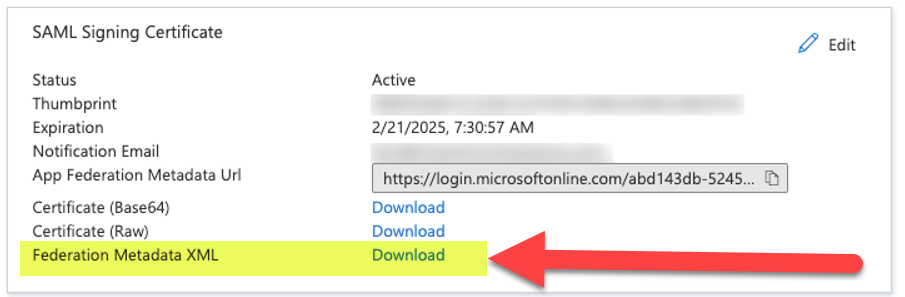
In the SAML Signing Certificate
-
Download the Federation Metadata XML, and upload to the eSPACE SSO Setup page.
-
The previous step should populate the Certificate and and Single Sign On Service URL.
-
-
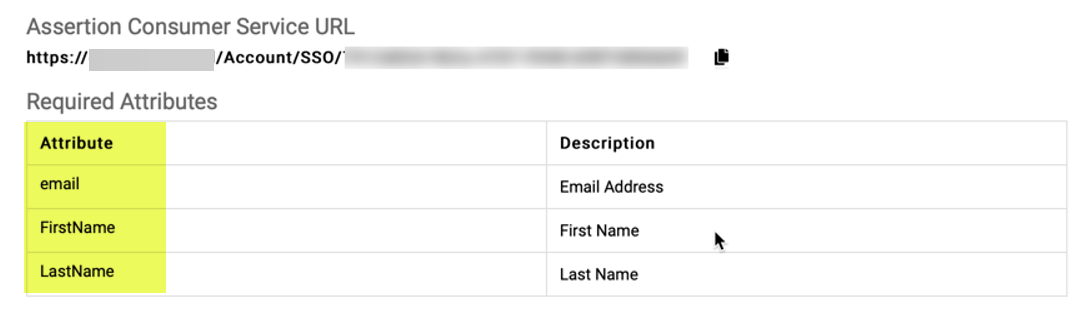
In the Required Attributes section of eSPACE, confirm the attribute names match what was entered in the Attribute and Claims section above (email, firstname, lastname). These fields are case sensitive and you must enter them exactly as seen in step 9.
- On the Properties page (of Azure) modify the name, logo, and assignment setting and visibility of the app. Use the Users and Groups page to manage who can access the app.
- If a "Create new login..." option is selected, be sure to select the appropriate login account to be cloned for any new users provisioned via SSO. eSPACE will copy all settings and configurations about the user (including roles, module access, location access). The following WILL NOT be cloned:
- Billing Contact role
-
Name, Email address, Employee ID
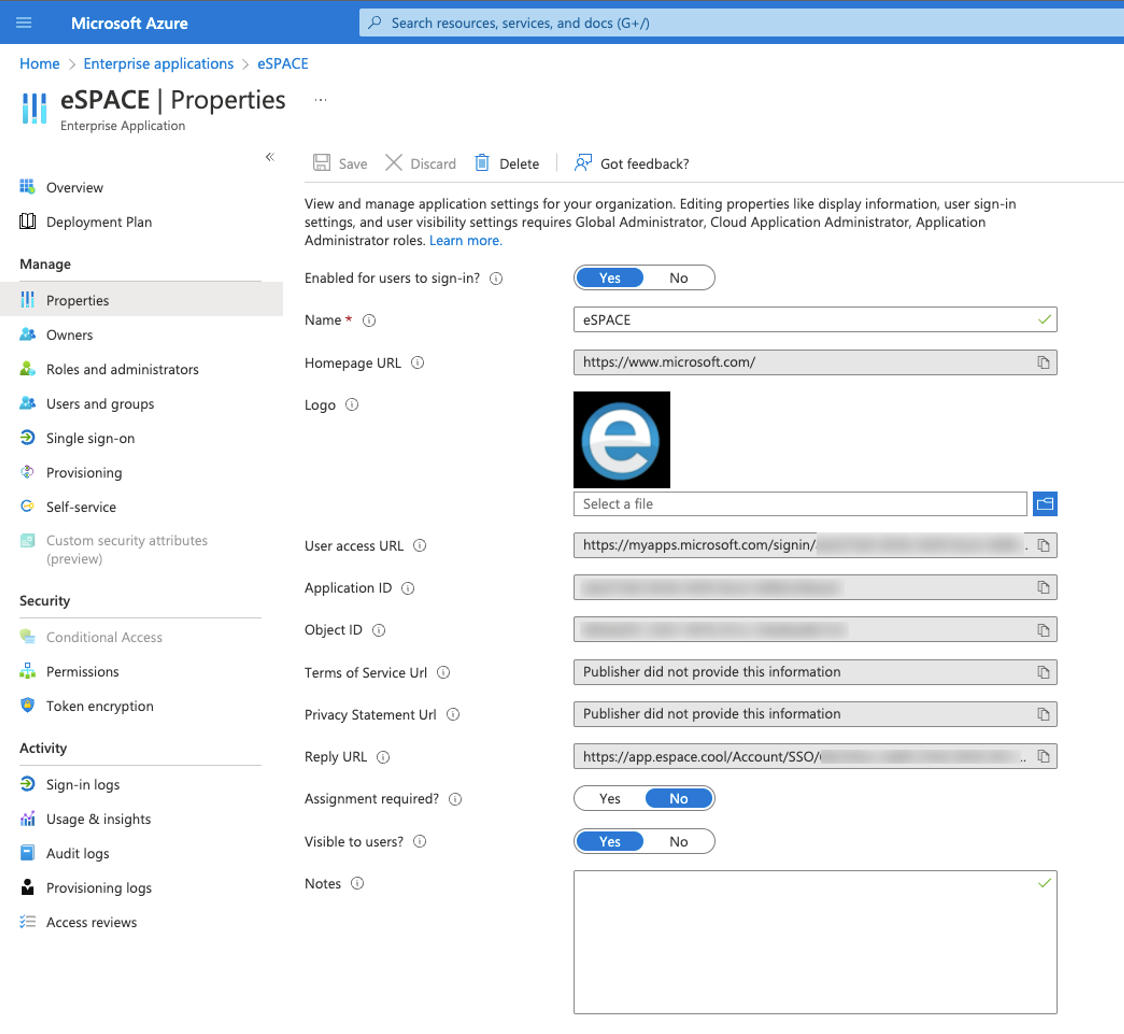 Below is an eSPACE logo you can use:
- If a "Create new login..." option is selected, be sure to select the appropriate login account to be cloned for any new users provisioned via SSO. eSPACE will copy all settings and configurations about the user (including roles, module access, location access). The following WILL NOT be cloned:
- On the eSPACE SSO Setup page, adjust the User Provisioning setting as desired. Be sure to set the appropriate Integration Admin
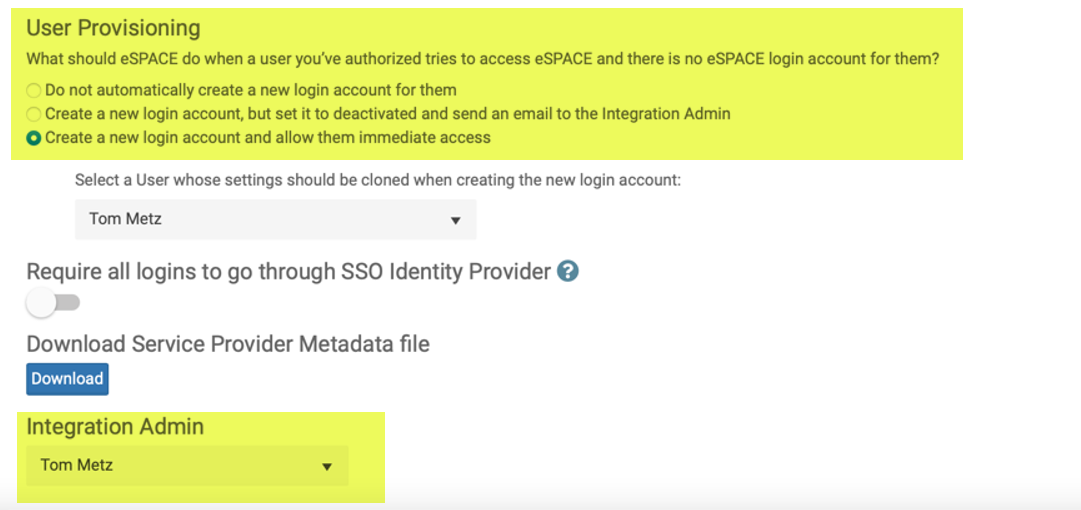
NOTE: Under User Provisioning, if you choose "Create a new login account and allow them immediate access" there is a chance a duplicate user account could be created if a single user has been using an alias or had a name change resulting in a new email address.