In Work Order & Asset Management if you want to display work order requests on the internal calendar, show a warning x days before the equipment warranty is ending, hide the requested completion date from all users and more, then navigate to Settings > Advanced> General Display Settings.
- See additional settings for work orders and their approval flow:
-
Other best-related articles:
Here are the display feature settings with a description of each. Select the settings that are best for your organizational needs!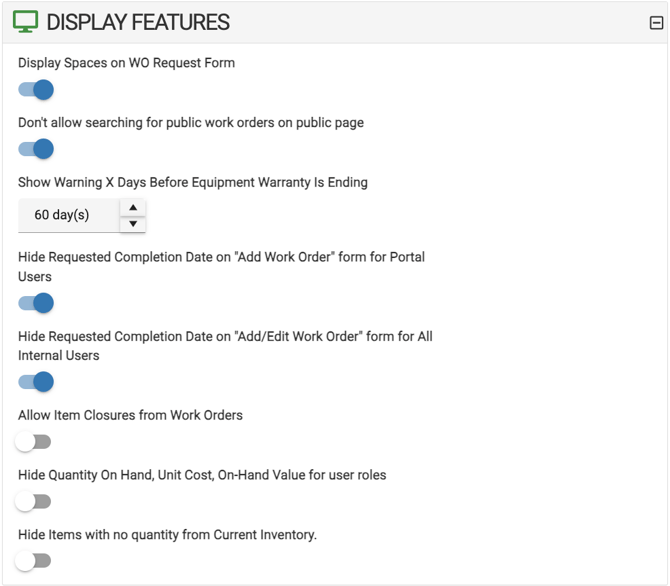
Display Spaces on WO Request Form
- If selected, all spaces will show on the work order request form, once a location has been selected.
Don't allow Searching for Public Work Orders on Public Page
- When selecting this option, users will not be able to search for public work orders on a public page.
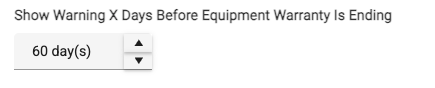
Show Warning X Days Before Equipment Warranty is Ending
- If you have added any warranty dates (see attached below) when adding equipment, this setting gives you the option to show a warning, based on the number of days selected before your equipment warranty is ending. To learn more, read this Knowledge base article for more: Add and Manage Your Equipment
Hide Requested Completion Date on "Add Work Order" form for Portal Users
- When selected, portal users will not be able to see or add a completion date when requesting a work order.
Require Requested Completion Date on "Add Work Order" form for Portal Users
- When selected, portal users will be required to choose a completion date on their work order request.
Hide Requested Completion Date on "Add Work Order" form for All Internal Users
- When selected, all internal users will not be able to see or add a completion date when requesting a work order.
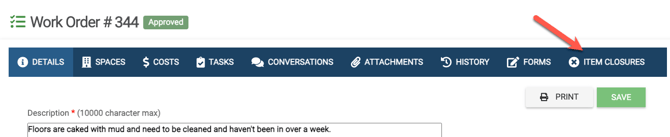
Allow Item Closures from Work Orders
- This allows you to create a Space Closure within a work order. If you are a bundled client using the Event Scheduler and Work Order Management modules, the space will not be able to be reserved for events during the closure.
- Read this Knowledge Base article for more: Work Order & Asset Management to Event Scheduler: Adding a Closure to a Work Order
Hide Quantity On Hand, Unit Cost, On-Hand Value for user roles
- When this setting is selected, the Quantity On Hand, Unit Cost, On-Hand Value will not be displayed for users.
Hide Items with no quantity from Current Inventory.
- When selected, any item with no quantity entered will appear on the Current Inventory report.