
Sections in this article:
- What Locations Are For
- Add a Location
- Edit a Location
- Default Location
- Give Users and Items a Location
- Locations on Events
- Conflicts Between Locations
- Deleting Locations
- Where You Can Filter by Location
What Locations Are For
A location is a campus. Locations separate events and user permissions by campus. Once you add them, you can use them to control who sees what, filter calendar views and more.
How many locations you can add depends on your subscription. To check yours, contact support@espace.cool.
Add a Location
- Go to Settings > Basic > Locations.
- Click Add New Location.
- Enter the Location Name and a short Loc Code (for example, CC for Carmel Campus), then click Save.
The Loc Code shows in front of event and item names on the calendar, the dashboard and item lists under Settings > Basic > Spaces/Resources/Services.
Step 1


Step 3

Edit a Location
On Settings > Basic > Locations, click the green edit button next to the location, make your changes and click Save. You can rename a location at any time.

Default Location
-
Every account needs a default location. With one location, that's your default. With more than one, choose the default under Default Location on the Locations page and click Save.

Give Users and Items a Location
Users:
- Go to Settings > Basic > Users and click the green edit button next to the person.
- At the bottom, expand Location Permissions.
- Turn on each location they should have and click Save.

Items (spaces, resources and services):
- Add a new item, or edit an existing one under Settings > Basic.
- Choose its Location and click Save.

Once assigned, the Loc Code shows in front of the item's name in item lists.

- An item with a location can be seen and reserved only by users with that location.
- With more than one location, an item with no location can be seen and reserved by everyone.
- Spaces need a location before you can link them on your Floor Plan. Learn more: Floor Plan | Linking Spaces
Locations on Events
-
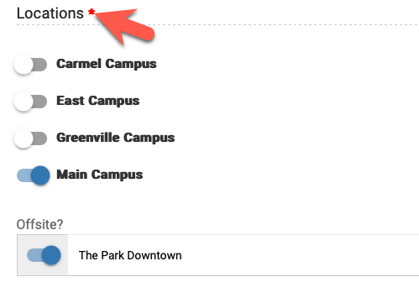
Every event needs a location, even offsite or virtual ones. Users see events on the calendar only for the locations they have.
- One location: every event uses it automatically.
- More than one: choose the location(s) on the event's Details tab before you submit it.
Conflicts Between Locations
To flag events at the same time on different campuses as conflicts, an admin turns this on under Settings > Advanced > General > Conflicts.
Example: a women's event at Main Campus and another at East Campus on the same Saturday morning. Showing the conflict keeps attendees from having to choose between them.
Deleting Locations
Please talk to support@espace.cool before deleting a location. Your events, items and users are all tied to locations, so deleting one affects your whole account.
If you have only one location, you can't delete it. To rename it, see Change Your Organization's Name in Your Account.
Where You Can Filter by Location
- Viewing Events on the Calendar Views, Filtering & Creating Saved Views
- Export Your eSPACE Events to Google, Outlook or Apple
- Find an Available Space to Create an Event
- Overview of Reports in Event Scheduler
- Public Calendar Feature | Embed/Put Your eSPACE Calendar on your Website
