Sections in this article:
- Editing a Space, Resource, or Service
- Deleting a Space, Resource, or Service
- Deleting a Parent Space, Resource, or Service
- Creating a Hierarchy of Spaces, Resources & Services
Editing a Space, Resource, or Service
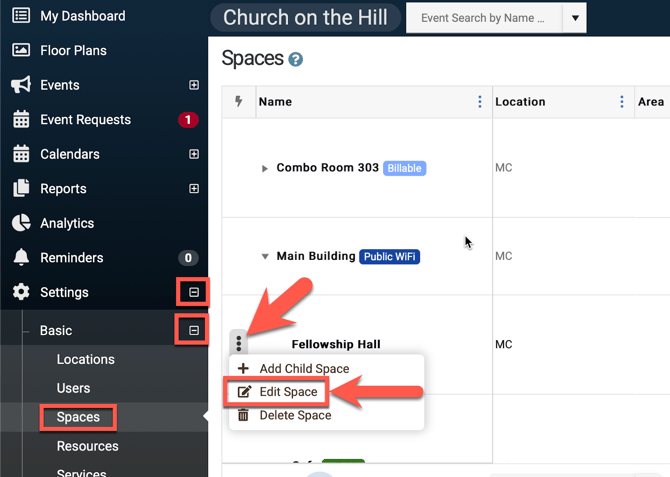
Any Admin can easily edit any item by going to Settings > Basic, then select Spaces, Resources, or Services where the item is located. If a space, resource or service's name is edited then it will automatically update on all of the events.
- Click the three dots to the left of the space, resource or service that you want to edit and choose "Edit..."
- Make your changes and then click SAVE, located on the right bottom corner of page.

Deleting a Space, Resource, or Service
- Any admin can also go to Settings > Basic > Spaces or Resources or Services, click the 3 dots to then choose the delete option. Please know that deleting a space, resource or service is permanent and this will result in removing it from all events.
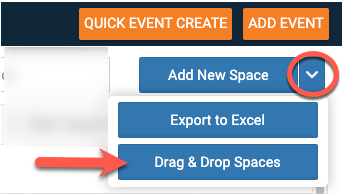
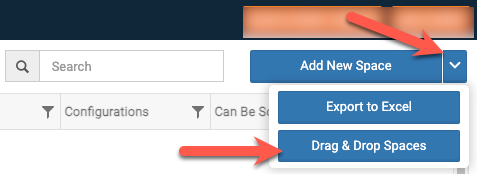
- If you have spaces, resources, or services arranged in a hierarchy, always delete the "child" ones first and then delete the "parent" at the end. Otherwise, click on the down arrow next to "Add New Space" and select "Drag & Drop Spaces". Then click and hold and drag the "child" items out from under the "parent". All changes will be automatically saved. Once all the "child" spaces have been removed from underneath the "parent" you can safely delete the parent.
Deleting a Parent Space, Resource, or Service
Creating a Hierarchy of Spaces, Resources & Services
After your spaces, resources and services have been created, you can start a “hierarchical tree” for any item such as a space, in order to "nest" sub/child spaces underneath a "parent space". When referring to a hierarchical tree, a “parent” is considered the top node and the “child” is the item under/within the “parent”.
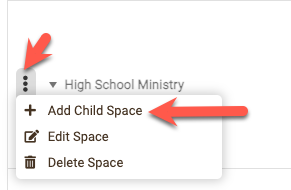
When creating a new spaces as a "child space" click the three dots of the "parent" and choose "Add Child Space".
To make existing spaces a "child" space under other spaces click the drop-down menu option and choose "Drag & Drop Spaces". Then click and hold a space to move it. Once you are hovering over the "parent" space, let go and you will see the space move to be a sub-space of that "parent" space. Your changes will automatically be saved.
- For example "Building A or Church Building" and then add “children” to the hierarchical tree, such as the floors, or rooms in that building.
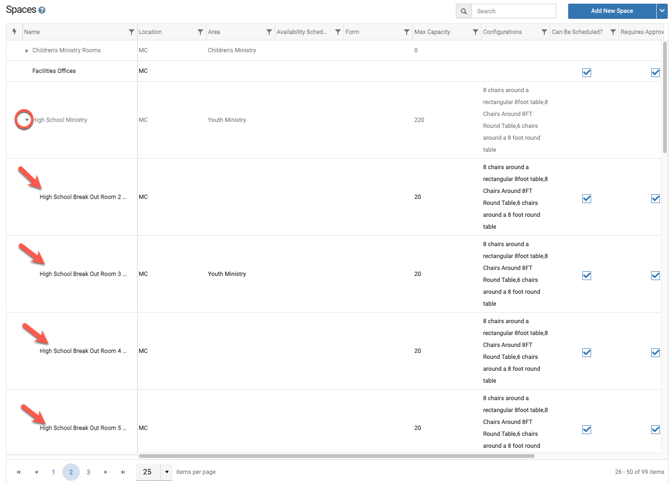
- In the example below, "High School Ministry" is the "parent" and all the High School Break Out Rooms are the subspaces aka "child" spaces.