Admins have the ability to add custom "User-Defined Fields" to the internal work order request form.
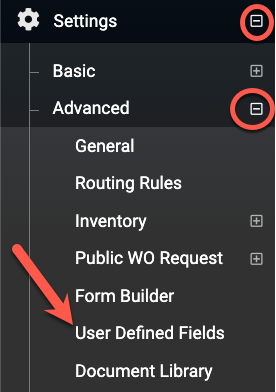
- 1. To get started, go to your sidebar and go to Settings > Advanced > User-Defined Fields.
- 2. Then choose "Add New User Defined Field"

- 3. Start adding your "user defined field" to a work order request.
- 4. If you choose to add a user-defined field to a work order request, do the following:
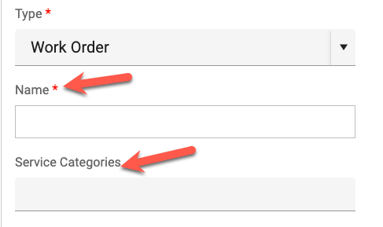
- Add the name of your user defined field
- Associate one or more service categories
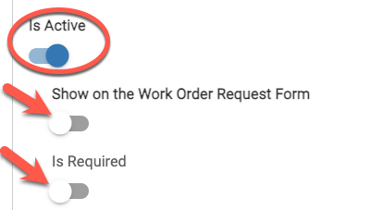
- Toggle on "Is Active" to see additional fields such as "Show on the Work Order Request Form" and "Is Required". Toggle on either or both of those sub-options if needed.
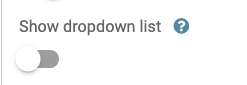
- If you toggle on "Show dropdow list", it will present the user with a dropdown list instead of a free form text box.
- Remember to click SAVE!
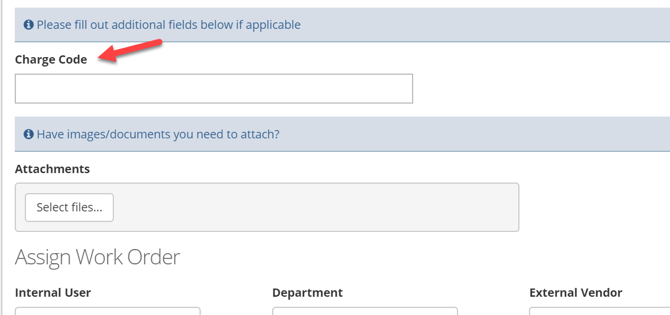
Within a work order request, this is what the user-defined field looks like, if not required.
- The custom user-defined fields will be filled out when initially filling out the internal work order request form. However, regular users can edit the custom user-defined field answers after the work order request has been submitted.
- Admins and sub-admins who have been given permission to manage work orders can also edit any custom user defined field answer on a work order after the work order has been submitted.
Related articles:
- Vehicle Pro | Add Custom User-Defined Fields to Vehicles
- Equipment | Add Custom User-Defined Fields to Equipment Pages