
We have developed and sell a driver (a small piece of software, aka a .jar file) that can be installed in a JACE that communicates with our eSPACE Event Scheduler module, allowing the Event Scheduler to communicate with your HVAC systems.
Equipment/Environment
-
We are compatible with versions of Niagara up to version 4.15. The driver works on Windows-Based Niagara Supervisors, JACE-8000’s and JACE-9000’s.
- Serverless functions are stateless and ephemeral (they spin up for a few seconds and shut down). A Niagara driver must maintain constant open network connections (IP or serial) to communicate with field devices and controllers.
- The driver will work on a Virtual Machine (VM). Since the driver is built to work on a Windows-based Supervisor, it will execute as long as the host VM is running a supported operating system. (Windows 2016, 2019, 2022, 2025, Windows 10 or 11 64 bit).
Initial Steps
-
Make sure your HVAC controls are compatible by confirming with Sales
- Purchase a driver, which connects your eSPACE account to your JACE
- Make sure your controls programmer understands what they will need to program
- Schedule a Demo to Add to your Subscription
- Schedule a Demo with Sales for new Subscriptions
Total Integration Cost
It’s also important to understand the additional cost that is specific to this integration, which sales will go over in their meeting with you.
- COOLSPACE/HVAC subscription cost
- One time set up fee for configuring your account for the JACE integration
- Cost of the COOLSPACE Driver
- Other possible costs could include programming by your controls contractor
Updating Driver and Niagara Compatibility
- Each driver is specifically made and can only be designed to work with the Host ID of the JACE or Windows-Based Niagara Supervisors it's installed on.
- If the driver moves devices or if the host ID changes for any reason, then you will need a new driver from Smart Church Solutions. Please reach out to eSPACE support to ask about the cost of getting an updated driver for your new host ID.
- After you get an updated driver for a new host ID, please make sure to also download a new Niagara/JACE license from the Niagara servers, so the driver also gets the feature where your driver does not count against your device licensing on the JACE.
- To do so, you will need to “Import” the license file the driver company sent via the “License Manager” in your Niagara system.
- When you import from the file that they send, select the first option, which is to “Import one or more licenses from files”.
-
You should also select the last option, which should be something to the effect to import “…from the licensing server”. This will update your actual Niagara license as well.
- After you get an updated driver for a new host ID, please make sure to also download a new Niagara/JACE license from the Niagara servers, so the driver also gets the feature where your driver does not count against your device licensing on the JACE.
- However, if you ever update the JACE to a new version of Niagara, please let us know, and we can send you an updated driver for the Niagara version (but not if you also change host ID's or physical JACE's). We are compatible with versions of Niagara up to version 4.15.
How Schedules Make it to the JACE
- Once your account has the JACE integration:
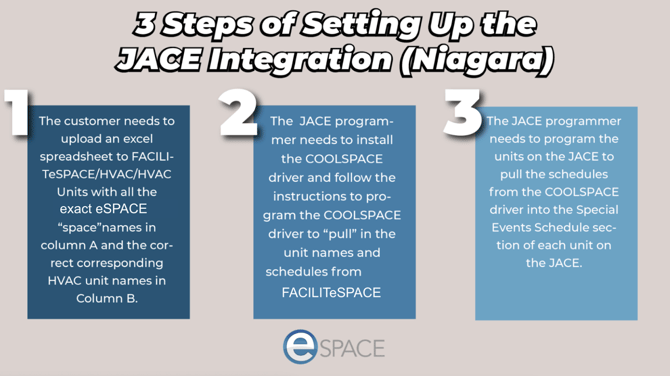
- 1. you have imported an Excel spreadsheet of the assigned HVAC units and spaces to the HVAC integration in FACILITeSPACE, then you will be ready for your controls programmer to follow the COOLSPACE Driver integration guide.
- 2. They will need to install the driver on the JACE (or supervisory controller) and then by following the integration guide, they will program it to reach out to your eSPACE account and sync in the schedules for the next 24 hours (only approved events are made available for the driver to sync over).
- 3. After your controls programmer has set it up, the units on the JACE will then “pull” the events from the driver to their Special Events Schedule tab so the HVAC units on the JACE know when to engage or disengage the HVAC.
- 4. Once the integration is set up, events must be fully approved with a start time in the future in order for eSPACE to add them to the ics feed in time for the driver to sync over.
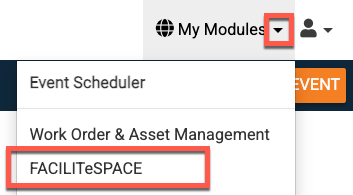
Step One: Switching to the FACILITeSPACE Module
1. Once you are ready to complete step one of the integration, log into your eSPACE account and click on "My Modules" at the top right and select FACILITeSPACE.
- Only the admin with billing access who initially added COOLSPACE to the subscription will be granted immediate access to the Building Automations, but they can give access to other admins.
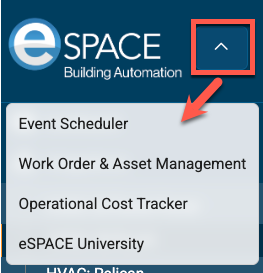
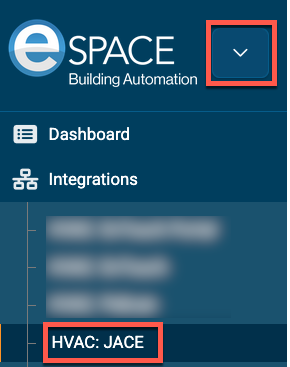
- Once in the FACILITESPACE module, you can switch back to another module by clicking on the arrow next to the eSPACE logo and selecting a different module.
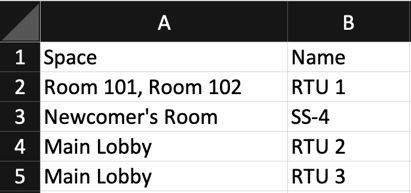
2. For the Excel spreadsheet, the header for column A must be "Space" and the column header for B must be "Name" in order for the HVAC units and spaces assigned to be uploaded into the customer's FACILITeSPACE account.
- While there can only be one HVAC unit name per row, you can place as many space names (separated by a comma) as needed on each row in order to properly assign all the HVAC units the right spaces.
- The space names in the Excel need to EXACTLY match the space names in your Event Scheduler account.
3. To import the completed spreadsheet, switch to the FACILITeSPACE module, click on Integrations in the left side menu to expand it and then choose the JACE option.
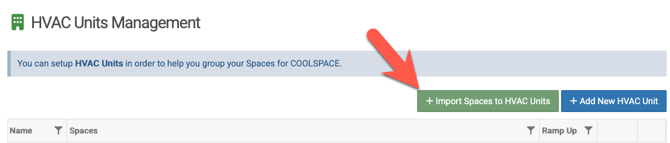
Then on that page, click "Import Spaces to HVAC Units" and follow the steps to upload the Excel.
4. Once all your HVAC units and spaces are imported, you will see them on the main page. You can then click "Edit" on any of them and add ramp time (the time that the HVAC schedule will start before either the set up time on the event or if there is no set up it will be the time before the start time of the event). 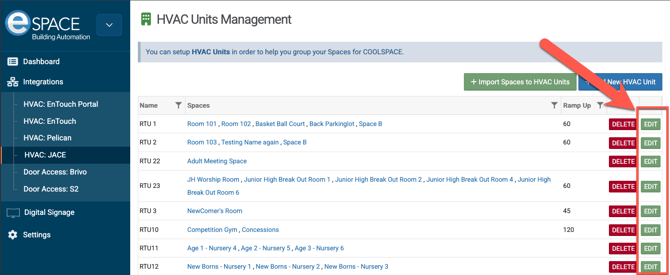
How HVAC Schedules are Calculated
- If the events have setup and tear-down times, eSPACE will use that as the start and end time for the HVAC.
- If there are no setup or tear-down times entered, then it will look at the event start and event end times.
- You can also add ramp times for each unit in eSPACE so that is added to the start/end time or setup/end teardown time of the event as well.
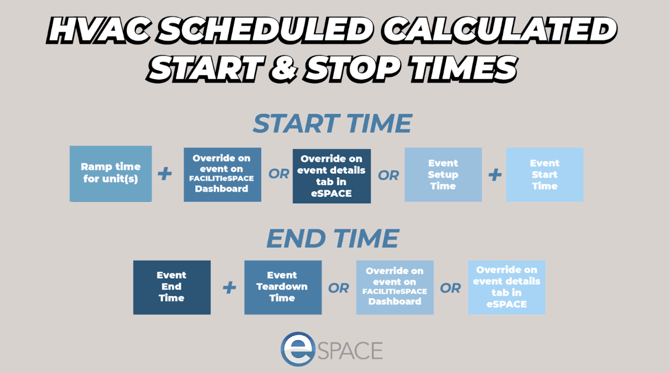
Overrides for the HVAC
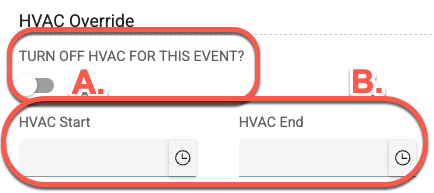
If you are using the Event Scheduler module and are an Admin, you have the ability to override the HVAC system. You have the ability to turn off the HVAC for the event, or simply override the HVAC start and/or end times as shown below.
Most Common Troubleshooting Step
Diagnose outbound network access
- If the driver is on a Windows-hosted Supervisor/station (not embedded JACE hardware): Niagara-on-Windows inherits its network stack from the Windows OS, not from Niagara's own platform settings. DNS and Gateway must be set correctly in the Windows Network Adapter IPv4 properties — checking Niagara's internal settings alone isn't enough.
- If the driver is installed directly on a JACE: the JACE is its own embedded hardware appliance, so DNS and Gateway are configured in the JACE's own platform/TCP-IP settings (Platform → TCP/IP Configuration in Workbench), not in a Windows adapter. Confirm those settings there instead.
- Outbound DNS (port 53): Many church/enterprise networks block outbound DNS to public resolvers (e.g., Google 8.8.8.8/8.8.4.4) to enforce internal DNS/filtering policy. If logs show DNS failures, have their network/firewall admin allow outbound port 53 from this server/JACE, or point it at an internal DNS server that can resolve external names.
- Default gateway: Confirm the active internet-facing interface (Windows adapter or JACE platform config) has a working default gateway configured. Without one, it can't reach anything off its local subnet.
- Outbound HTTPS (port 443): Have IT confirm the server/JACE can reach, over HTTPS:
alerts.weather.gov- eSPACE services — IPs
67.227.165.72and67.227.165.122
- If DNS, gateway, and port 443 are all confirmed open and the driver still isn't syncing, restart the device that's actually running the driver — the Windows server if it's Windows-hosted, or reboot the JACE itself if the driver lives there — to fully reset the driver and networking stack.