Our eSPACE mobile app is a "progressive web app" (PWA for short). That means that even though it is a web application, it can still be "installed" to your smartphone or tablet, and run much like a native app. If you'd still like to install it as a native app, please check out the native Mobile App article!
Here's how to install it as a PWA.
On an iOS Device
- Open Safari and navigate to https://app.espace.cool and log in.
- Tap the "Share" icon at the bottom center of the page

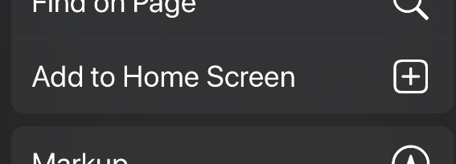
- Scroll down to the "Add to Home Screen" option and tap it.
- Give it a name (like "eSPACE").
- Go to your home screen, find the new icon, and click it.
- Log in to eSPACE. If you ensure the "Stay Signed In" option is enabled, you should not have to log in every time you launch the icon.
You're all set! Notice there is no address bar, nor browser navigation buttons. It's like a native app!
On an Android Device
- Open Chrome and navigate to https://app.espace.cool and log in.
- Tap Settings in the upper right corner of Chrome
- Scroll down to the "Add to Home Screen" option and tap it.
- Go to your home screen, find the new icon, and click it.
- Log in to eSPACE. If you ensure the "Stay Signed In" option is enabled, you should not have to log in every time you launch the icon.
Check out the native Mobile App article!