Sections in this article:
- Why Do Work Orders Keep Reappearing?
- Step 1: Find the Work Order's Description
- Step 2: Find the Matching Preventative Maintenance
- Step 3: Delete the Preventative Maintenance
- Seeing Which Work Orders a PM Has Created
Why Do Work Orders Keep Reappearing?
If the same work order keeps showing up in your account, or comes back after you delete it, it's being created by a preventative maintenance (PM) that someone in your organization set up in eSPACE. A PM automatically generates a new work order on a set schedule, such as weekly or bi-weekly.
Deleting the work order on its own won't stop new ones from being created. To stop them, you need to delete the PM that's generating them.
Step 1: Find the Work Order's Description
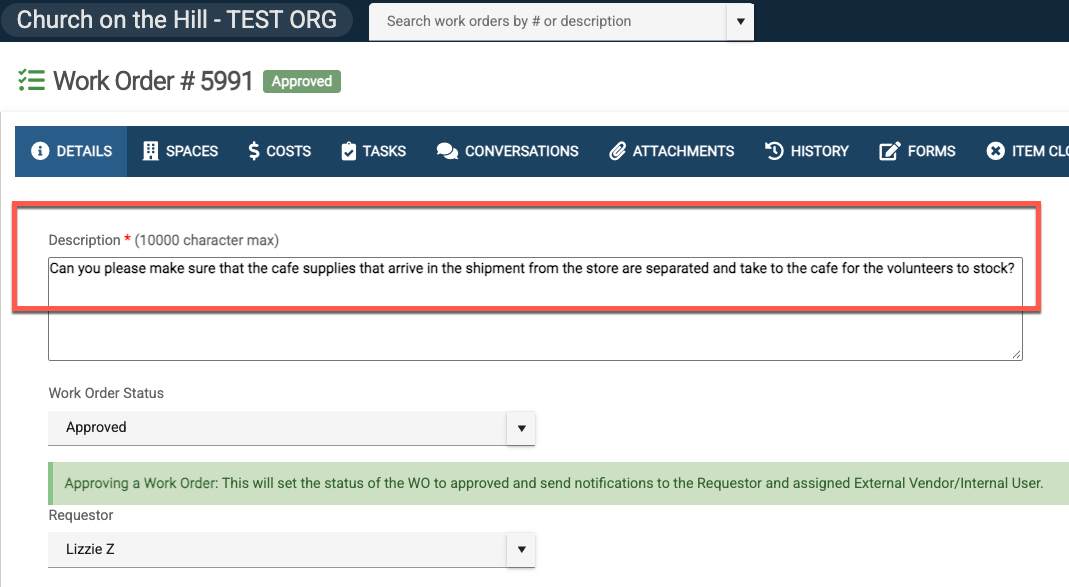
Open the work order that keeps reappearing and note its description. You'll use it to find the PM that's creating it.
Step 2: Find the Matching Preventative Maintenance
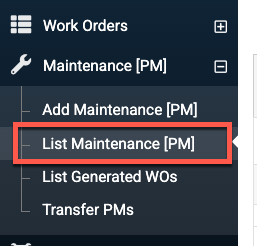
1. In the left side menu bar, go to Maintenance [PM] and select List Maintenance [PM].
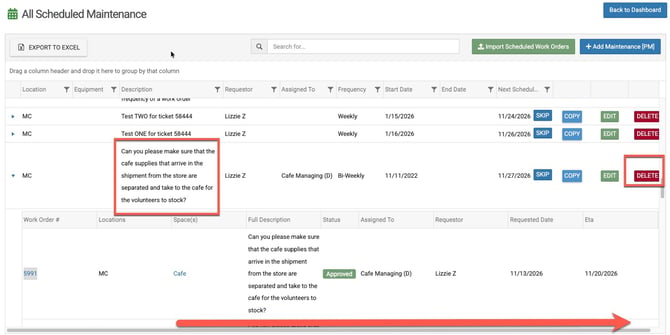
2. On the All Scheduled Maintenance page, find the PM with the same description as the work order. You can type part of the description into the search bar to find it faster.
Step 3: Delete the Preventative Maintenance
Scroll through the list of PM"s that you have until you find the one with the same description. Then scroll to the far right of its row and click DELETE. After it's deleted, it will stop creating new work orders.
Another option:
-
You can also edit the PM and change the end date so the PM stops creating new work orders while keeping the PM for record sake.
Seeing Which Work Orders a PM Has Created
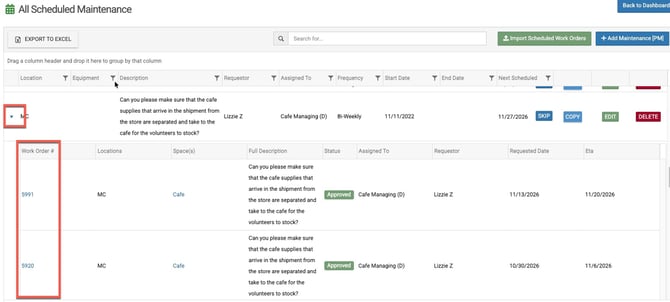
To see the work orders a PM has generated so far, click the arrow on the left side of the PM's row to expand it. Each work order number is listed and you can click on a the work order number to navigate to that work order.