-
Device Tab: Global Set Points, Assigning Spaces to Thermostats, Statuses, API Logs
-
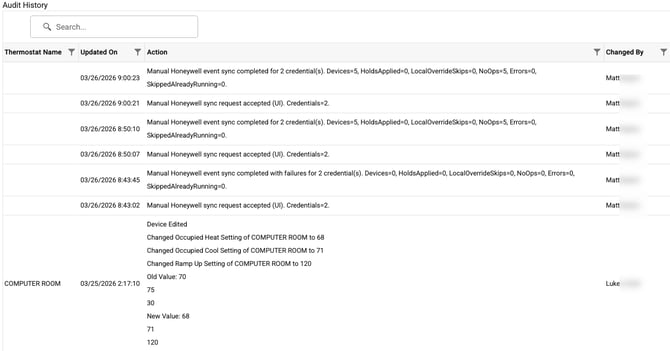
History Tab: History of API calls sent to Honeywell, log of setting changes in eSPACE
Thermostat Compatibility
- Thermostats must be connected to one Honeywell OAuth account through a Resideo account
-
Thermostats that Honeywell sells that are NOT compatible with their API, are not able to integrate.
- Even if you transfer your thermostats from My Total Comfort Connect to Resideo, older legacy Honeywell thermostats that are not built to be compatible with Resideo's API will not be able to integrate with eSPACE. Please contact Honeywell support to determine which Honeywell thermostats are compatible with Resideo's API before moving any thermostats from My Total Comfort Connect to Resideo.
Add COOLSPACE to your account
-
Adding to an existing eSPACE subscription: Schedule a demo with a Customer Success contact
-
New to eSPACE: Schedule a demo with Sales
How the Integration Syncs
-
The integration runs automatically in the background:
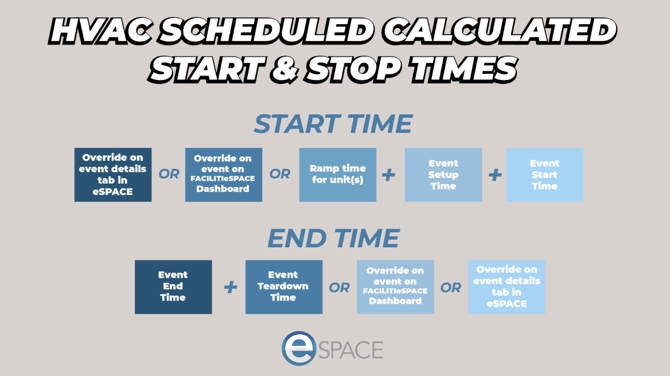
- Every 30 minutes, eSPACE checks for upcoming events that need a thermostat override and caches them.
- At the event's HVAC start time, eSPACE sends that override to the thermostat.
Overrides only, not schedules. Honeywell's API only lets eSPACE send temporary overrides — it can't push full schedules or recurring events to a thermostat. Because of the 30-minute check cycle, changes made in eSPACE (new events, edits, thermostat assignments) aren't reflected on the thermostat instantly; they take effect on the next sync after the event is approved.
Overrides behave like an in-person hold. When eSPACE sends an override, it looks identical to someone walking up and setting a hold manually at the thermostat — it will display as "Hold until [time]".
Overrides clear automatically. When the eSPACE event ends, eSPACE sends a command to cancel the hold, returning the thermostat to its normal Honeywell schedule.
Adjusting Temperature on the Thermostat During an Event
-
Once the event's start time, setup time, and ramp time have all passed, staff can adjust the temperature directly on the thermostat. The new temperature will hold as set.
How to Know if an Override is from eSPACE
-
A thermostat can end up in a hold two ways: eSPACE sending a scheduled override, or someone setting a hold in person at the thermostat. To tell which one you're looking at, check the FACILITeSPACE integration module — it lists every override eSPACE has sent, so you can compare it against what the thermostat is showing. See the Device Tab section below for where to find these logs.
How to Connect Honeywell Resideo (or First Alert) to eSPACE
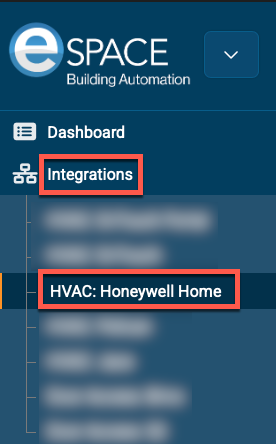
- Click My Module in the top right and select FACILITeSPACE.
- In the Integrations module, click Integrations to expand it, then select Honeywell.
Connection Tab
3. Switch to the Connection tab and click Connect to Honeywell.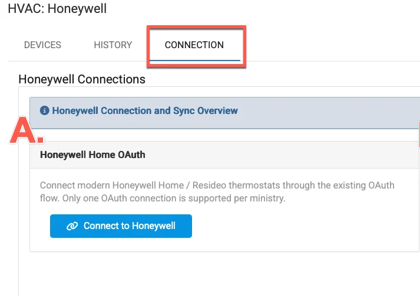
Important: enter the account owner's credentials in eSPACE — only the owner login lets eSPACE discover the connected devices.
Once connected, the Connection tab shows your saved settings, including:
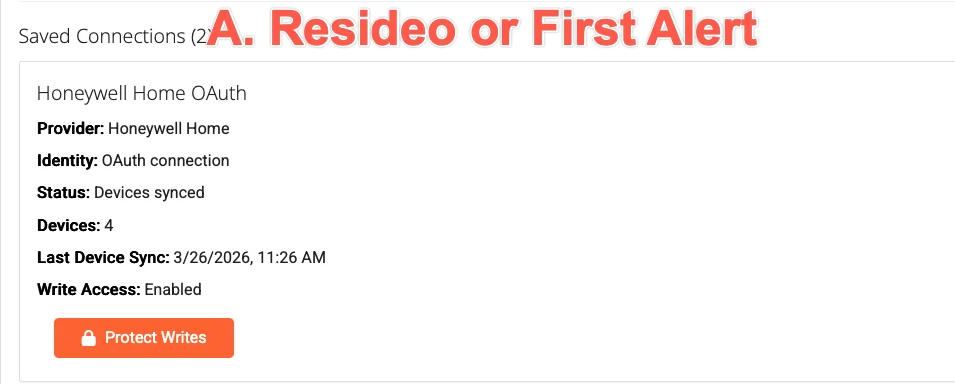
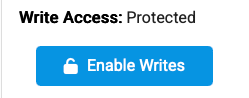
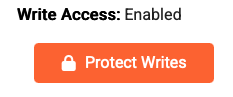
Write Access: This is the master on/off switch for the whole integration. It controls whether eSPACE syncs anything to your thermostats at all, and applies across Resideo.
|
State |
Definition |
|---|---|
|
|
The integration is paused — eSPACE won't send any overrides |
|
|
The integration is active — eSPACE sends overrides automatically based on your events |
Device Tab
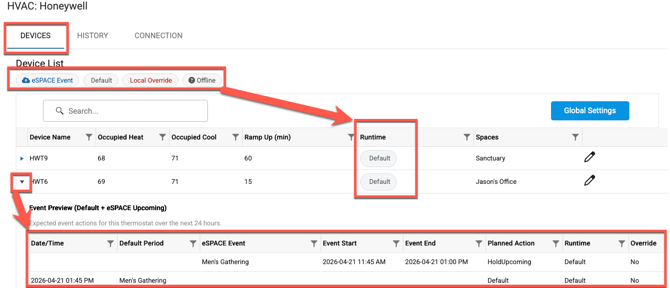
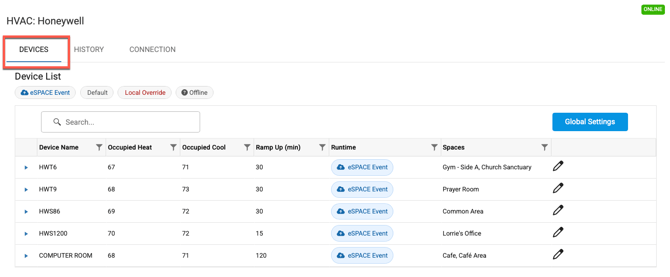
The Device tab lists every thermostat connected to eSPACE. All times shown here display in your browser's time zone. This is also the tab where you will change occupied set points, assign spaces to thermostats, and see the current status of your thermostats.
Global Occupied Set Points
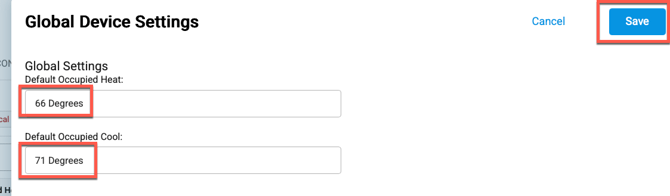
With the global setting, you can change all the occupied set points for thermostats at once. Set the default occupied heating and cooling setpoints by clicking Global Settings, changing the occupied set points to be what you want eSPACE to set the cool and heat to during an event from eSPACE, and then click Save.

Assigning Spaces to Thermostats
Click the pencil icon next to a thermostat to assign it to a space. For eSPACE to send an override to a thermostat, both must be true:
- The thermostat has a space assigned to it.
- That space is on an approved event with an HVAC start time in the future.

Thermostat Statuses
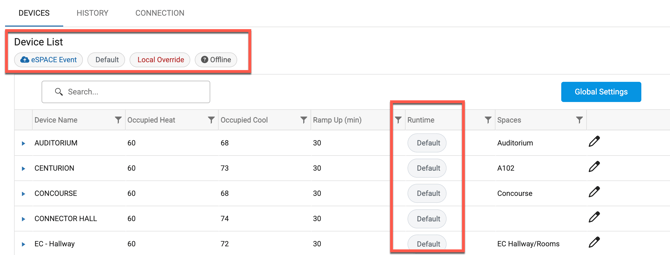
Each thermostat on the Device tab will show one of four statuses in the Runtime column:
|
Status |
What it means |
|---|---|
|
eSPACE Event |
eSPACE currently has an active hold on the thermostat |
|
Default |
The thermostat is following its normal Honeywell schedule |
|
Local Override |
Someone placed a hold in person at the thermostat |
|
Offline |
The thermostat is offline — eSPACE can't send it an override |
Based on the thermostat status, you will see why the current thermostat is overridden. This is the fastest way to confirm whether a given hold came from eSPACE.
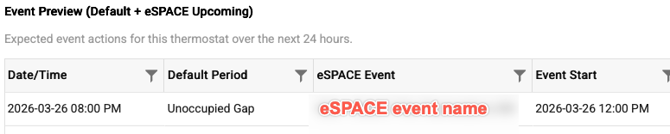
Upcoming Event Override logs
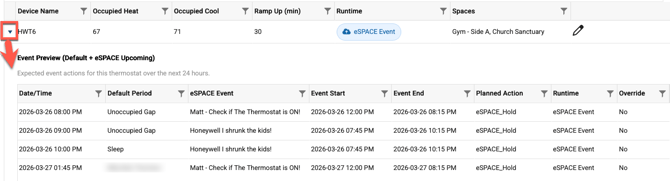
Each thermostat has its own future event log. Expand the thermostat to see that log in order to see upcoming events that will send an override to your Honeywell thermostats. The logs include the eSPACE event name.
Status at Top Right
In the top right of the integration, you'll see the overall connection status:
- Online — the integration has synced successfully with Honeywell within the last hour.
- Error — the integration hasn't synced in over an hour.
If it remains on Error, reach out to eSPACE support.

History Tab
The History tab shows the latest integration activity — essentially, a record of whether and when eSPACE has synced overrides to your thermostats. Times here display in your browser's time zone.
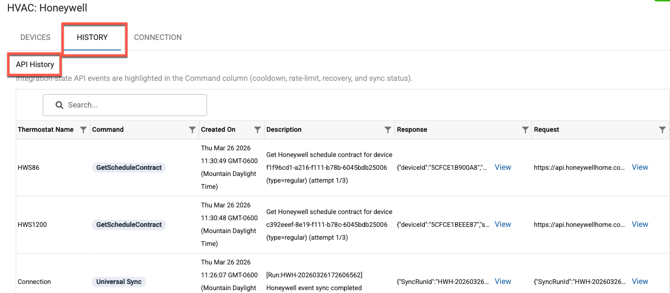
Included in the API History section of the History tab could be the following:
Integration Sync & Overrides Definitions
- Universal Sync = any and all Honeywell thermostats that you have connected to eSPACE that need an override for an event "now" have been sent an override
- Sync Overlay Device = Per-device overlay sync result. When the sync fails for an individual thermostat, the description may include [RateLimited], [PortalWriteRejected], [PortalVerificationFailed], [SessionFailure] , or [Unknown]
- Set Overlay Hold = eSPACE sent an override for a thermostat based on an event
- Release Overlay Hold = eSPACE released an override on the thermostat
- GetScheduleContract = eSPACE synced in the current Honeywell schedule for the thermostats in order to populate the "Live Honeywell Schedule" on the Connection Tab in eSPACE (used for Support troubleshooting)
- Sync Schedules = the sync to push overrides to the thermostats started and stopped
- Sync Schedule Devices = per thermostat schedule sync
- Set Schedule, Set Schedule Preflight, Set Schedule Verify, and Set Schedule Fall Back = part of logging when scheduling thermostats
- RefreshToken = eSPACE refreshed the token needed to send API calls to Honeywell
Audit Logs for Settings
The History tab also logs setting changes made within your Honeywell integration in eSPACE — including who changed an occupied set point, and when.