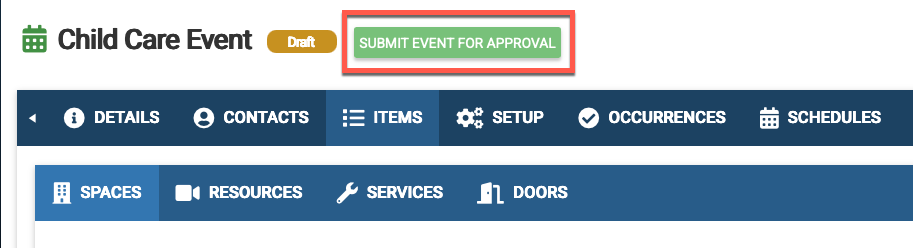
There are two options to add an event to eSPACE.
A. The Quick Event purposely doesn't include all the options, such as the door and HVAC overrides, but it designed to be a quicker way to add a basic event.
B. The Add Event includes all the option for adding an event and is better to use if the event is not a simple meet one time in one space with the room standard setup type of event.
The Basic Steps for Adding an Event
1. Click Add Event at the top right hand side of your account
2. Add the name, internal description, dates and times and everything else that you need on the page. 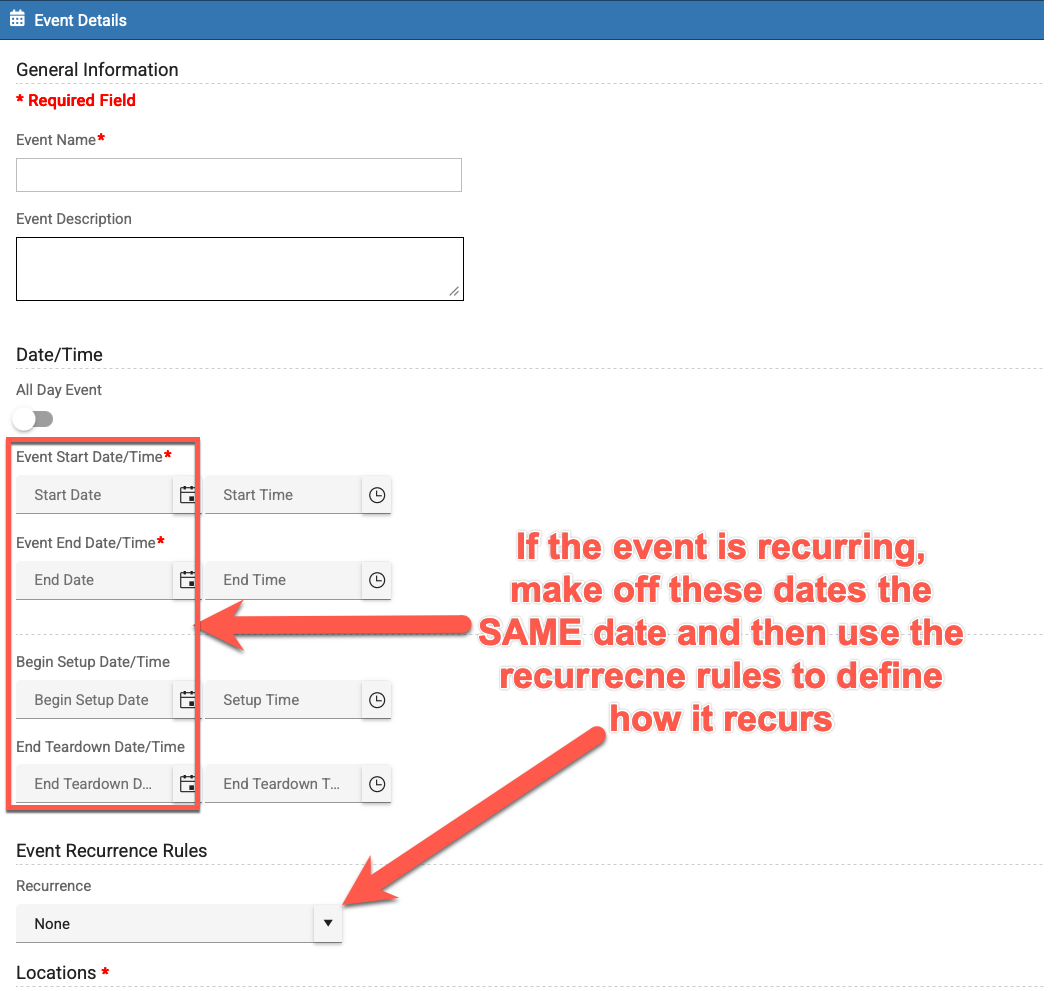
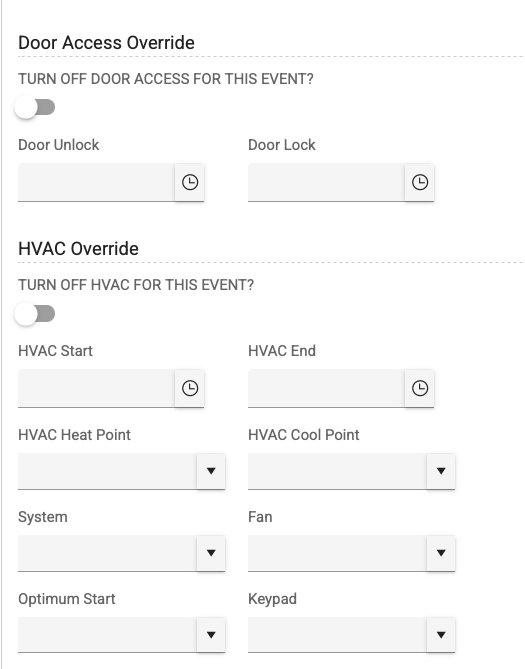
3. If you have the door and/or HVAC eSPACE integrations (and permission to do so), you can make an override for this specific event. This should only be done if the doors and HVAC need to unlock/start and relock/end at specific times that are different than the buffer and ramp up times set up on the full integration FACILITeSPACE page.
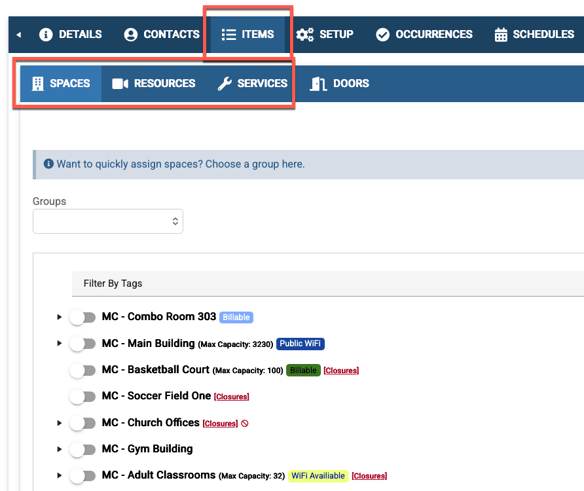
4. On the Items tab, choose the spaces, resources, and services that you need for your event.
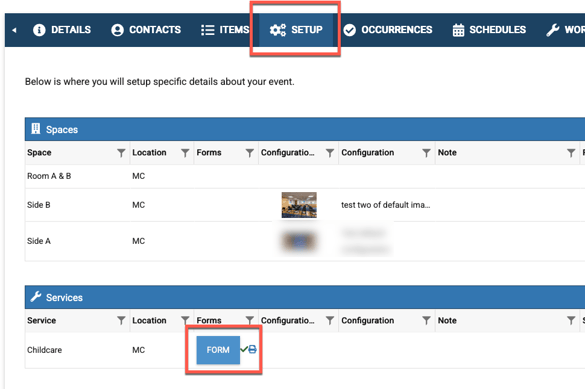
5. If any of those items have internal forms, fill those out on the Setup tab before submitting the event for approval.
6. Go through the tabs and add everything else that you need for your event.
7. If you need to a just one of the occurrences to have a different space, start at a different time etc, go to the Occurrence tab, expand the one that you need to edit and make the edit. 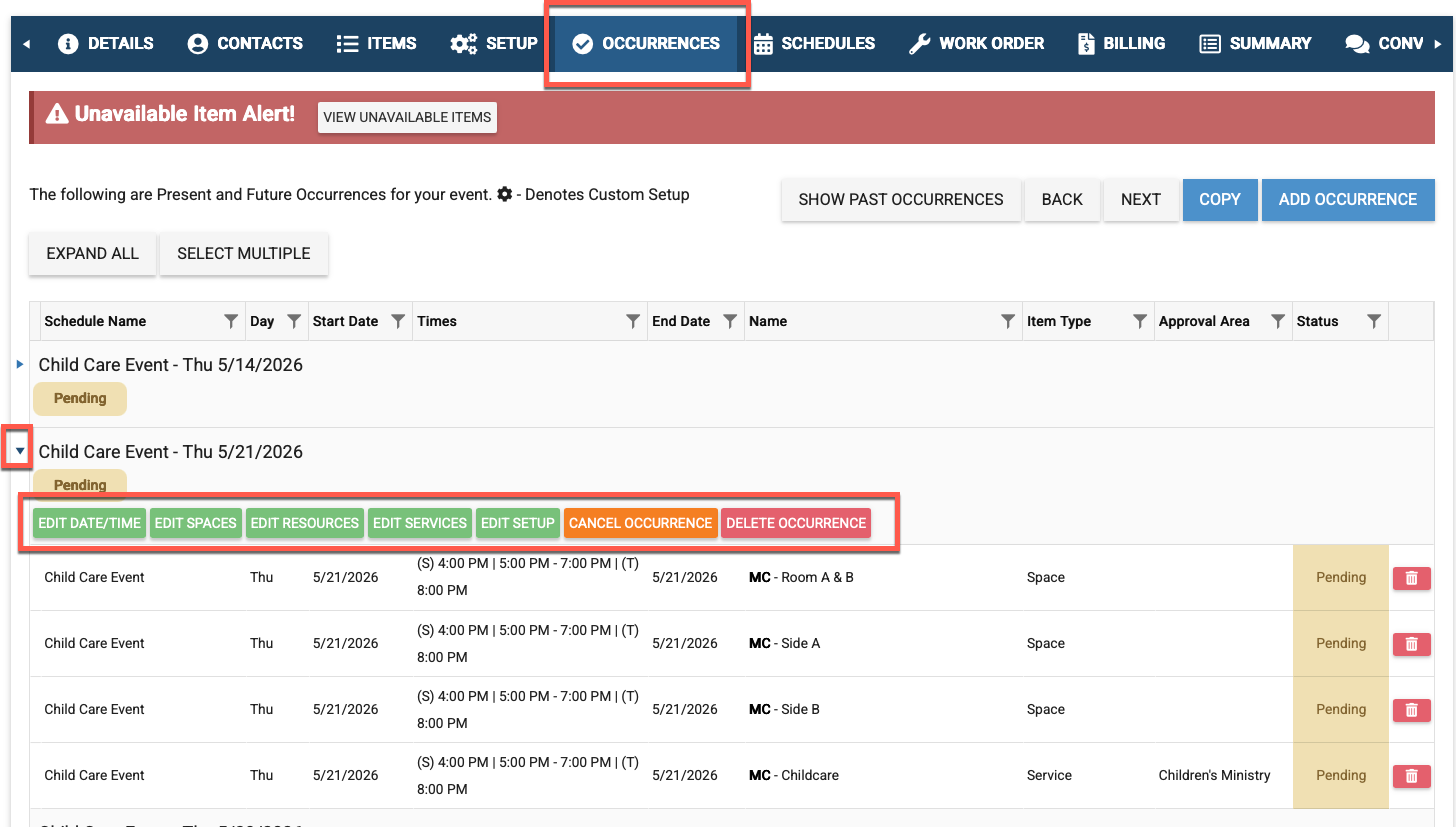
8. Submit the event for approval.