Creating an Event
Rock has the ability to create "pages" inside their software so that users can create unique pages in their account for their members to use.
Using this ability, you can embed the eSPACE Public Event Request form onto a new page in Rock so that all Rock users can fill out the eSPACE form in Rock. Once the event is submitted, an admin in eSPACE can review, edit, and approve it.
The basic steps to do this are:
To watch these steps in a video, see this video from Rock:
The eSPACE Event Request Form is located in your account under Settings > Advanced > Event Request Form. The one you currently have there is inactive. You will want to use an active one to place into Rock.- Go to your Admin Tools and select CMS Configuration
- Click Page
- Expand the hierarchy of pages to see where you want to place the page with the eSPACE Event Request Form
- Click on the "parent"/top page that you want the eSPACE Event Request Form to be added to
- Select to add a page by clicking on the plus sign at the top of the hierarchy and then choose "Add Child Selected
- In the Add Page screen, name it on the Basic Settings tab
- Save
- Add a block to the page by clicking on the Page Zones icon at the bottom of the toolbar
- Click the Main Zone
- Click the plus button to add a block
- Choose to add a HTML Content block
- Decide if you want that block to be applied to just the page, the Layout or Full Site
- Save
- Click Done
- Click the Block icon in the bottom toolbar
- Click to edit the HTML content block
- Paste in the Event Request Form URL
- Example of a test form: https://app.espace.cool/Public/PublicEventRequest/13566/461
- Save
To watch these steps in a video, see this video from Rock:
Editing and Canceling an Event
Unless the people submitting an event through the eSPACE Event Request Form in Rock are also users in eSPACE, they will not be able to edit or cancel their event in eSPACE.
If they are users in eSPACE, then they when they check on the status of their event requests,
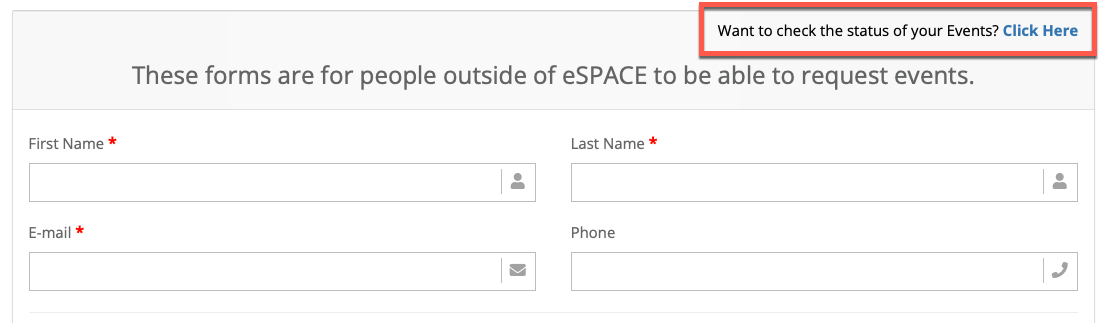
...they will be able to click on the event ID and be automatically navigated to that event in eSPACE.
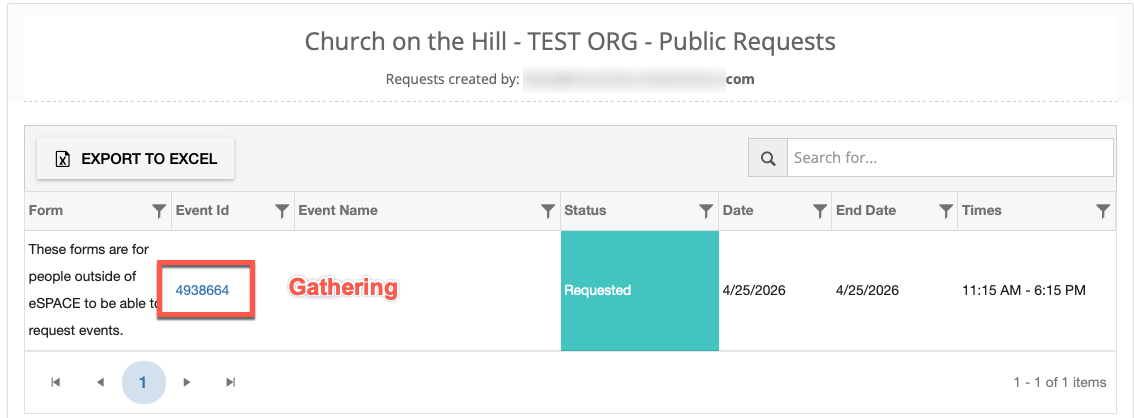
If they do not have access to eSPACE, then they will need to contact an admin in eSPACE to edit or cancel their event for them.