Admins have a higher level of approval power on events than Sub-admins, there when they click "Approve" on an event when it's in their "Requires Administration Approval" grid, they will approve any and all spaces, resources and services that still need approval and thus bypass an sub-admin that still needs to approve their items. Therefore admins need to check to see if their sub-admins have approved items in their approval area BEFORE they click "Approve" when an event is in their "Requires Administrative Approval" grid.
Admin can always check to see which items on the event have NOT yet been approved by sub-admins by clicking on the "clock" icon on events when they are under the"Requires Administration Approval" grid on their Dashboard.
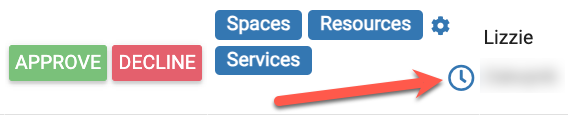
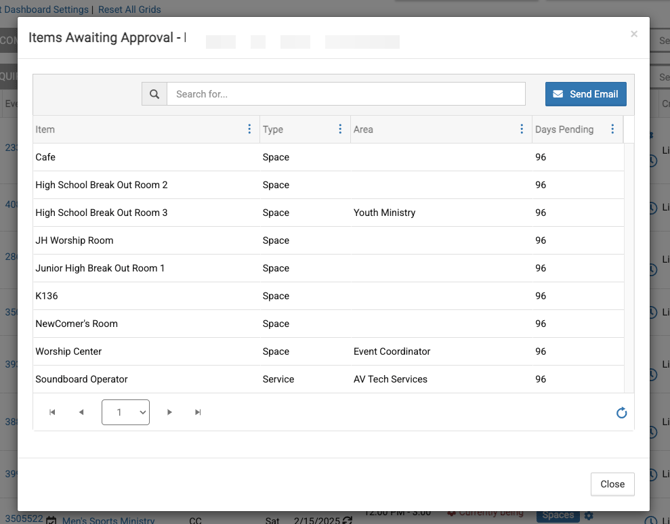
When an admin clicks the "clock" icon a pop-up box will appear showing them all the items that have NOT yet been approved by sub-admins.
- In the example below each item that is assigned to an approval area has not yet been approved by the sub-admin(s).
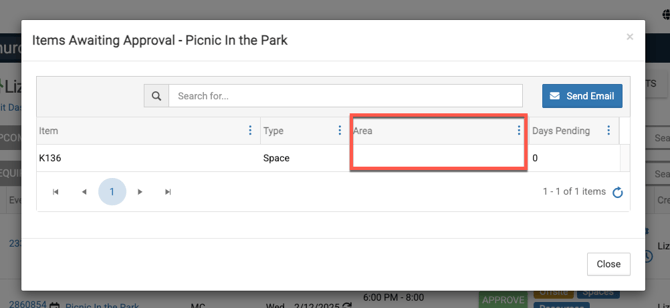
Once all items tied to an approval area have been approved, then if there are any items left still pending approval because they are not in an approval area, then the admin can click "Approve" on the event.
- In the example below the items left are not in any approval areas so the admin can go ahead and approve the event.
Reminding Sub-admins to Approve
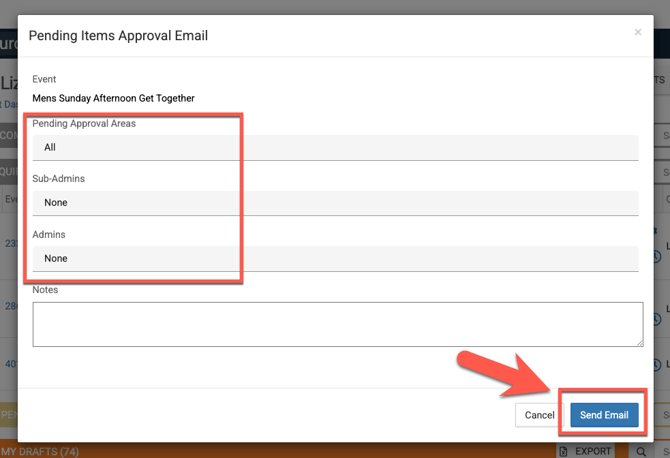
When an admin sees that sub-admins have not yet approved their items on events, they can choose to send an email to any Sub-Admins or Admins that have pending items.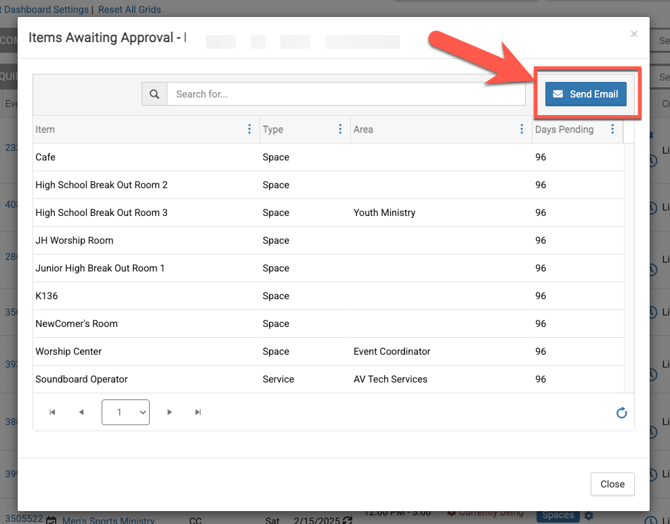
Seeing Event Details on the Dashboard
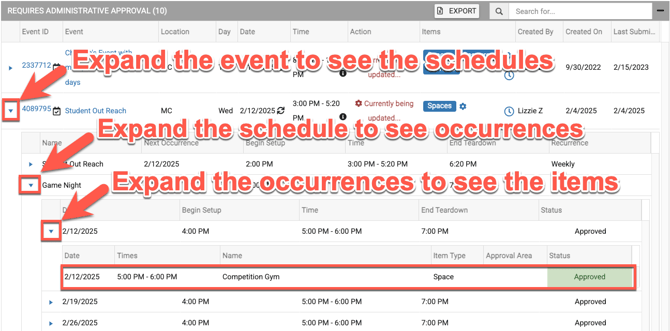
Admins can also expand the event by clicking on the "blue arrow" to see event details.

Conversation Tab on Events
If you need to communicate about the event to others and want your communication to be tied to the event use the Conversations tab to do so!
Read this Knowledge Base article to learn more: Conversations within an Event
Further learning:
- Where does a Sub-Admin Approve Their Items on an Event?
- Where Does an Admin with Sub-Admin Role Approve their Area of Responsibility in an Event?