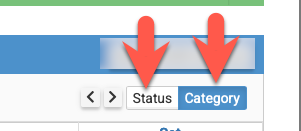
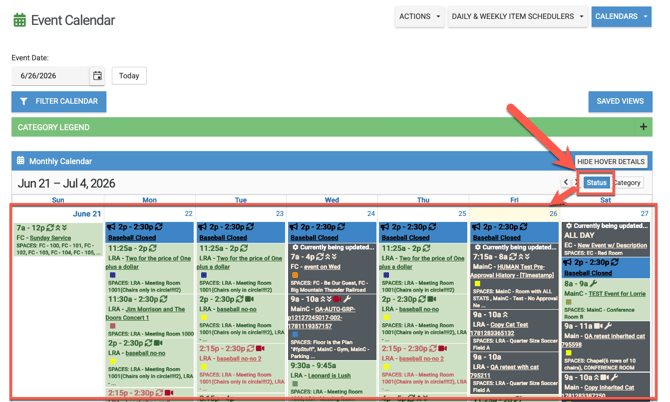
Event Status Colors - Available on All Calendar Views
- Yellow events are pending the regular layer of approval ("Requires Administrative Approval" and "Requires Sub-admin Approval"). These will only display for ALL users if admins have that setting enabled under Settings>Advanced>General>Event Creation.
- If your account also has pre-approval enabled, then events that have not been pre-approved yet will be yellow with a tag that says pending pre-approval.
- Green events are ones that have gone through the regular layer of approval. If your account has final approval also enabled, then they will be green with a tag that says "Pending Final Approval" until they are also final approved.
- Gray events are ones that need to be submitted for approval.
- White and crossed-out events are canceled events and will only show if admins have that setting enabled under Settings>Advanced>General>Display Features.
Event Category Colors - Available on Two Week, Monthly, & Condense Views
For the Two Week, Monthly, and Condensed Views, you can choose to switch the colors on the event from representing their approval status to representing their event category type.
These three views will at first default to using event statuses.
If you click on Category, then the event colors will change to the event category colors. The color of the text will be dark on event categories that have lighter colors and be white on those with darker colors. Content accessibility standards for text color are governed by the Web Content Accessibility Guidelines (WCAG). They require a minimum contrast ratio between text and its background to ensure readability for users with visual impairments.
-
In order to avoid confusion, it is recommended to use custom event category colors that are different than the traditional event status colors, read more below.
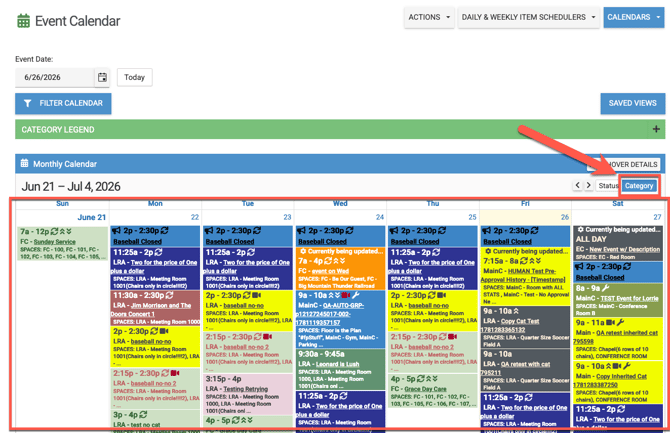
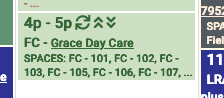
However, if you have events with no event categories selected on them, then the colors of those events on these three calendar views will be the color of their event status.
-
For example, this Grace Day Care event has no event category chosen and it's approved, so it is the classic light green color, the color of it's event status.
Each admin will get to choose which color they want for each event category in their account. This way each user can color code the events on their calendar views (Two Week, Monthly, and Condense) to best fit their needs.
However, each user, sub-admin and admin can choose to either have their Two Week, Monthly, and Condense calendar set to the event status color view or the event category color view. Once selected, those three calendar views will always default to the color view that is chosen.