What is a Schedule?
-
Schedules live on events. While each event is a separate entity in eSPACE, each event can have multiple schedules and each schedule can have multiple occurrences.
- While conflict detection exists between events, eSPACE does not shows conflicts between schedules within the same event. Conflicts will only be detected and flagged between separate events. This provides more flexibility within the same event when setting up schedules for a Wedding event, conference event or other large event that uses multiple spaces at overlapping times for the same day.
So the order of hierarchy is 1. Event > Schedule(s) > Occurrences(s)
-
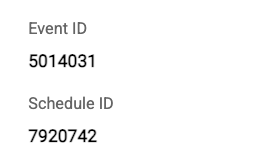
Each schedule will have it's own schedule ID which you can see on the Details tab under the Event ID depending on which schedule you are currently viewing.
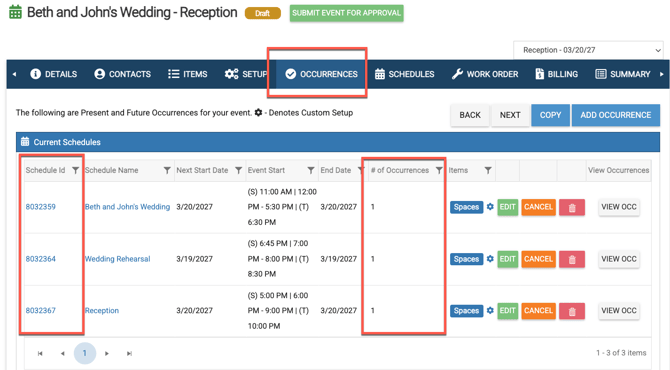
You can see all the schedule ID's on an event on the Occurrences tab. Below you can see the three different schedule ID's and that each schedule has on occurrence.
Schedules Vs Occurrences
-
Unlike occurrences which have the same start/end date, start/end time, space etc, different schedules can have different start/end date, start/end time, space etc.
-
While occurrences are great for event like a weekly meeting or monthly conference, schedules are great for events that have multiple parts on different dates, times, and spaces such as wedding (rehearsal, ceremony, and reception) and other large events.
How to Add a Schedule
When adding a large event that has many components to it, you can add multiple schedules within that event. These schedules could be on different days, at different times and in different spaces, but still all tied to the same event. A good use case would be for a wedding.
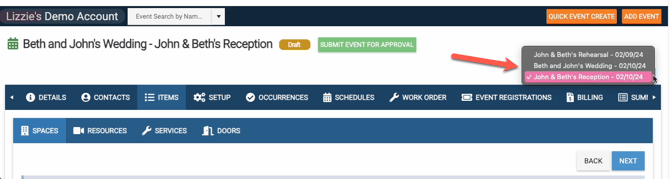
- For example, let's say you are scheduling an event called "Beth & John's Wedding" and you've added all of your items, but you want to add a New Schedule for the rehearsal and one for the reception, with different date/times, items, etc. You can go to the Schedules tab and Add New Schedule for the rehearsal and another for the reception.
- When adding a new schedule, you can add recurrences as well!
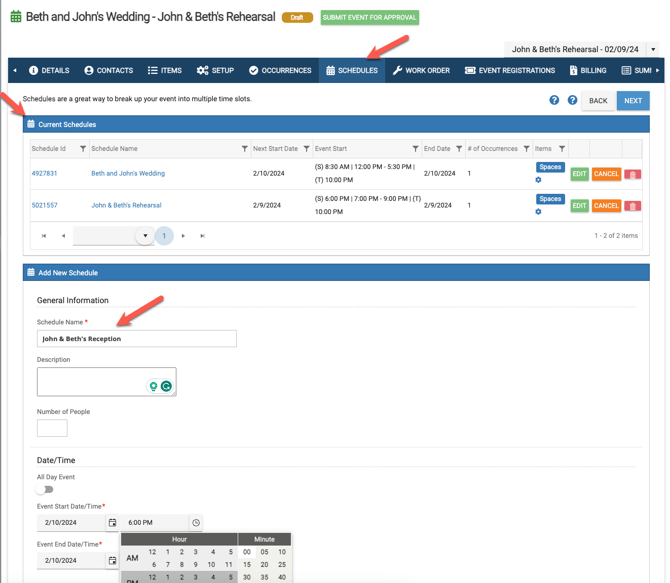
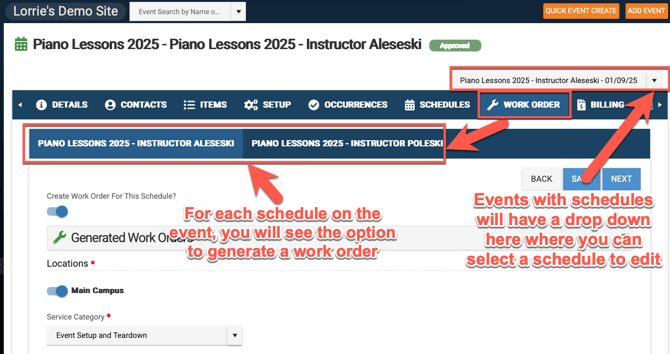
- When a schedule is added to an event, then you can toggle between the schedules by choosing one in the drop-down menu in the far right hand side. Depending on which schedule you have selected will determine which schedule you are editing when making changes on the Details tab, Items tab, Setup Tab...
Editing Different Schedules
In order to edit the Details tab, Contact tab, Items Tab, and Setup tab for a particular schedule, you must either select that schedule from the drop down menu at the top right of the event OR go to the Occurrence tab and click on the schedule name.
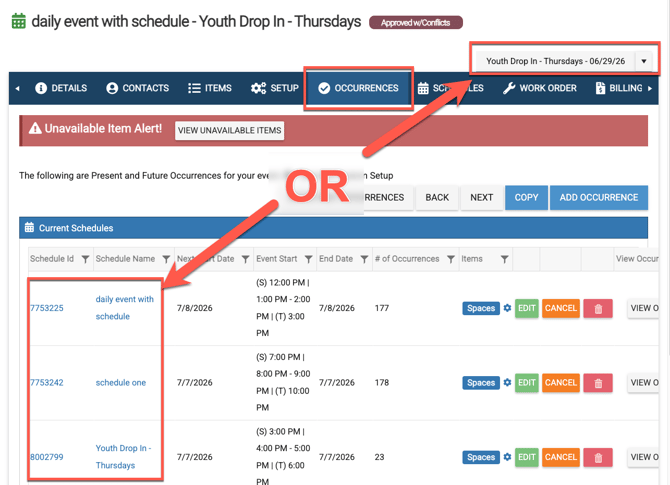
Once you have the right one selected, any changes you make to the Details tab, Contact tab, Items Tab, and Setup tab will only apply to that schedule and it's occurrences.
Viewing Schedules and their Occurrences
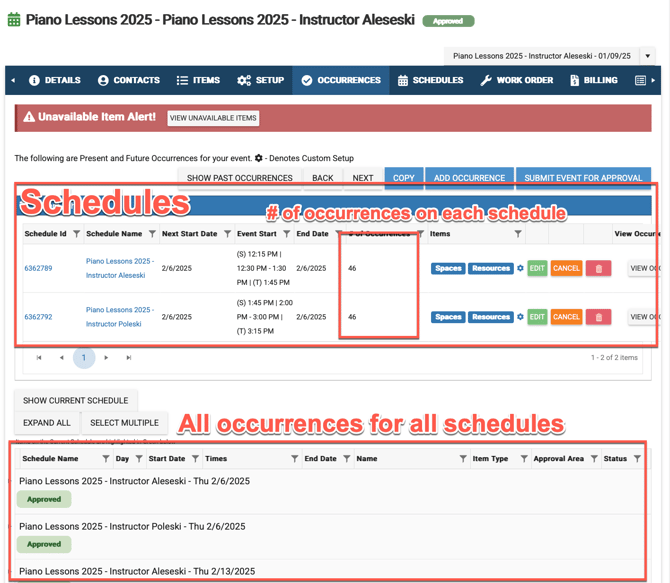
The Occurrences tab is where you can view all your schedules and occurrences for all schedules.
Public Vs Non-Public, Virtual, Offsite vs Onsite
Different schedules and occurrences on the same event can be public vs. non-public or virtual vs. not-virtual.
However, all schedules and all occurrences on all schedule son the same event can only wither be onsite or offsite. In order to make one or a few occurrences for an event offsite while keeping the others onsite, that one or many occurrences will need to be broken off onto its own event.
Generating Work Orders on Occurrences Vs Schedules
For bundled users that are subscribed to Event Scheduler as well as Work Order & Asset Management, if admins allow work orders to be generated from events, then you will see a "Work Order" tab on events. There are multiple options for generating a work order on an event.
- You can set up the event to generate one work order
- You can set up the event to generate a work order for each occurrence
- You can set up the event to generate a work order for each schedule
- If your schedules have occurrences, then you can have eSPACE generate a work order per occurrence on each schedule