If you need to add an additional date(s) to your event but not sure if you should add it as an occurrence or new schedule, here is some information that may be helpful!

Adding Occurrences
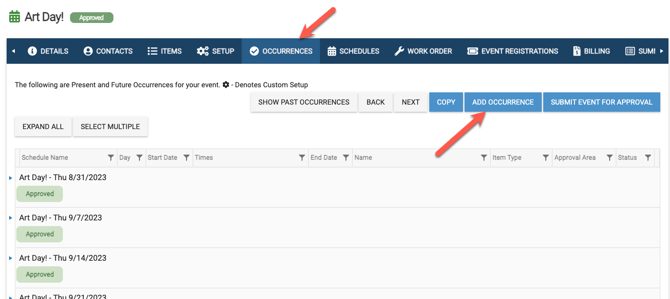
For best practices, you should choose "Add Occurrence" if you set your event up with recurrence rules on the main Details tab (daily, weekly, monthly...) and then you want to add an extra day or two. You can also add an occurrence when you want to add a "one off" occurrence.
- For example, if you've set your event up to recur every Thursday and you would like to add a Friday, you can do so by going to the Occurrences tab and choose Add Occurrence.
Adding Schedules
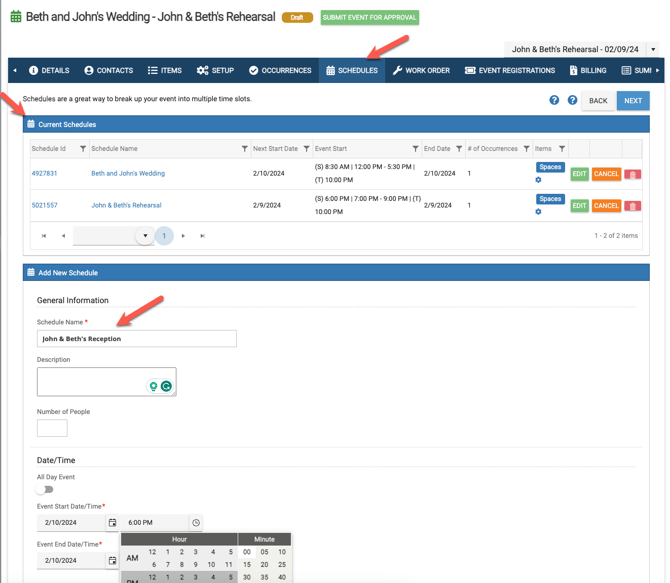
When adding a large event that has many components to it, you can add multiple schedules within that event. These schedules could be on different days, at different times and in different spaces, but still all tied to the same event. A good use case would be for a wedding.
- For example, let's say you are scheduling an event called "Beth & John's Wedding" and you've added all of your items, but you want to add a New Schedule for the rehearsal and one for the reception, with different date/times, items, etc. You can go to the Schedules tab and Add New Schedule for the rehearsal and another for the reception.
- When adding a new schedule, you can add recurrence rules as well!
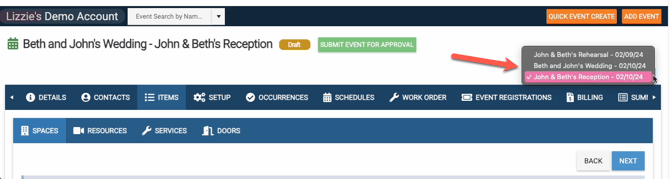
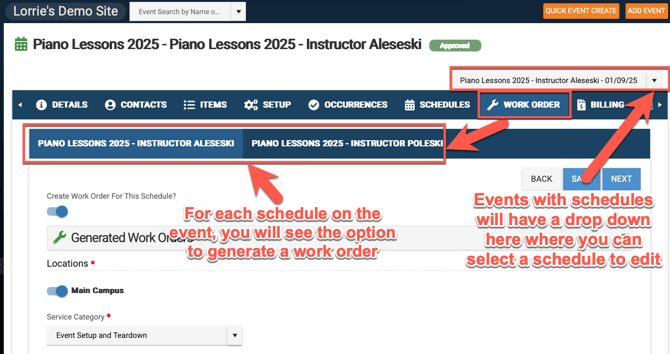
- When a schedule is added to an event, then you can toggle between the schedules by choosing one in the drop-down menu in the far right hand side. Depending on which schedule you have selected will determine which schedule you are editing when making changes on the Details tab, Items tab, Setup Tab...
Viewing All Occurrences and Schedules
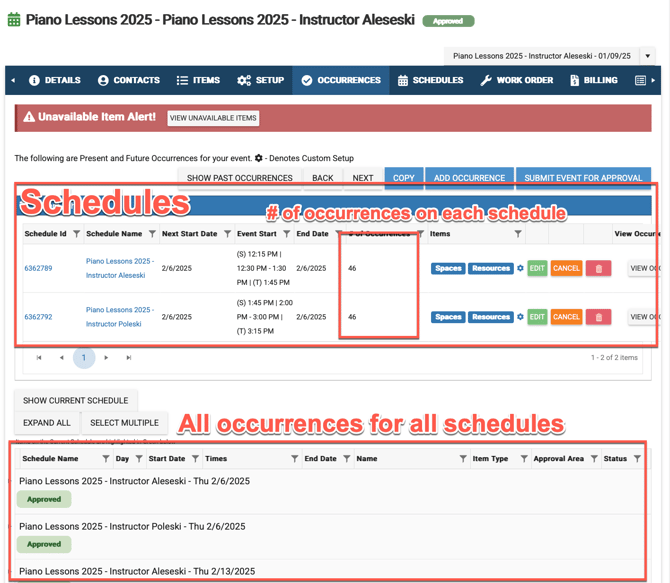
The Occurrences tab is where you can view all your schedules and occurrences for all schedules.
Public Vs Non-Public, Virtual, Offsite vs Onsite
Different schedules and occurrences on the same event can be public vs. non-public or virtual vs. not-virtual.
However, all schedules and all occurrences on all schedule son the same event can only wither be onsite or offsite. In order to make one or a few occurrences for an event offsite while keeping the others onsite, that one or many occurrences will need to be broken off onto its own event.
Generating Work Orders on Occurrences Vs Schedules
For bundled users that are subscribed to Event Scheduler as well as Work Order & Asset Management, if admins allow work orders to be generated from events, then you will see a "Work Order" tab on events. There are multiple options for generating a work order on an event.
- You can set up the event to generate one work order
- You can set up the event to generate a work order for each occurrence
- You can set up the event to generate a work order for each schedule
- If your schedules have occurrences, then you can have eSPACE generate a work order per occurrence on each schedule
Viewing Generated Work Orders for Occurrences & Schedules
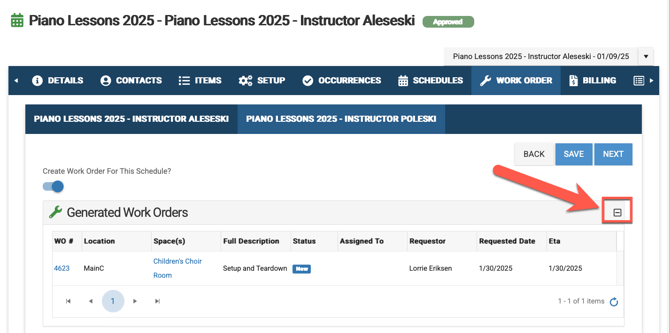
In Event Scheduler, for each schedule on the event, you can see the generated work orders by expanding "Generated Work Orders" on the event.
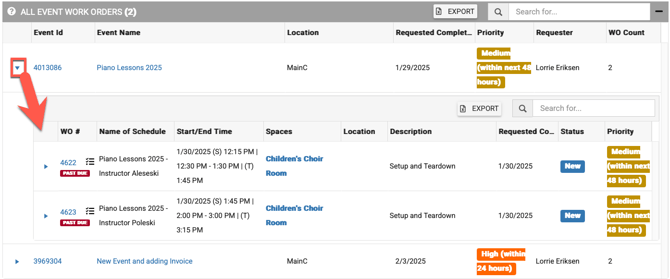
In Work Order & Asset Management you can see the generated work orders for all schedules and occurrences on events in the "All Event Work Orders" grid.