
When adding spaces, resources, and services to an event there is a potential for multiple different types of issues.
- Conflicting with other events for the same dates and times
- Item Restrictions for Resources or Services within Spaces
- Overlapping with a Closure
- Item Availability Schedules for Spaces, Resources, and/or Services
- Number of People Restriction for Spaces
- Double booking a space, resource, or service that is already requested on another event
Viewing Issues for Spaces, Resources, Services
- There are two places where you can view issues such as conflicts, closures, item restrictions, and availability schedules on an event,
- 1. The Items > Space/Resource/Service tab
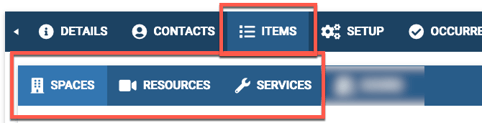
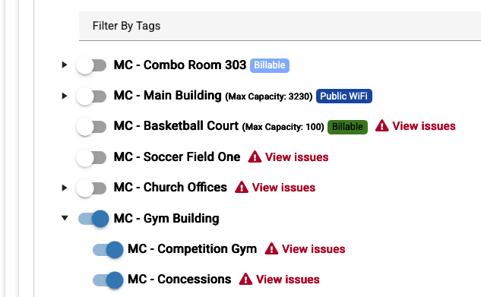
-
2. the Occurrence tab.
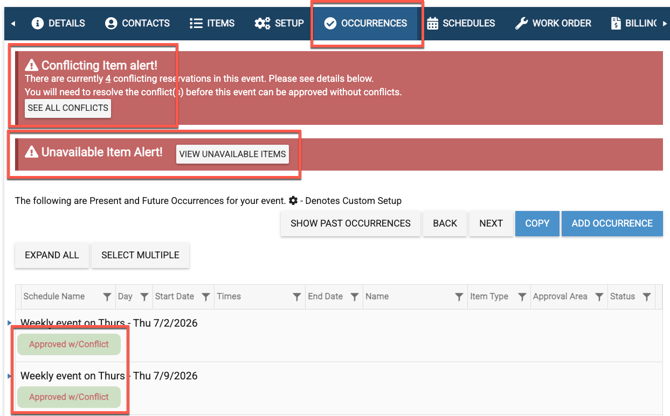
1. Issues on the Items > Space/Resource/Service tab
As you are selecting spaces, resources, and services you will see a message say "View Issues" if that space etc is affected by a conflict with another event, an item restriction, a closure, item availability schedules, and/or number of people restriction.
Conflicting With Another Event(s)
-
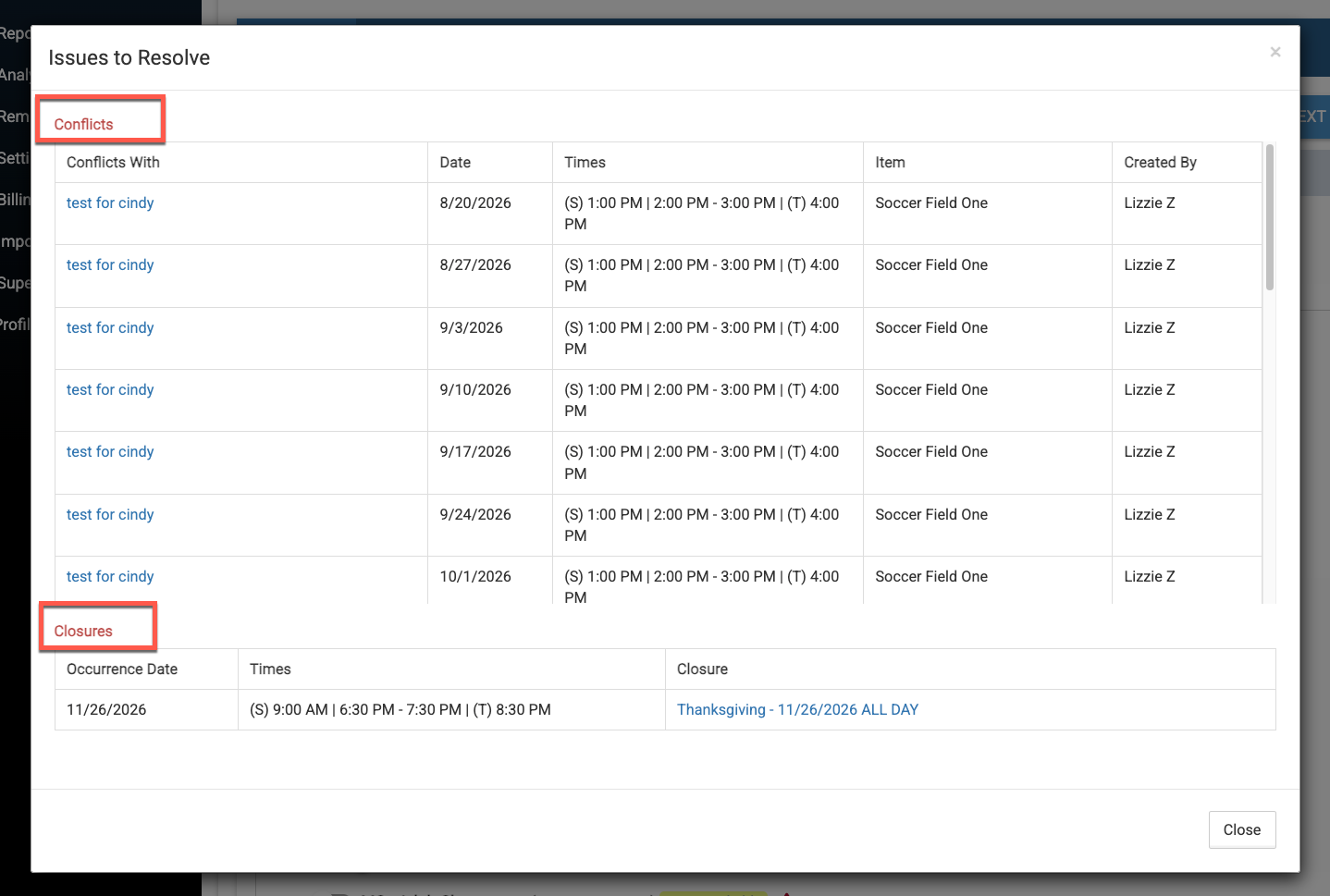
If a space, resource, or service (depending on your Settings under Settings > Advanced > General > Conflicts) is already reserved reserved on another event, then that space etc will show a "View Issue" message net to it. In order to see which other event(s) it conflicts with, any user can click "View Issues".
-
If that space etc for one of the dates and times on your event is also conflicting with a closure or anything else, you will see that in the pop up box as well.
-
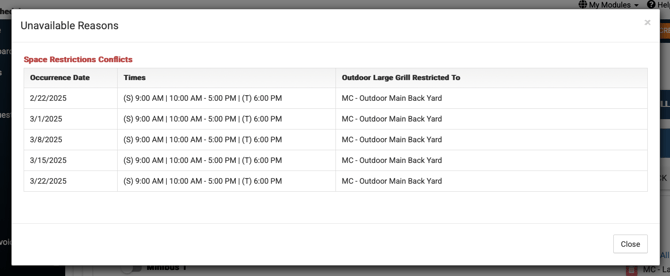
Item Restrictions
- When setting up a Resource or Service, an admin can "restrict" them to certain Space(s). To do this, simply go to Settings > Basic > Resources or Services and choose to edit one.
- Learn more in this article: Space Restrictions - Restricting Resources or Services to Certain Spaces
- Once a space etc is restricted, that space etc will show a "View Issue" message to it on the event.
- Any user can click on that message to see what the message relates to.

Conflicts with Closures
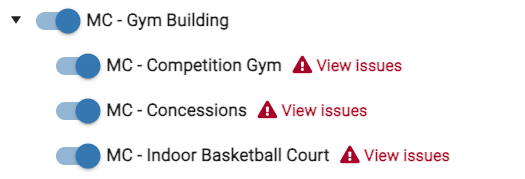
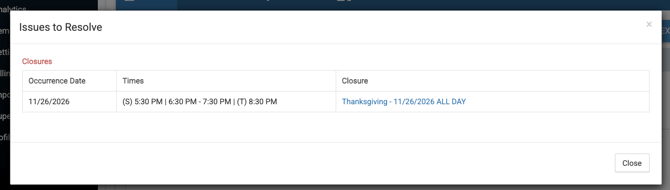
- If any space, resource, or service on an event (based on the occurrences of the event) are affect by a closure set up by an admin, all users will see the "View Issue" message next to that space etc.
- In order to view the issue with the closure, all users should click on the "View Issue" message and review the information in the popup box.
- Learn more in this article: Adding Closures for Holidays & Maintenance to Spaces, Resources, Services, Locations
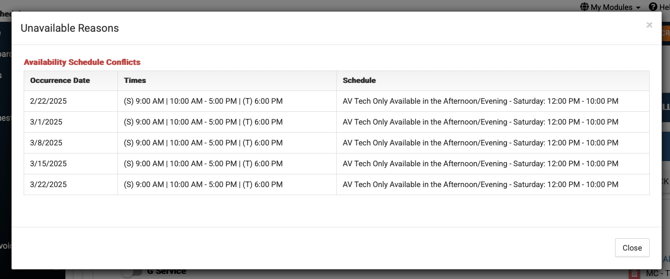
Item Availability Schedules
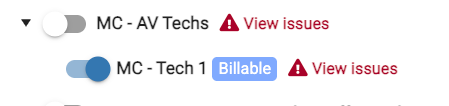
- If any space, resource, or service on an event (based on the occurrences of the event) are affect by an availability schedule set up by an admin, all users will see the "View Issue" message next to that space etc.
- In order to view the issue with the availability schedule, all users should click on the "View Issue" message and review the information in the popup box.
-
Learn more in this article: Adding Availability Schedules to Spaces, Resources, Services, Locations
Number of People Restriction for Spaces
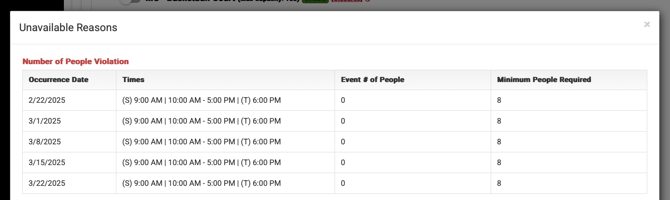
- If any space on an event (based on the occurrences of the event) are affect by a number of people restriction set up by an admin, all users will see the "View Issue" message next to that space etc.
- In order to view the issue with the number of people restriction, all users should click on the "View Issue" message and review the information in the popup box.
- Learn more: Events Creation | Number of People Restrictions
- In order to view the issue with the number of people restriction, all users should click on the "View Issue" message and review the information in the popup box.

2. Conflicts on the Occurrence Tab
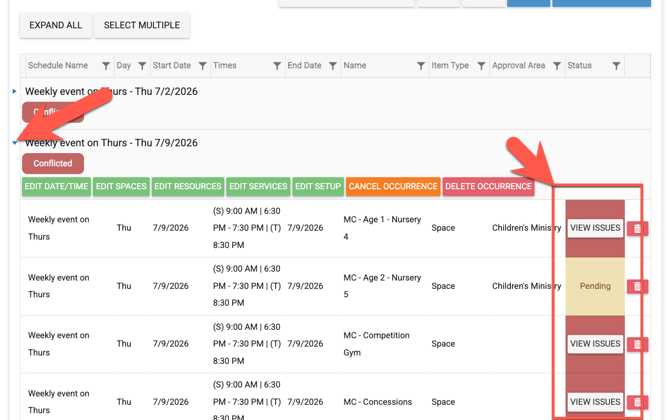
- If there are issues of any kind, all of those can be viewed on the Occurrence tab as well when you expand each occurrence.

- Once expanded, click "View Issues" to see all the issue with that space, resource, or service chosen.
1. Correcting Conflicts on the Items Tab
A. Item Restrictions
- On the Items > Space, Resource or Service tabs if you have an Item Restrictions conflict, then you will only be able to select certain resources and services base on the spaces that you have already selected. This is per the setup that an admin has created on your organization's account.
B. Closures
- If you have a Conflict with a Closures and you are not an admin then you will need to either choose a different day(s) on the Details tab OR cancel or delete the conflicting occurrences on the Occurrences tab.
-
- If you are an admin, then you can override the Closure and submit the event anyway.
C. Item Availability Schedule
-
If you have an Item Availability Schedule conflict and you are not an admin then you will need to adjust the time and/or day on the Details tab OR select another space, resource, and/or service.
-
If you are an admin, then you can override the thsi type of conflict and submit the event anyway.
-
D. Number of People Restriction
- If you have a Number of People Restriction for Space conflict and you are not an admin then you will need to choose another space that matches the number of people that are coming to your event (as noted on the Details tab).
- If you are an admin, then you can override the thsi type of conflict and submit the event anyway.
2. Correcting Conflicts on the Occurrences Tab
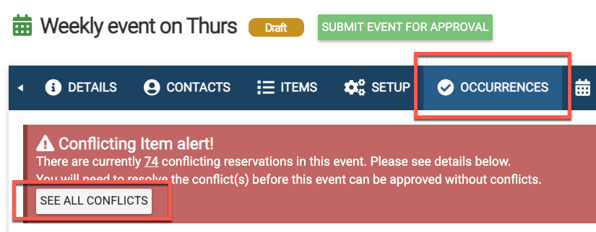
- Click "See All Conflicts" to see all the occurrences that have an issue.
-
Click "View unavailable items" to see all the items on the occurrences that conflict wth a closure set by an admin.

-
Just like on the Items >Space/Resource/Service tab, click "View Issues" to see what the issue is with that item on that occurrence.
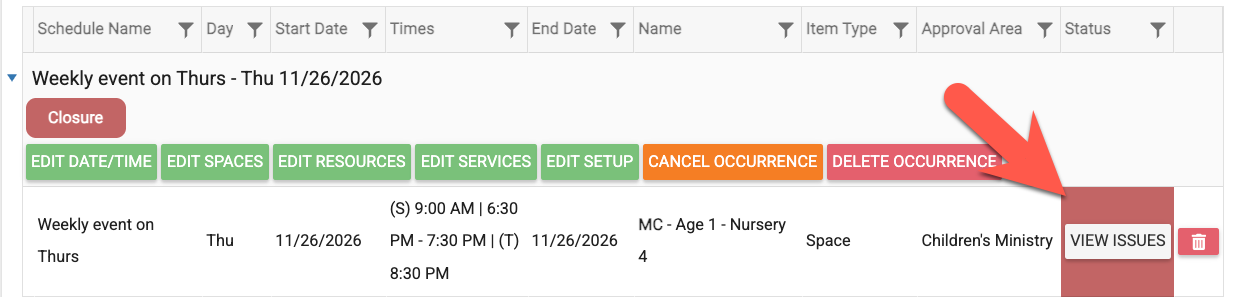
-
Click "View all items" in order to see the various issues such as spaces that overlap with closures, spaces that are already reserved on other events for the dame dates and times etc.

-
Just like on the Items >Space/Resource/Service tab, click "View Issues" to see what the issue is with that item on that occurrence.
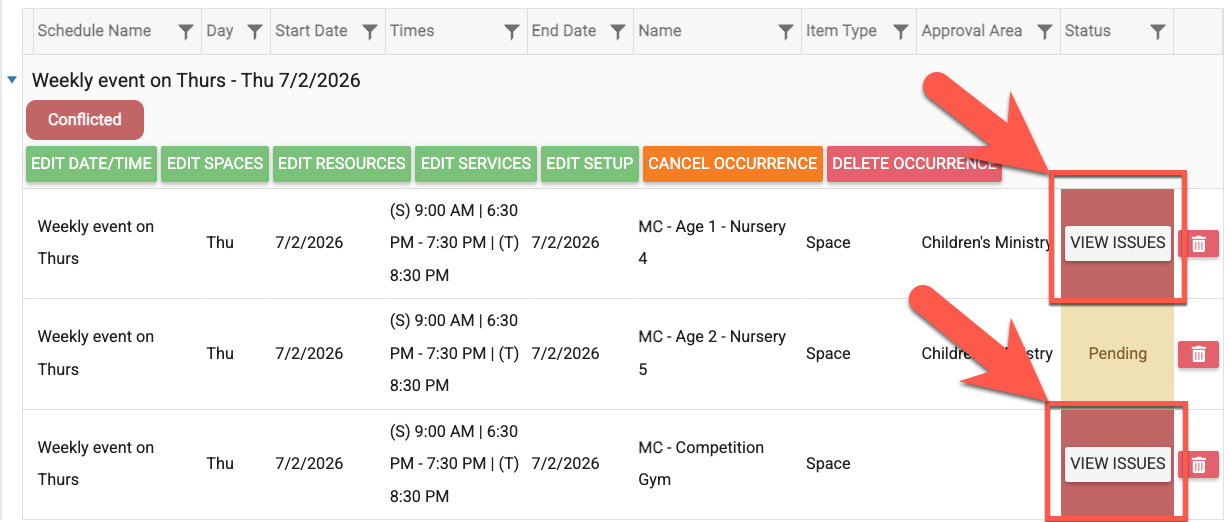
- In the popup box you will see any and all issues for that space etc.
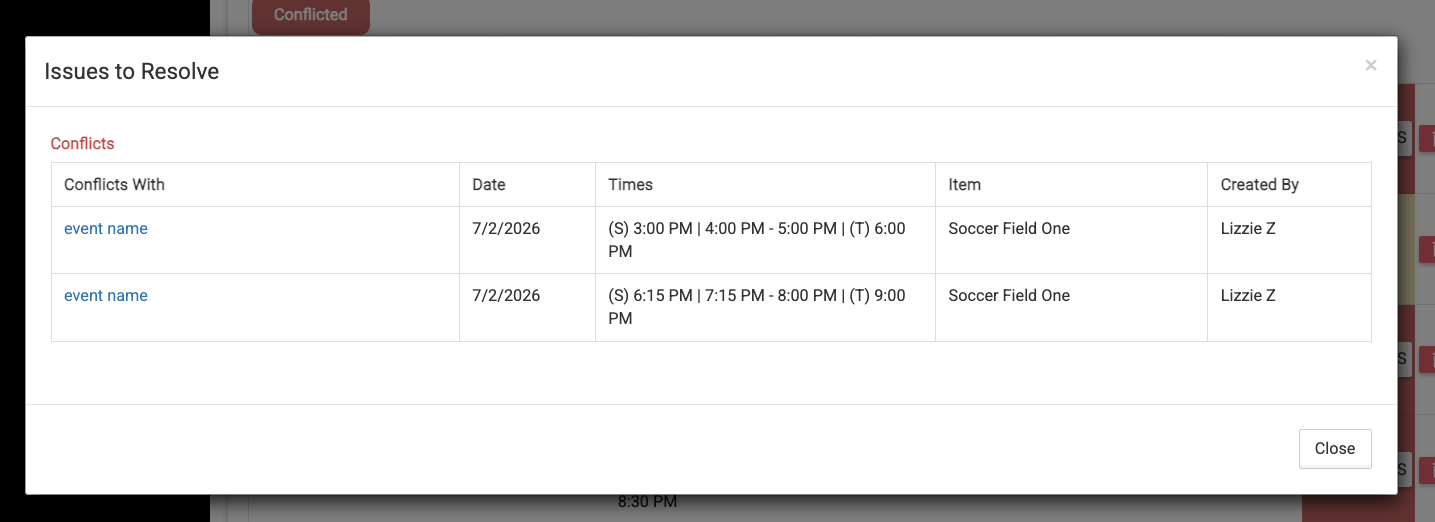
Submitting an Event with Conflicts
If the admin has set up for users and sub-admins to NOT be able to submit an event when it's in conflict then the user and sub-admin will need to resolve all the conflicts.
If the admin has not set up the account to prevent users and sub-admins from submitting a conflicting event, then the users and sub-admins will NOT need to resolve any conflicts before submitting the event for approval.