Sections in this article:
- Overview
- Creating Setup Reports
- Example
- Saving Reports Filter Options
- Saved Reports Options
- Individual Event Setup Reports
Overview
The Event Setup report is designed to easily see the setup details and Form Q&A on events for facilities so they can easily see the needs of the event. This report shows facilities teams all the setup details for spaces, resources and services on an event.
- You can also choose to include or not include notes, form Q&A, attachments, and contacts.
- The details on this report are also visible in the mobile app for those with an admin, sub-admin and user level of access (not Calendar View Only access). To see the details in the app click on the left side menu bar, choose "Event List" and then click "Event Setup" for any event.
- The eSPACE app is available for Android and Apple phones! Use the same login credentials that you use to log into the website on your computer in order to log into the app.
Event Setup (Legacy)
- This report is a separate report that requires an additional step on events in order for the services and resources to appear on the report. The Legacy report will only show services on the report if services are assigned to spaces on the Setup tab of the event. It has a different layout with multiple download options, including CSV. As a note, this report does not include notes for resources and services.
The best way to see setup details per event on the go is to use the eSPACE app and click on "Event Setup" in the left side menu bar.
Creating Setup Reports
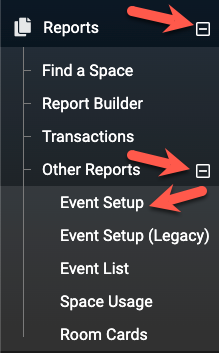
- 1. Click on Reports > Other > Reports > Event Setup, located on the left sidebar of your dashboard
- 2. Select Date Range
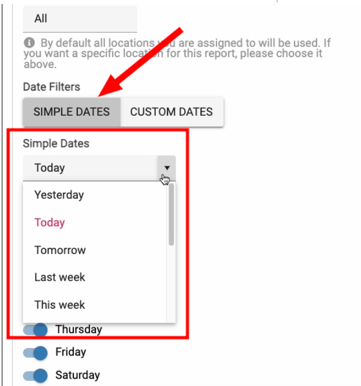
- When choosing dates you can either choose "Simple Dates" or choose "Custom Dates"
-
Simple Dates Option
Custom Dates Option
When choosing dates you can either choose "Simple Dates" or choose "Custom Dates"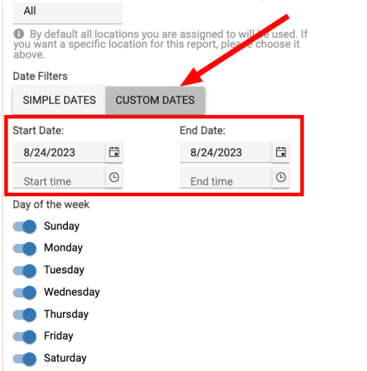
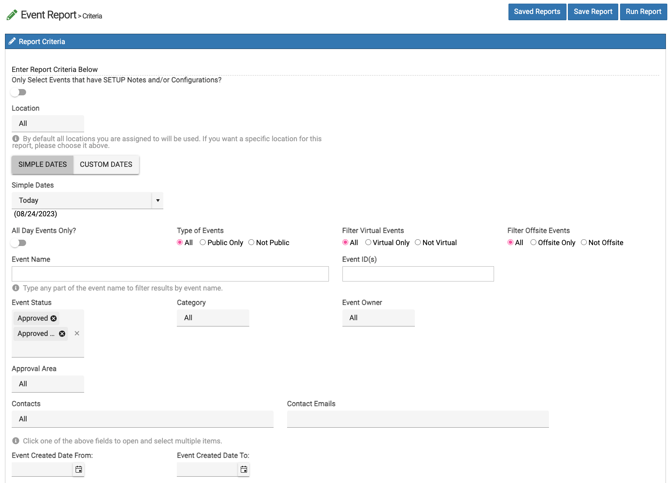
- 3. Then, select your desired criteria and filters. You can select one, some, or all within each of the fields (see below). Simply click inside the box and you will see a drop down menu to make your selections. You also have the option of deleting any selected item by clicking the "X" next to to your selection.
- If you need to filter events by "Approved with Shortage", choose either "Approved" or "Approved with Conflicts" and the events that are "Approved with Shortage will be included in either of those filters.
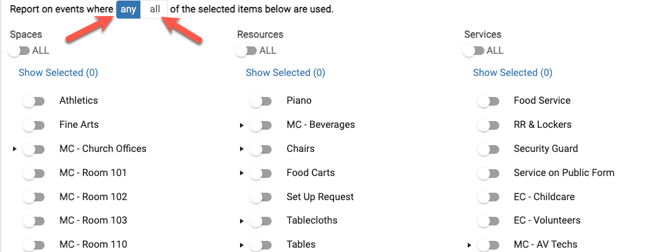
- 4. Next, you have the option to search for events that have "ALL" items that are selected below OR "Any" of the items selected below (with exception of Space Usage or Room Cards reports).
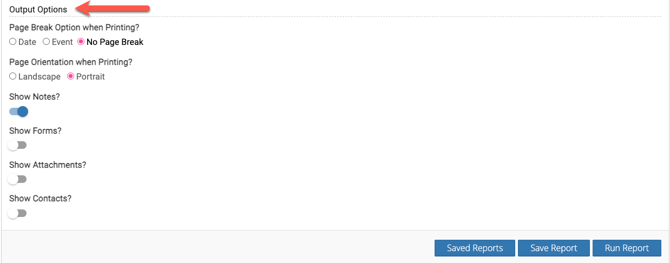
- 5. Finally, select your Output Options and click Run Report to initiate.
- These options below will look different based on the report you are running.
- Related Article: Event Setup Report | Including Form Answers
Example
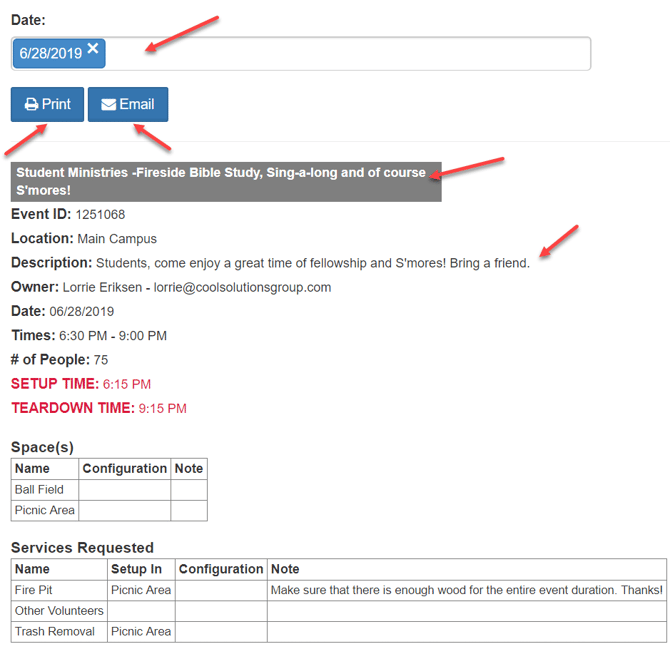
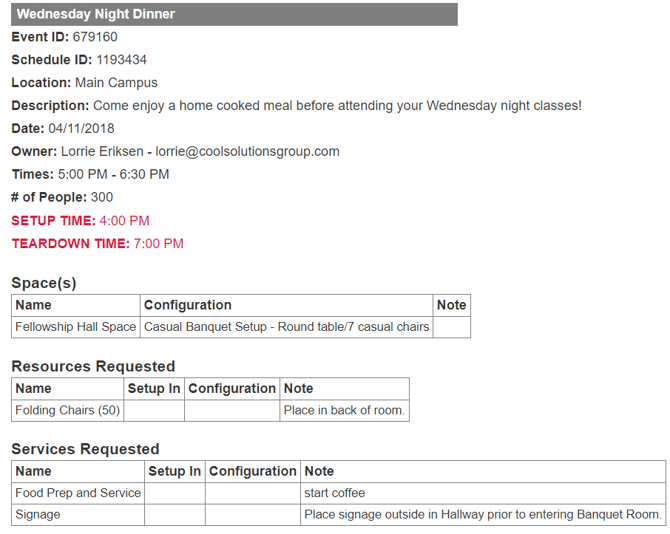
Here is an example of an event that was included within the report, based on the date range and output options selected.
Saving Reports Filter Options
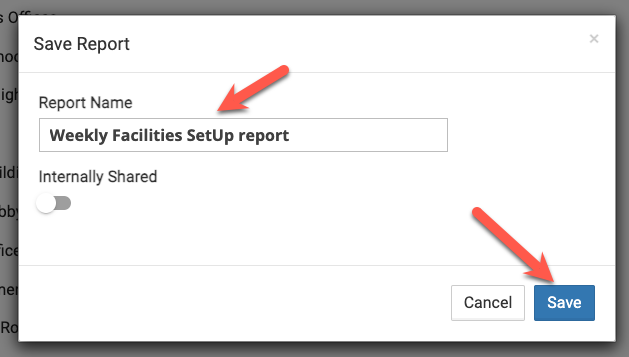
You can also select Save Report which saves all of your selected criteria and adds it to a library (Saved Reports) for future use. You can name the report and mark the report Public to share with other users within your organization or keep it Private (see below).
Saved Reports Options
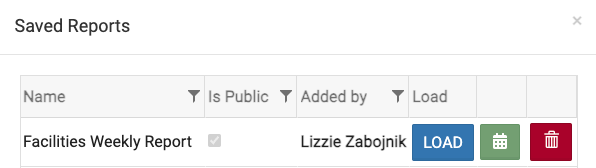
- Once a report is saved, then next time you can click on "Saved Report" and choose to LOAD your previously saved criteria and filters so you can quickly export a new report.
- You can also click the calendar icon and follow the steps to set up eSPACE to automatically email you report reminders.
- You can click the red trashcan icon to delete a report as well.
Individual Event Setup Reports
Once an event is in an approved status, the event setup report can be viewed for that event on the Setup tab and by clicking "Event Setup Report".

A couple of things when viewing the Event Setup Report:
- You will only see the next occurrence date within the "Date" text area. If your event is recurring, you can click within the box to view the setup for other occurrences OR deselect the date within the text box to see ALL occurrences for the event. NOTE: If there is a description within the event, the description will show within the Setup report.
- You can "Print" or "Email" the Setup Report