Inside eSPACE, admins have access to see and teack aggrigate data regarding events in different event categories, date ranges ect.
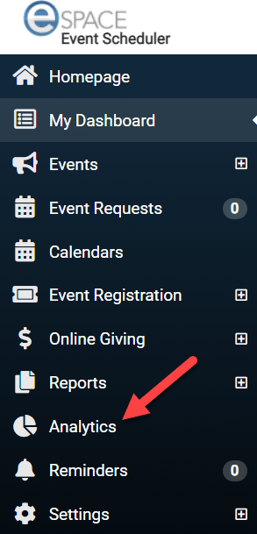
You will find Analytics on the left navigation bar in between Reports and Reminders
Once you are on the Analytics Page you can view all the available data from this one page, with the key delineator being the drop down field in the top left corner titled Time Range
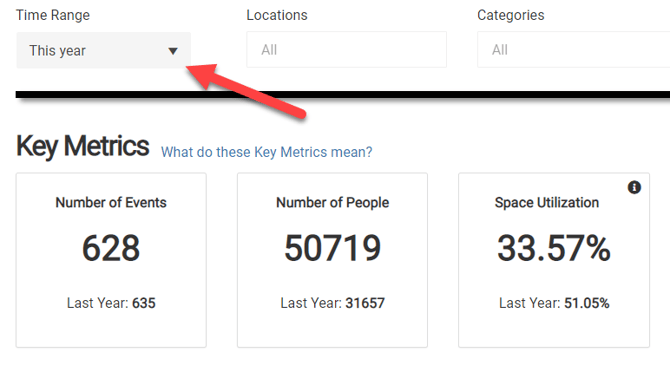
Time Range options are as follows:
-
Today | All data presented is for Events on the current day
-
Yesterday | All data is for Events on the previous day
-
This Week | All data is for cumulative Events for the current week up to the current day
-
Last Week | All data is for cumulative Events for the previous week
-
This Month | All data is for cumulative Events for the current month up to the current day
-
Last Month | All data is for cumulative Events for the previous month
-
This Year | All data is for cumulative Events for the current year up to the current day
-
Last Year | All data is for cumulative Events for the previous year
-
All Time | All data is for cumulative Events from the beginning up to the current day
-
Custom | All data presented is for Events from an manually entered date range
You can also narrow down criteria by Location, Category, Spaces, Resources, and Services with the other drop down fields across the top
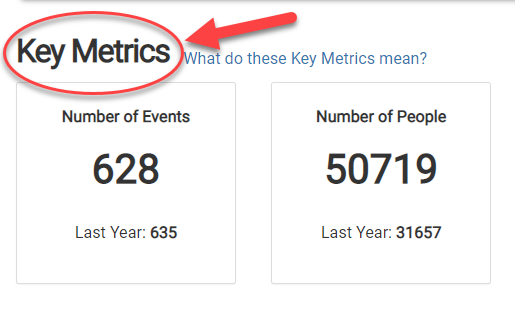
The next section called Key Metrics is where you will find the main measurements of Events for your organization
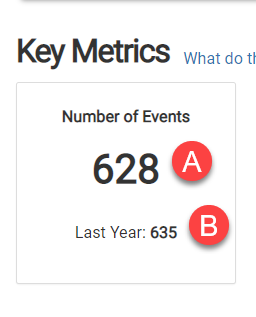
The first Key Metric called Number of Events tells you (A) the number of Events in the selected Time Range (this example shows This Year).
Then, you can compare that with (B) the number of Events at the same time last year.
The rest of the Key Metrics show the following:
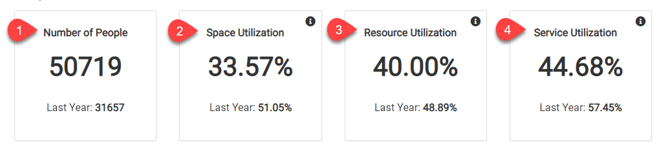
- Number of People | The number of people for all Events in the selected Time Range
- With a comparison to the timeframe previous to the selected Time Range
- Data is contingent on the Number of People field from the Details Page of each event
- Space Utilization | The percentage of ALL Spaces used (for at least one event) in the Time Range
- With a comparison to the timeframe previous to the selected Time Range
- Resource Utilization | The percentage of ALL Resources used (for at least one event) in the Time Range
- With a comparison to the timeframe previous to the selected Time Range
- Service Utilization | The percentage of ALL Services used (for at least one event) in the Time Range
- With a comparison to the timeframe previous to the selected Time Range
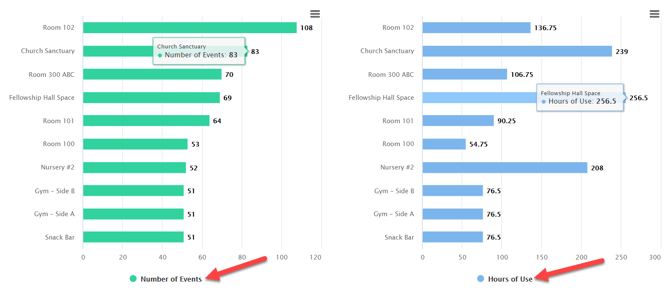
Another key delineator is Visualized Data, and the first set of bar graphs allows you to analyze Utilization of your Spaces, Resources or Services. You can show up to 10 of each and include Setup and Tear-down Time.

The bar graphs are for highest Number of Events as well as most Hours of Use by either Spaces, Resources, or Services (in this example we are showing Spaces)
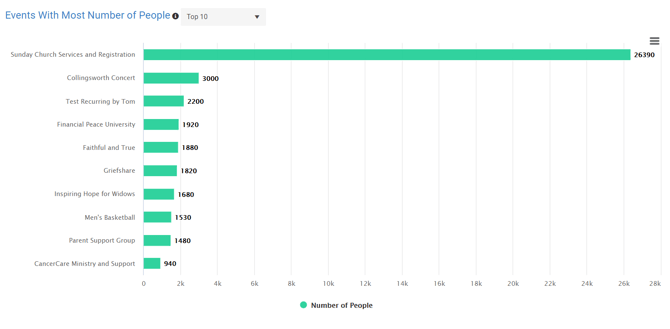
The next bar graph shows you Events by Name with the Most Number of People
- Data is contingent on the Number of People field from the Details Page of each event
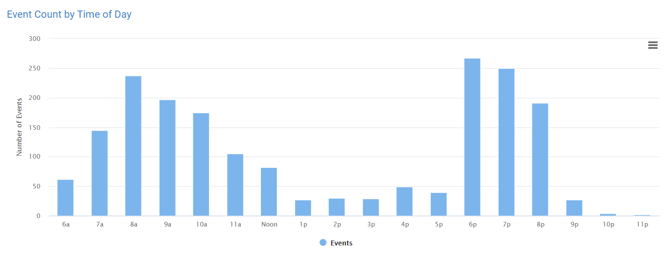
The next bar graph shows you Events by Time of Day
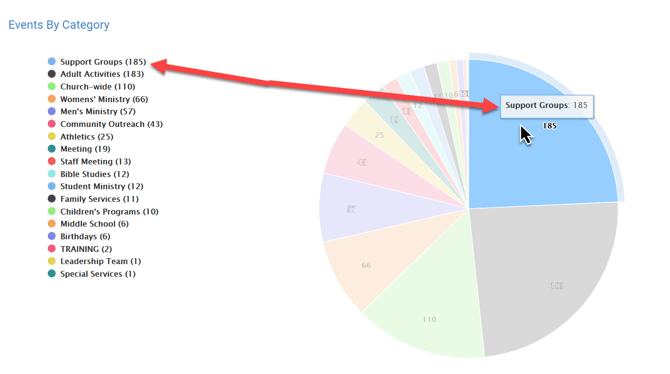
Lastly, Events are listed by Categories to the left in descending order and visually represented in a pie chart to the right
- If you hover over with your mouse on a slice of the pie chart, the Category appears with the number of Events for the selected Time Range
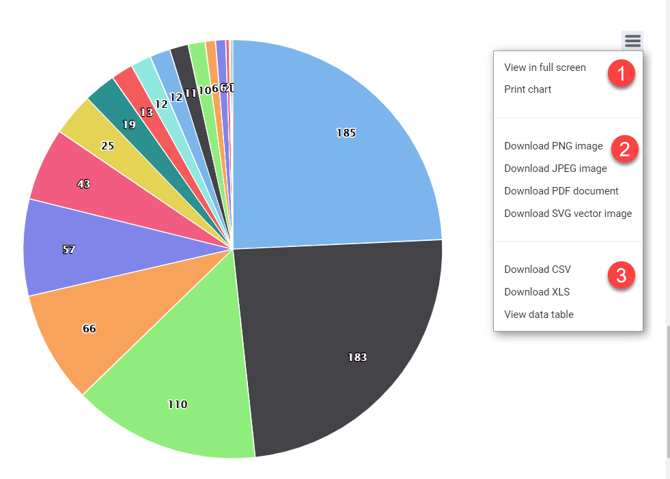
If you click on the three lines to the far right, you can choose the following outputs for your Visualized Data:
- You can choose to View in full screen or Print chart (recommended option for printing)
- Download one of the common image files (PNG, JPEG, PDF or SVG)
- Download as a CSV or XLS (i.e. Excel) file or you can View the data table
- These outputs can be selected for any of the Visualized Data displays
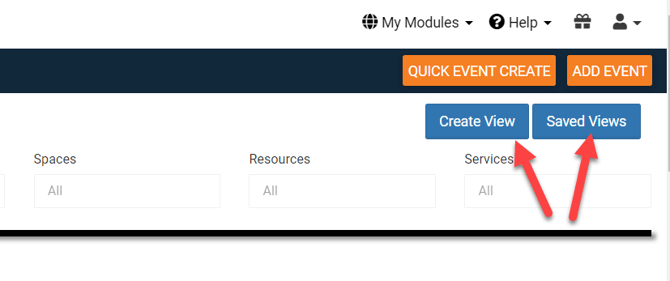
Lastly, in the top right corner you will see a button called Create View which allows you to take all of the criteria of your Analytics that you set and create a saved version. The other button called Saved Views is the repository of the various views you have previously saved that you can load and schedule to be notified to load.
For more information on Views, check out the article about, " Create and Save Views".