Sections in this article:
- Getting Notified
- Reviewing a Request
- Submit Event vs. Approve
- Declining a Request
- Viewing All Event Requests
This article is for the people managing an event request form. To set one up, see Event Request Forms | Setting Up a Form for People Outside eSPACE. (Link to Article 1 once it's published.)
Getting Notified
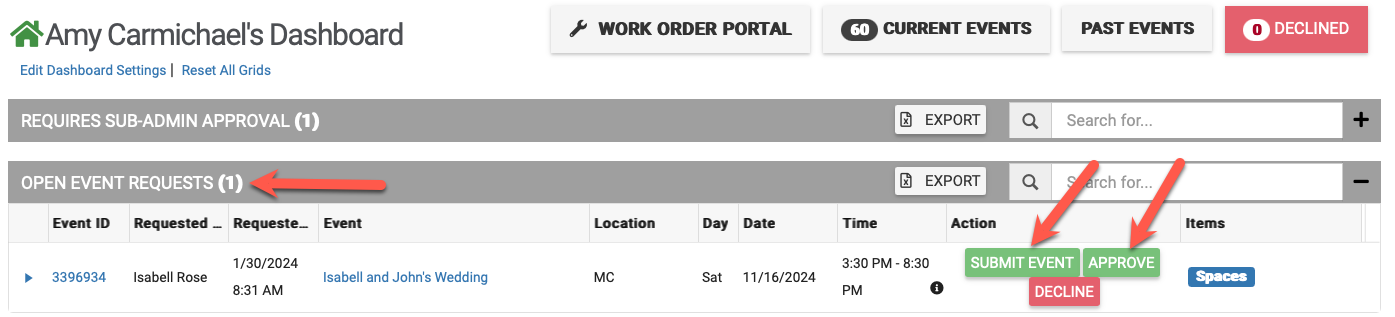
New requests appear in the Open Event Requests grid on each form manager's dashboard. Managers can also get emails; turn them on under your profile icon > My Notifications > Notification Preferences:
- New Event Request: someone outside eSPACE submitted a request.
- Event Request Submitted: a manager clicked Submit Event, sending the request through your normal approval process.


Reviewing a Request
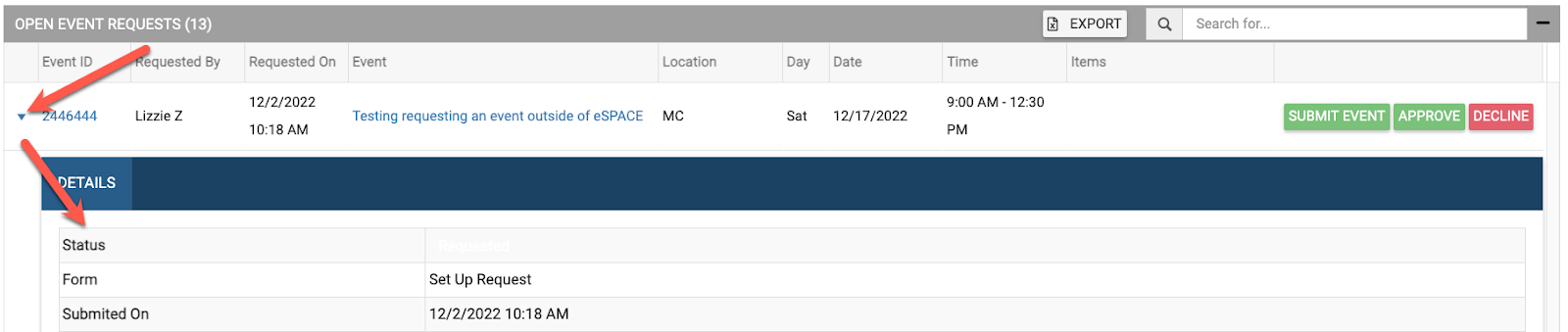
On your dashboard, click the arrow next to the event ID in Open Event Requests to see the form's answers. Click the event name to open the full event and make any edits before you decide.
Submit Event vs. Approve
You have two choices:
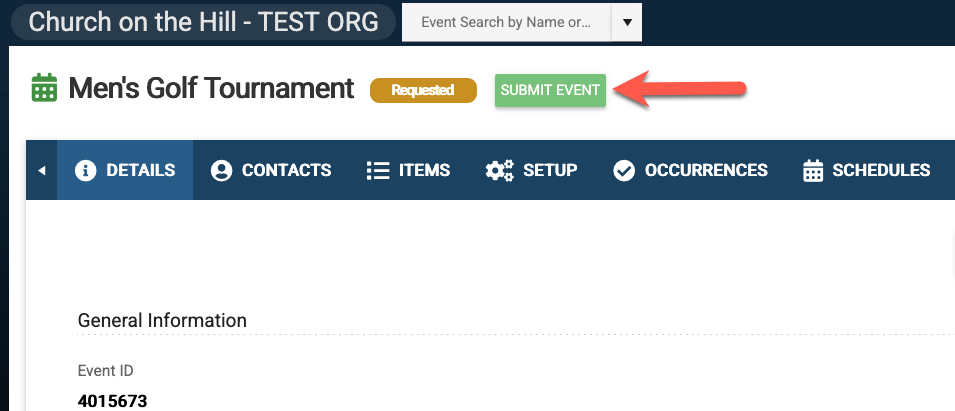
- Submit Event (recommended if you use sub-admins): sends the request through your normal approval process, so sub-admins can approve the spaces, resources and services in their approval areas. If you use final approval, it goes to final approvers after that.
- Approve: approves the event right away and skips everyone else's approval.
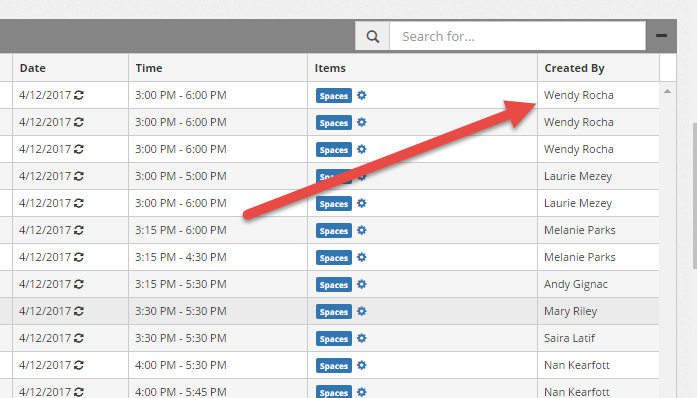
Either way, the manager becomes the event owner and the requester is added as an event contact. Dashboard grids still show the requester under Created By.

Declining a Request
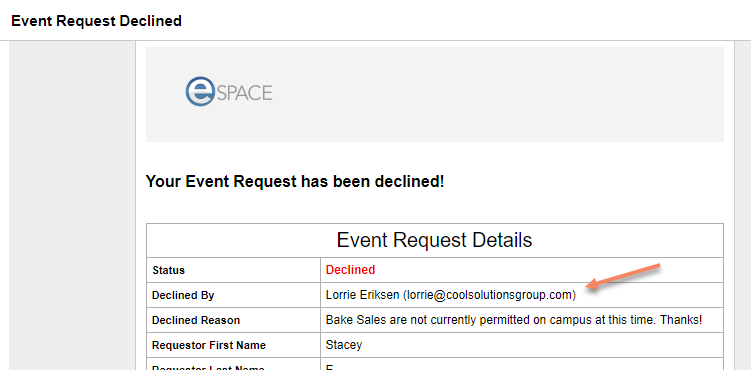
Click Decline, enter a reason and confirm. The requester gets an email with who declined it and why.
Viewing All Event Requests
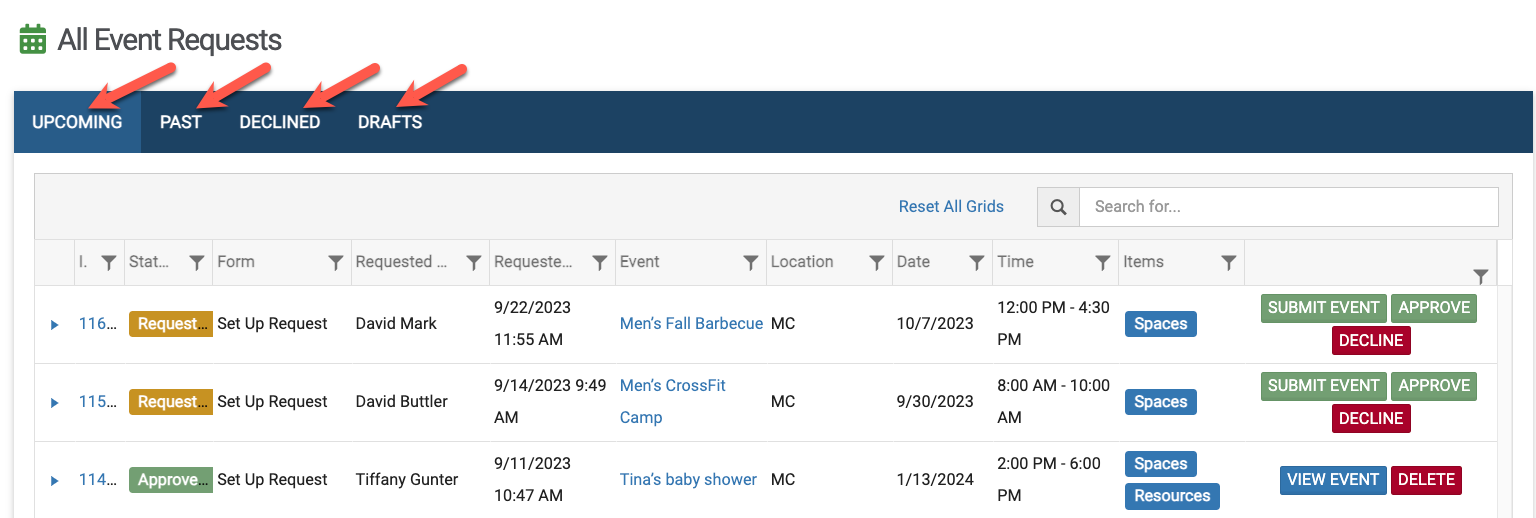
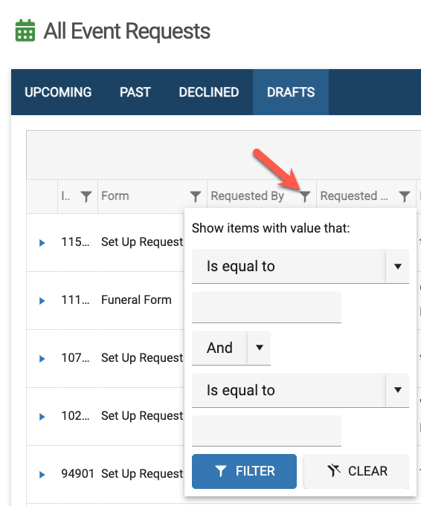
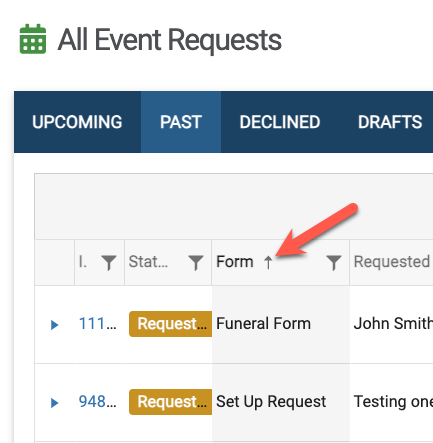
Form managers can click Event Requests in the left menu to see every request. Use the tabs to switch between Upcoming, Past, Declined and Drafts, and search, filter or sort any column.