Onsite vs Offsite
Event: Onsite versus Offsite
- Related article: Event | Creating an Offsite Event & Location
- If you have an offsite event and you want to also select spaces, resources, or services on the event, you wil need to select a location on the Details tab of the event if your account has spaces, resources, and services assigned to a location(s).
Occurrences/Schedules: Onsite versus Offsite
- All occurrences and all schedules on the same event can either be offsite or onsite.
- If you have an offsite event and you want to also select spaces, resources, or services on the event, you will need to select a location on the Details tab of the event if your account has spaces, resources, and services assigned to a location(s).
- In order to make one or a few occurrences (or schedule) for an event offsite while keeping the others onsite, that one or many occurrences will need to be broken off into their own event.
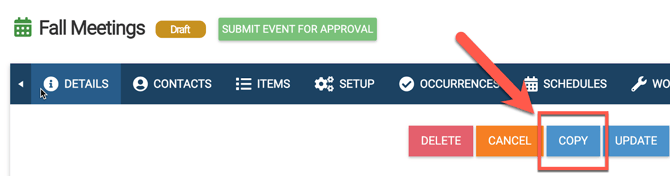
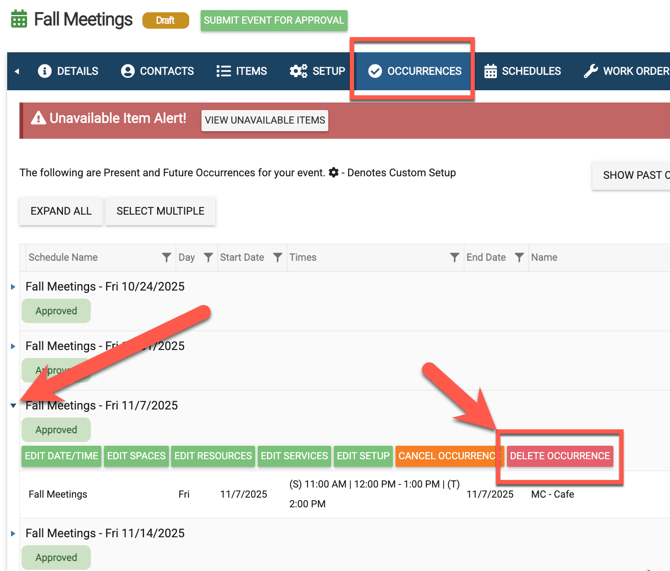
- The best way to do this would be to copy the original event, enter in the dates or date range that you need for the event to be offsite, and then go back to the original event and delete that one or many occurrences from the Occurrence tab.
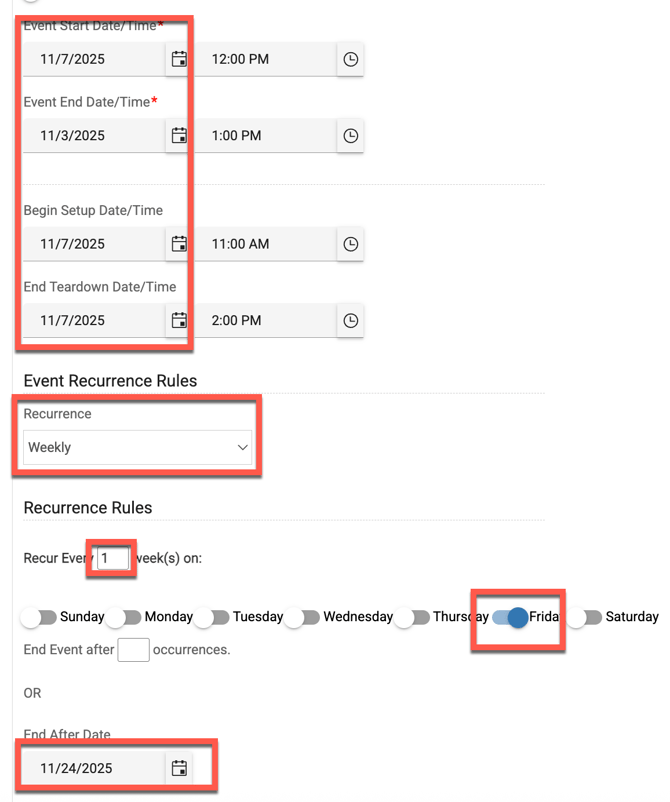
- Ex: You have a weekly event that recurs all Fall, and you need the Nov dates to be set as offsite. You would A. copy the original event, B. put in the date range of Nov, click "Next", and then toggle on "Is Offsite, and C. then go back to the original event and delete the Nov weekly occurrences. As long as both events have the same name, times, and recurrence rule, the end user (or people viewing it on the calendar) will see it as the same event, but also see that the Nov occurrences are offsite.
- A.
- B.
- C.
Public Vs Non-Public
Events: Public vs. Non-public
In order to make an entire event (all occurrences on the event) public, toggle on the "Public" option on the Details tab.

In order to make the entire event (an occurrence on the event) non-public, leave the "Public" option on the Details tab toggled off.

- However, if the event has more than one schedule on it, you will need to repeat either of these steps in order to make all the schedules on the event either Public or non-public.
Occurrences: Public vs Non-public
You can make individual occurrences on an event public while keeping others non-public. In order to do this, go to the Occurrence tab of an event, expand the one that you want to change, then click "Edit Date/Time" and enable "Is this event virtual".
Schedules: Public vs. Non-public
Different schedules on the same event can be either public or non-public. In order to make one schedule public, select that schedule name in the drop down menu at the top right and then go to the Details tab and toggle on "Public". Click Update in order to save. This will only make the selected schedule (and all its occurrences) public while keeping the other schedule (and its occurrences) non-public. Only the public schedule (and occurrences) will show on the Public Calendar feature.
Virtual vs Non-Virtual
Events: Virtual vs Non-virtual
In order to make an entire event (all occurrences on the event) public, toggle on the "Public" option on the Details tab.
- A link is required when toggling on "Virtual". The link should start with "http://" or "https://").

In order to make the entire event (and all occurrences on the event) non-public, leave the "Public" option on the Details tab toggled off.

However, if the event has more than one schedule on it, you will need to repeat either of these steps in order to make all the schedules on the event either Public or non-public.
Occurrences: Virtual vs Non-virtual
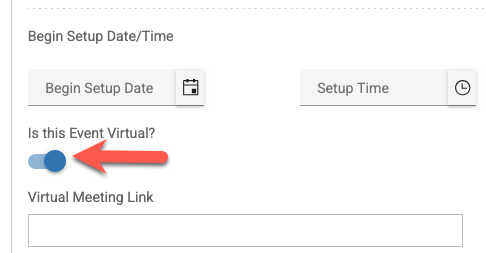
You can make individual occurrences on an event virtual while keeping others non-virtual. In order to do this, go to the Occurrence tab of an event, expand the one that you want to change, then click "Edit Date/Time" and enable "Is this event virtual".
- A link is required when toggling on "Virtual". The link should start with "http://" or "https://").
Schedules: Virtual vs Non-virtual
Different schedules on the same event can be either virtual or non-virtual. In order to make one schedule virtual, select that schedule name in the drop down menu at the top right and then go to the Details tab and toggle on "Virtual". Click Update in order to save. This will only make the selected schedule (and all its occurrences) virtual while keeping the other schedule (and its occurrences) non-virtual.
-
A link is required when toggling on "Virtual". The link should start with "http://" or "https://").