Sections in this article:
- Overview of Event Categories
- Add New Category
- Drag & Drop Categories Into a Hierarchy
- Add a Child Category to Create a Hierarchy
- Expand to show existing Child Categories
- Deleting an Event Category in a Hierarchy
- How to Keep "Child" Event Categories & Delete the "Parent"
- Export to Excel
- Where You can see the Hierarchy of Event Categories
Overview of Event Categories
- Learn more in this article: Event Categories | Adding Ministries & Departments to Events
What if you have a ministry or department that is under another ministry or department? With Sub-Categories, you can create a parent Event Category (like Adult Ministry) that has Sub-Categories (like Men's Ministry, Women's Ministry, etc.).
Go to the left navigation bar>Settings>Advanced>Event Categories
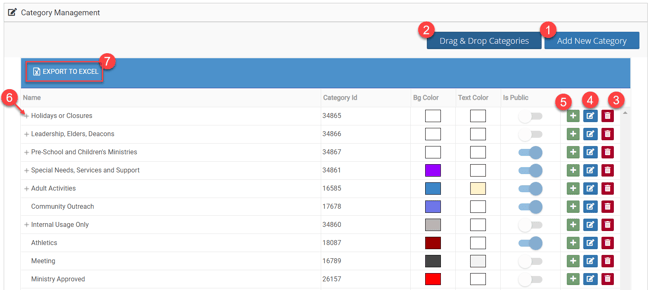
From the Category Management page, you can do the following:
- Add New Category |

- Drag & Drop Categories |

- Delete a Category |

- Edit a Category |

- Add a Child Category |

- Expand to show existing Child Categories |
- Export to Excel |

Add New Category
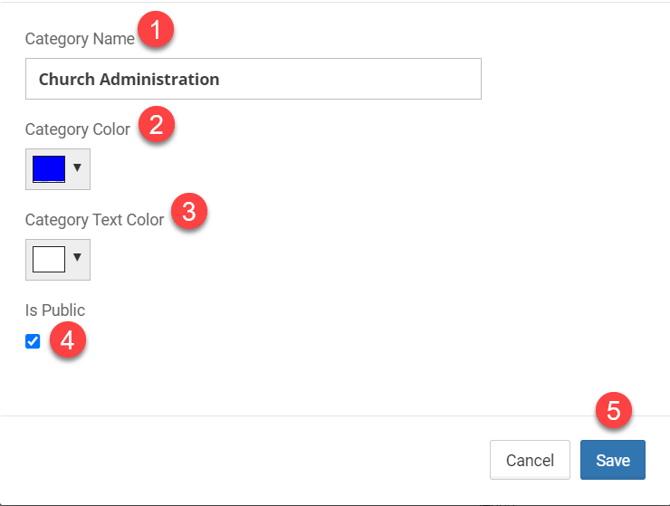
- Enter a Category Name (like "Church Administration" or "Student Ministry")
- Add the Category Color (used primarily with Calendar Labels)
- Add the Category Text Color (used primarily with Calendar Labels)
- If it is a Public Category, then mark Is Public
- Click Save
Drag & Drop Categories Into a Hierarchy
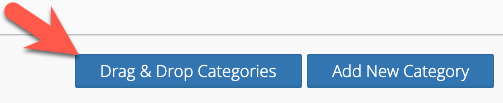
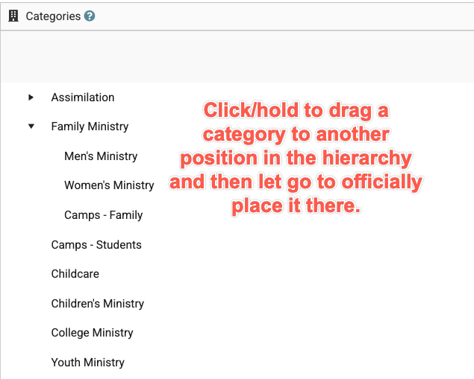
You can use the Drag and Drop feature on the Event Category page to rearrange the hierarchy of the event categories.
- For anyone integrating eSPACE Event Scheduler with another calendar software (ChMS), this is NOT recommended, since that information should only be syncing to Event Schedule from that other calendar software in the order that the spaces are arranged in the other software (ChMS).
Add a Child Category to Create a Hierarchy
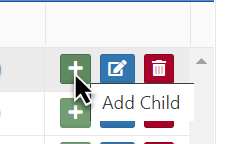
Click Add Child button (see below), then enter your Child Category, but make sure to give it a unique name.
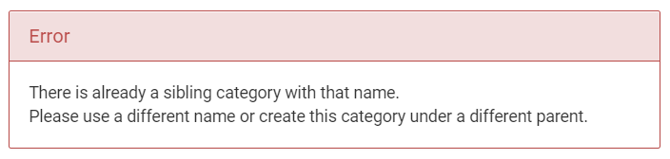
You will see the following warning if you attempt to create a Child (i.e. Sub-Category) with the exact same name:
Expand to show existing Child Categories
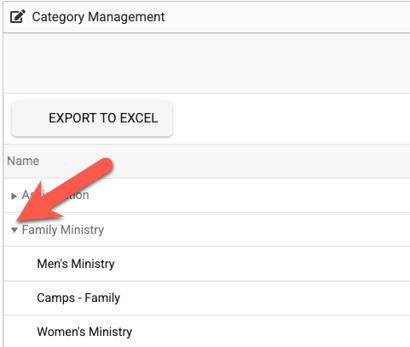
If you already have part of a hierarchy created, you can expand to see the "child" categories underneath.
Deleting an Event Category in a Hierarchy
- If you delete a "parent" event category, then all sub-event categories will also be deleted.
- When event categories are deleted they will be removed from any and all past, present, and future events.
- Before deleting any event categories, you can go to Reports > Report Builder in the left side menu bar and run a report filtered by the event category tat you want to delete in order to see how many events have that event category assigned to them.
- However, you can rearrange the hierarchy of the event categories so you can save the sub-categories and just delete the old "parent" event category.
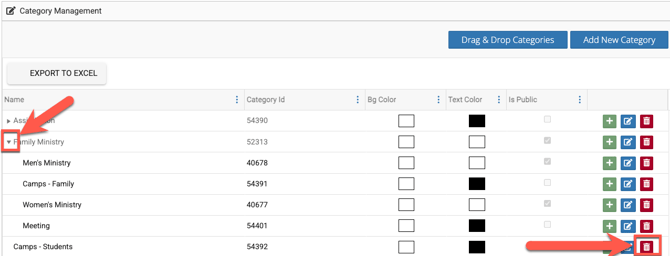
First, go to the Event Category page and expand the hierarchy of event categories to see the "child" ones below and then click the delete icon to the right of the one that you want to delete.
-
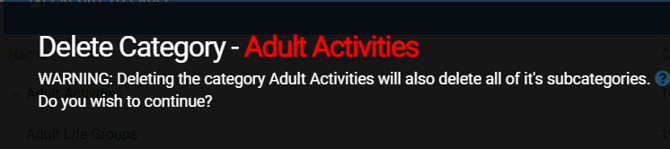
If you click the delete option next to an event category while it still has sub-categories underneath it, you will see the following warning:
-
Do NOT delete the Event Category unless you understand and desire to also delete all of its "child"/ Sub-Categories underneath it!
How to Remove "Child" Event Categories From "Parents" Before Deleting
If you want to KEEP the "child"/sub-categories, then use the Drag & Drop feature to remove those sub-categories from being underneath the "parent" category BEFORE you delete the "parent" event category!
- Again, only event categories that are NOT tied to any events can be deleted. In order to see if any events are tied to an event category that you want to delete, run a report in Report Builder for the date range needed and once exported sort the events by the Event ID or name column in order to group occurrences and then click on each unique event ID to remove the event category that you want to delete from that event.

Once inside the Drag & Drop Page you can easily expand the Event Category and click and drag the Sub-Category to become a stand-alone Event Category:
. . .Or to be a Sub-Category under another Event Category, click and drag, then drop on top of another Event Category:
Export to Excel
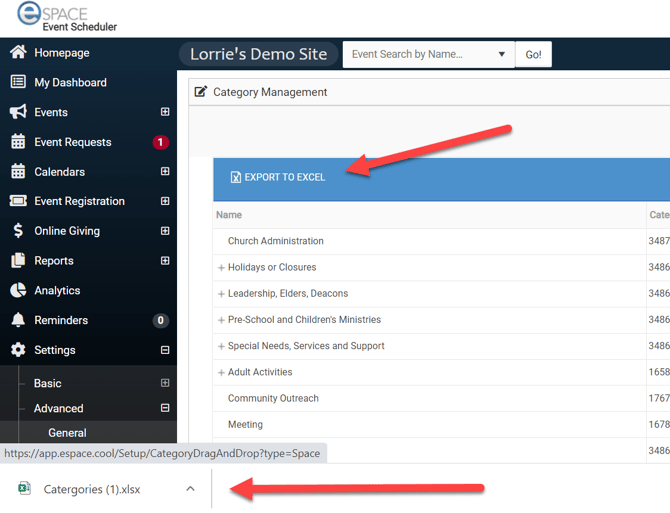
Click Export to Excel and a new Excel file of your Event Categories will be available
Where You can see the Hierarchy of Event Categories
When creating an event, you will see the event categories in the hierarchy that you placed them.
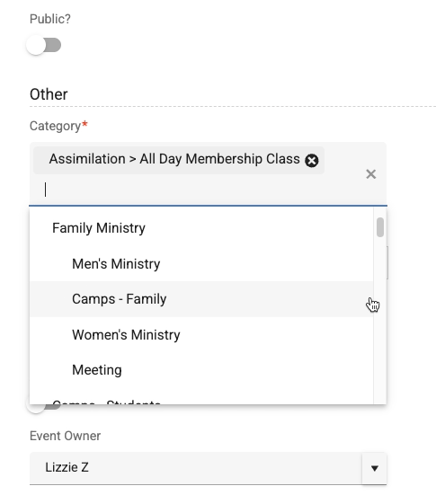
Once chosen on the event, it will look like this.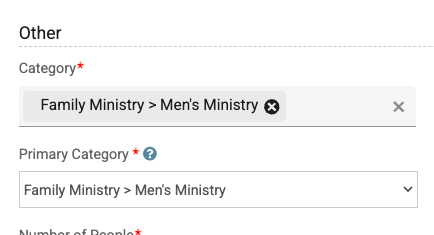
If you select more than one category, you can choose which one is the primary.
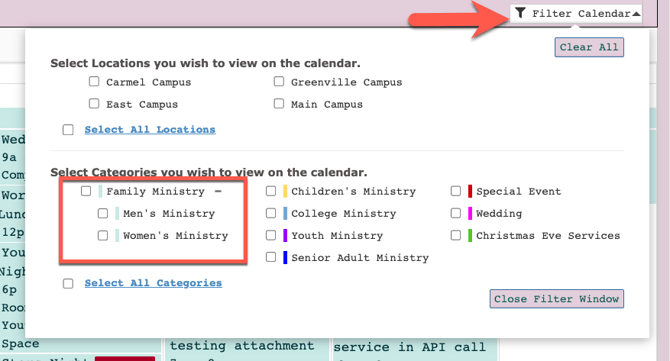
Also on the internal Calendar views, you will see the event categories in their proper hierarchy.
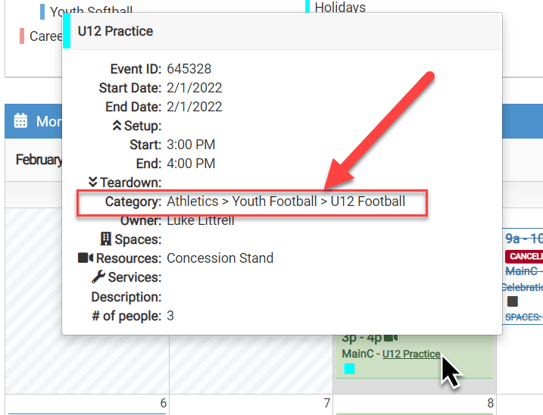
The event categories will also appear in the "parent" and "child" hierarchy in the filter option on the public calendar.