Sections in this article:
- Event Category Overview
- Requiring Event Categories on Event Requests
- How to Add Event Categories
- Deleting & Editing
- Adding Event Categories to Events
- Multiple Categories on an Event
- On External Event Request Forms
- Filtering with Categories on the Internal Calendar
- Filtering with Categories on the Public Calendar Feature
- Filtering Reports by Categories
Event Category Overview
- These are often defined as areas or departments within your organization, such as Staff Meeting, Community Outreach, Student Ministries, Space Rental, etc. In eSPACE you can add event categories to your organizations account so then 1 or multiple event categories can be added to events.
- Adding event categories to events is recommended for enhancing the reporting, filtering on the internal calendar, filtering on the public calendar, and search features.
- Learn more in this article: Event Categories | Creating & Managing Sub-Categories
How to Add Event Categories
- Go to Settings > Advanced > Event Categories and click "Add New Category".
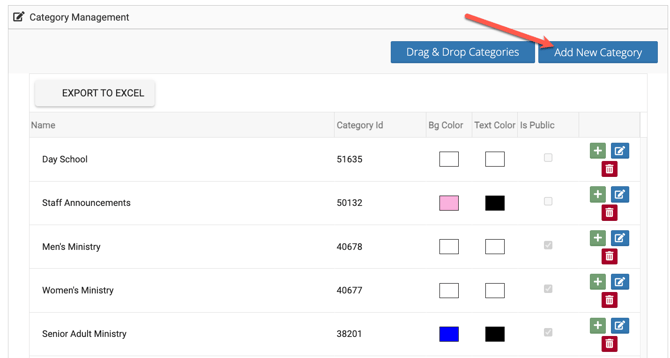
- When you add a new event category you will be able to:
- Name the category
- Assign a color to appear on all events on the internal (and optionally external) calendar
- Choose a text color
- Choose whether the event category is public or not
- If public, then it will only be added to public events.
- If private, then it will be able to be added to both private and public events.
- Learn more about our Public Calendar Setting in this article: Public Calendar Feature | Embed Your eSPACE Calendar on your Website
- Each event category will have a unique Category ID associated to it.
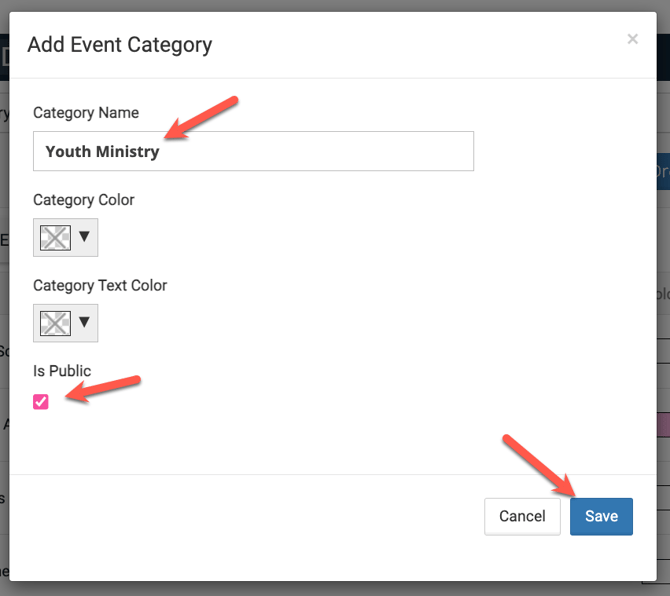
- Repeat this process to continue adding categories.
Deleting & Editing
- Delete a Category by clicking the red button associated with the Category and process accordingly.
- Deleting an event category will remove it from any and all past, present, and future events.
- Edit a Category by clicking the green button associated with the Category.
- You will be able to see how many events have been assigned to each category, as events are created.
Adding Event Categories to Events
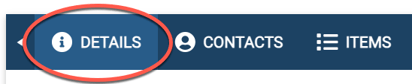
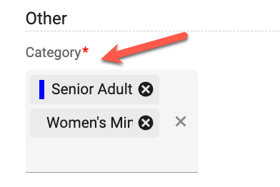
Users, sub-admins and admins will be able to add one or multiple event categories to their event on the main Details tab under the section called "Other". All schedules and occurrences will have the same event categories as the event, in other words, you can't assign different event categories to different occurrences or schedules on an event.
- If an admin has made this required, then at least one must be added before the event will be allowed to be submitted for approval.
- If the event is marked public, then only event categories that are marked as public will appear as options to be added to the event.
Multiple Categories on an Event
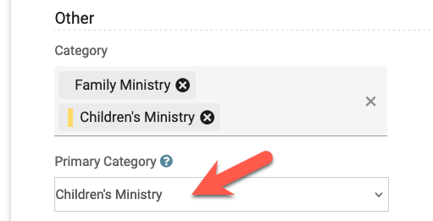
If you add more than one event category, you can set one as the primary so that it appears first on the event on the internal calendar views. Sometimes an event overlaps between different ministries and when this happens people usually add more than one event category to the event. All schedules and occurrences will have the same event category as the event.
Choosing Event Categories On External Event Request Forms
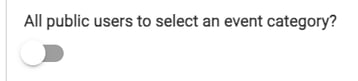
Admins can either allow external (non-eSPACE users) to select an event category when they fill out the request form by enabling the feature on the form settings OR the managers of the form can add one after the request is submitted.
- If the event is marked public, then only event categories that are marked as public will appear as options to be added to the event.
Requiring Event Categories on Event Requests
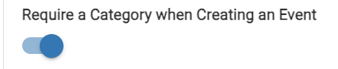
- If you want to make Categories a required field, you can do so by going to Settings > Advanced > General > Event Creation and enable the setting, as shown below.
- Learn more about external forms in this article: External Event Request Forms: Allow Non-eSPACE People to Request an Event
Filtering with Categories on the Internal Calendar
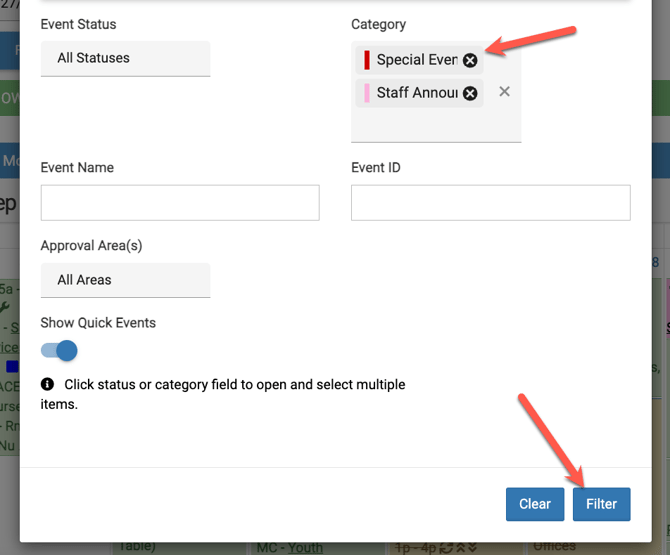
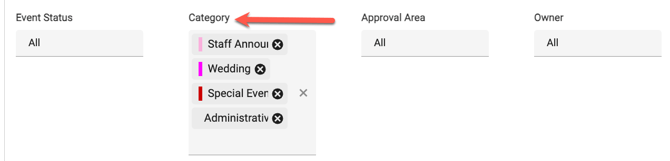
Once you have events with event categories added, you can begin to filter by those event categories on the internal calendars views in eSPACE.
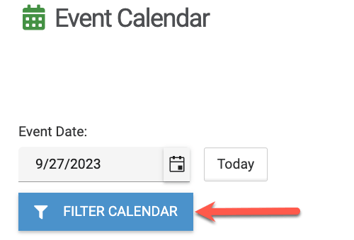
You can filter by or multiple event categories.
Filtering with Categories on the Public Calendar Feature
When setting up a public calendar to put on your website, you can choose if you want to filter it by event categories (as well as locations).
- Learn more about Public Calendar in this article: Public Calendar Feature | Embed Your eSPACE Calendar on your Website
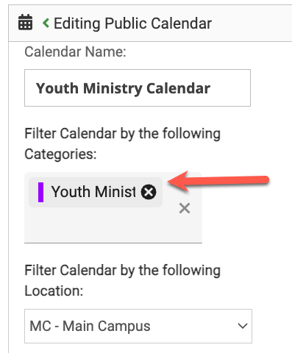
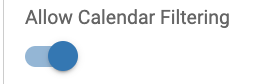
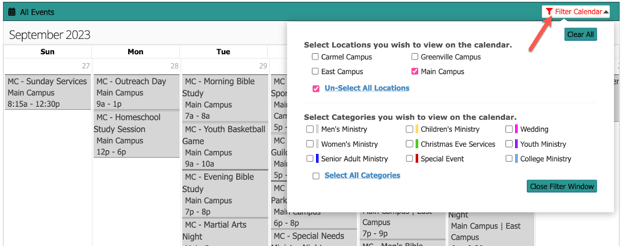
You can also enable the setting on the public calendar so that people viewing the events on your website can filter the events by your event categories.
Setting
Example of a public calendar
Filtering Reports by Categories
When running reports in eSPACE you have the option to include event categories.

You can then filter by certain event categories if needed.
Learn more about reports in this article: Overview of Reports - Event Scheduler