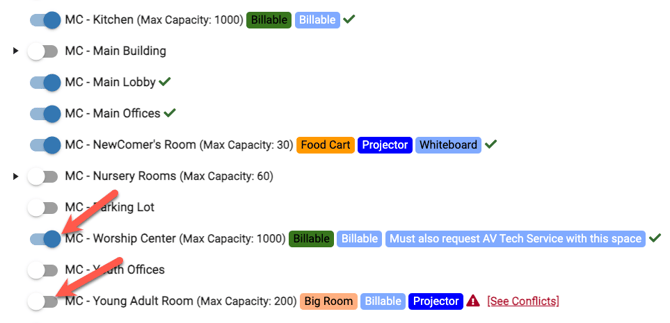
This Event Scheduler feature allows combinations of spaces, resources and services under one group (i.e., default setting) to ease the setup of events that utilize the same components on a regular basis (i.e. weddings, classes, meetings, banquets, conferences etc.).
- Learn more in this article: Item Groups | Creating Mass Select Items on Events
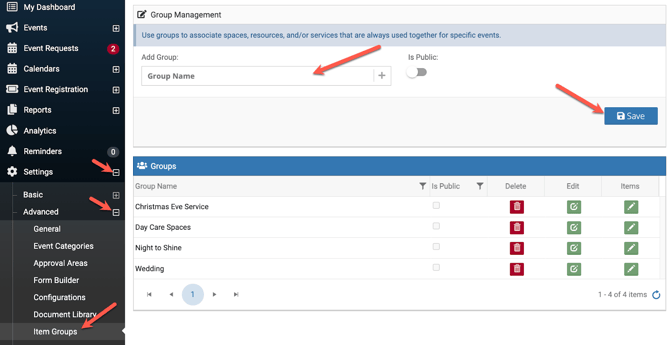
Admins have the ability to create item groups that can be used during the event creation process by all users.
- If you are a Sub-Admin or user and would like to request a group to be added, please see one of the Admins in your organization.
Here is how the process works:
When you create a new event, simply complete the Event Details tab of the event, choose SAVE and PROCEED.
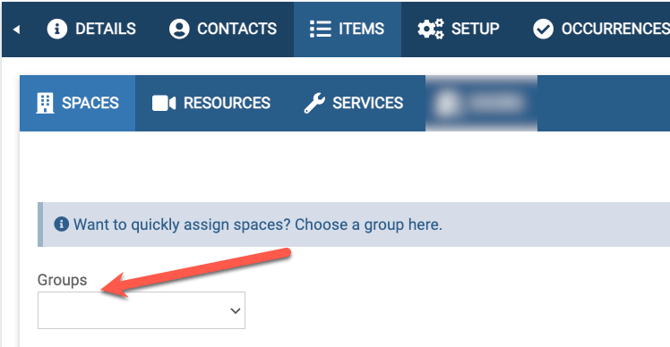
Once you get to the Spaces tab (as shown below), choose the Group name from the drop-down and all of your items (spaces, resources, and services) will be pre-populated for you, according to the group settings.
You can always add or delete any items that you may need for the event. Once you have finished, then continue through event creation process and submit for approval.