


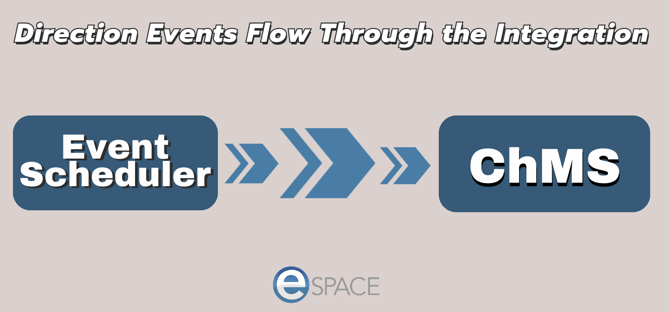
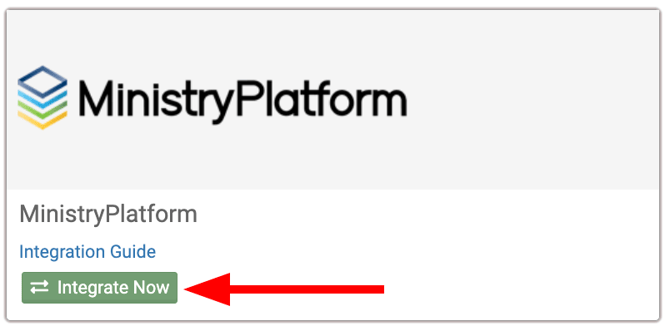
Customers using Event Scheduler have the ability to integrate their eSPACE account with certain third-party ChMS companies such as Ministry Platform. This allows for all events to be created, edited, and deleted in eSPACE but then sync to Ministry Platform who has built an integration to pull events from your Event Scheduler account into their system. Since this is a third-party integration, please make sure to contact Ministry Platform for troubleshooting questions if events are not syncing correctly after you confirm that your Ministry Platform credentials are correct in your esPACE account.
- Different eSPACE Subscription Tiers include Different Features Including Integrations with MinistryPlatform
-
In order to know if this feature is included in your eSPACE subscription tier, please contact support@espace.cool.
-
- Viewing Your Subscription Details
-
- Each eSPACE admin with access to Billing can view what subscription tier your organization currently has and everything that is included in their account under Settings > Other > Billing > Manage.
-
Main Requirements & Limitations
- ALL spaces MUST be synced over from your MinistryPlatform account into your Event Scheduler account in order for this integration to work. This means that NO spaces can be manually added in eSPACE, edited in eSPACE, or rearranged in the hierarchy in eSPACE.
- Only the Room Name will sync over to eSPACE. Since eSPACE does not have a field for a space number, the space numbers in Ministry Platform will NOT sync over, so make sure that each space in Ministry Platform has a unique name.
- Updating Space Names: In order to update a space name, you must manually update the name in both eSPACE and Ministry Platform.
- Resources and Services can sync from MinistryPlatform into your eSPACE account under Settings/Basic/Resources or Services, but they can not sync to MinistryPlatform on events.
- Locations in MinistryPlatform will sync with your spaces into eSPACE and in order to delete a location, the location must be deleted in MinistryPlatform first and then in eSPACE.
- If you have more than one location in your MinistryPlatform account and you want to filter the integration down to one of those, you can choose to filter by a location when setting up the integration in eSPACE.
- If you have more than one location in your MinistryPlatform account and you want to filter the integration down to one of those, you can choose to filter by a location when setting up the integration in eSPACE.
- Additional fields: There will be additional fields required on all events in order for them to be able to sync over to MinistryPlatform.
- Syncing is Manual: After the event is approved in eSPACE, then you will be able to go to the Occurrence tab on the event and click the button to sync all occurrences to MinistryPlatform.
Already Using MinistryPlatform and Now Adding eSPACE
- If you have already been using MinistryPlatform and are now just adding eSPACE Event Scheduler, then you will need to contact eSPACE Support and ask for them to transfer your MinistryPlatform events to eSPACE Event Scheduler. Once the events are transferred over, then you can begin creating and editing ALL events in Event Scheduler.
- In order to correctly integrate eSPACE and MinistryPlatform, ALL spaces must be synced over from MinistryPlatform to Event Scheduler, which can be done under Settings > Basic > Spaces. This means that NO spaces can be manually added in eSPACE.
- Transferring events from MinistryPlatform to eSPACE can only happen if the eSPACE account is empty to begin with. In order to re-transfer events, ALL events must first be wiped from the eSPACE account.
Already Using eSPACE and Now Integrating Ministry Platform
- If you have already been using eSPACE- Event Scheduler to add events and now want to integrate with Ministry Platform then all spaces in Event Scheduler will need to be deleted and then synced over from MinistryPlatform under Settings>Basic>Spaces. Afterwards, you can re-add your spaces to all your events in Event Scheduler.
Part 2: Setting up the Integration on MinistryPlatform's Side
- For any and all assistance with setting up this integration in your MinistryPlatform account, please contact MinistryPlatform's support team.
- For any and all questions as to how this integration works, issues with events not syncing over (assuming you get a success message when clicking the sync button in eSPACE), what type of event data syncs, and for any feedback, please reach out to support at MinistryPlatform's support team.
Part Three: Setting Up the Integration in eSPACE
1. Login to your eSPACE account-
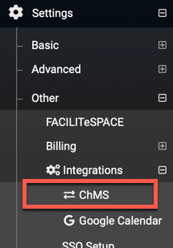
- From the left side menu click on Integrations
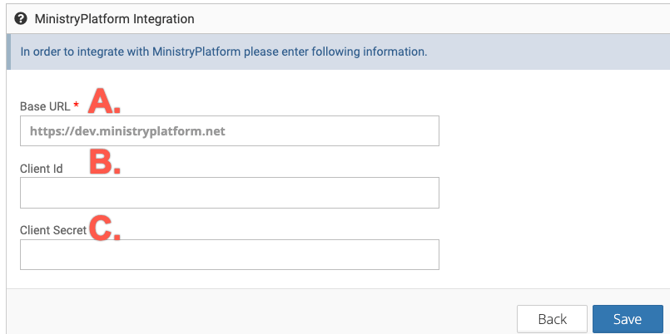
3. Enter all your information below
-
- A. Base URL,
- B. Client ID,
- C. Client Secret,

- Locations in eSPACE must only be synced from MinistryPlatform.
- If you have more than one location in your MinistryPlatform account, you can choose to filter by a location(Congregation/Parish) when setting up the integration in eSPACE.
4. Save.
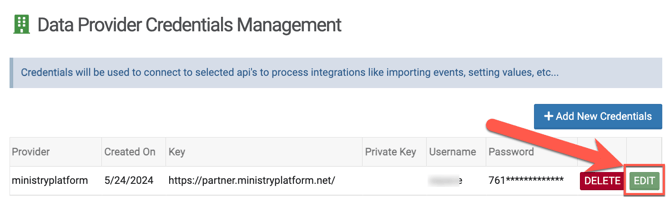
5. Once saved, click the "Edit" button to specify which direction you want the events to sync.
6. Choose "Manually push events from eSPACE to MinistryPlatform".
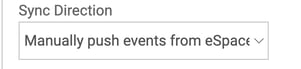
- When you are creating all events in eSPACE Event Scheduler so that they can all be synced to your MinistryPlatform account, "Manually push events from eSPACE to MinistryPlatform" is the correct choice.
- Learn more about our other integration with MinistryPlatform here, but keep in mind that these two integrations can NOT be combined. Read this article to learn more: Ministry Platform to eSPACE for FACILITeSPACE Integration
Adding Location(s)
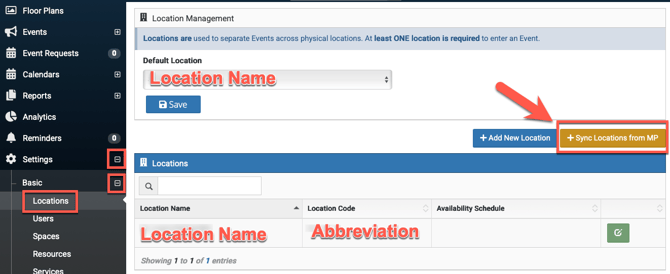
7. In order to sync locations or sync in your one location, go to Settings/Basic/Locations and click "Sync Locations From MP". Locations can only be synced into eSPACE and must always be added, edited, and deleted in MinistryPlatform.
- If you added a congregation/parish to filter by in the credentials section, that will apply to your resources and services.
Adding Spaces
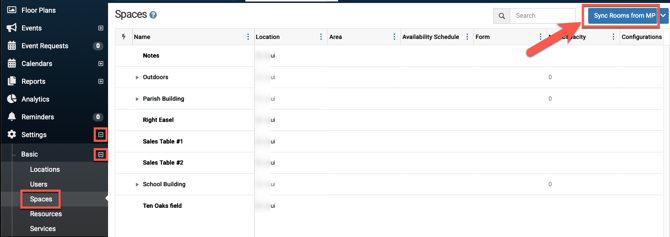
8. In order to sync spaces into your eSPACE account from MinistryPlatform go to Settings/Basic/Spaces and click "Sync Rooms From MP".
- Spaces can only be added in MinistryPlatform. However, if you edit or delete a space in MinistryPlatform, then make sure to do the same edit or delete in eSPACE.
- If you added a congregation/parish to filter by in the credentials section, that will apply to your resources and services.
Adding Resources & Services
9. In order to sync resources and services into your eSPACE account from MinistryPlatform go to Settings/Basic/Resources (and then Services) and click "Sync Rooms From MP".
- Resources and services can only be added in MinistryPlatform. However, if you edit or delete a resource or service in MinistryPlatform, then make sure to do the same edit or delete in eSPACE.
- This integration does not sync resources and services on events back to MinistryPlatform.
- If you added a congregation/parish to filter by in the credentials section, that will apply to your resources and services.
Learn how to create and event in eSPACE to manually sync over to MinistryPlatform: eSPACE and MinistryPlatform Integration: Event Creation Process
Different eSPACE Subscription Tiers include Different Features, Including Integrations with MinistryPlatform
-
In order to know if this feature is included in your eSPACE subscription tier, please contact support@espace.cool.
Viewing Your Subscription Details
- Each eSPACE admin with access to Billing can view what subscription tier your organization currently has and everything that is included in their account under Settings > Other > Billing > Manage.