In Work Order & Asset Management you can set equipment as "retired". This is a way to keep the equipment in your account so you can refer back to the work orders assigned to the equipment, but note that it's been retired. Keeping the retired equipment in your eSPACE account is also helpful if the equipment was already synced to your Life Cycle Tracker as well.
What Happens To Retire Equipment
- Retired equipment will still show as an option in the drop-down menu for "Equipment" on work orders (it will appear as an option on work orders that have the same space selected on the work as the equipment piece OR show on all work orders as an option when the equipment is not assigned to any particular space).
- Retired equipment is also included in the number of pieces of equipment allowed for each subscription level. In order to know the equipment limit of your tier, please contact support@espace.cool.
Marking Equipment as Retired
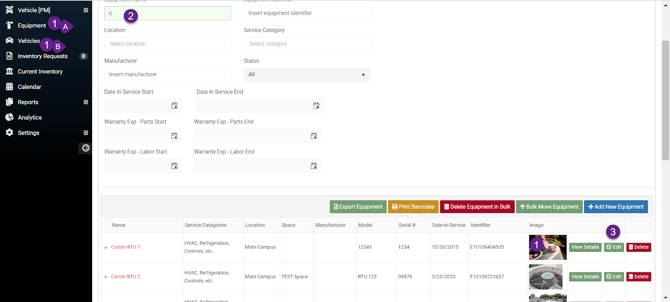
Go to the left navigation bar and click Equipment (or Vehicles if you have Vehicle Pro)
- Click A. Equipment (or B. Vehicles)
- Enter criteria into the Smart Filter Search
- Click Edit to the right of your selection
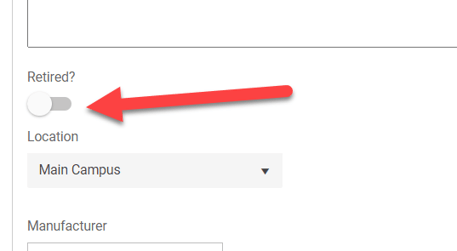
Scroll down a little and find the toggle for Retired?
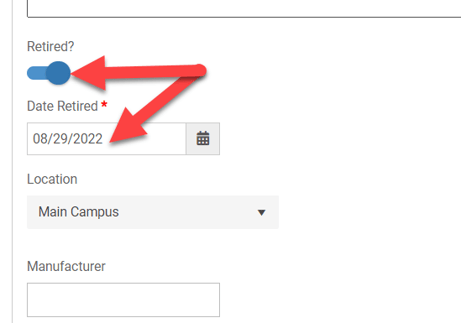
After toggling on Retired?, enter the Date you want to retire this Equipment (or Vehicle)
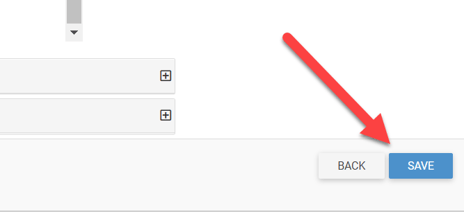
Scroll to the bottom and click Save
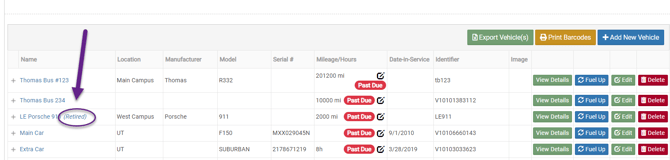
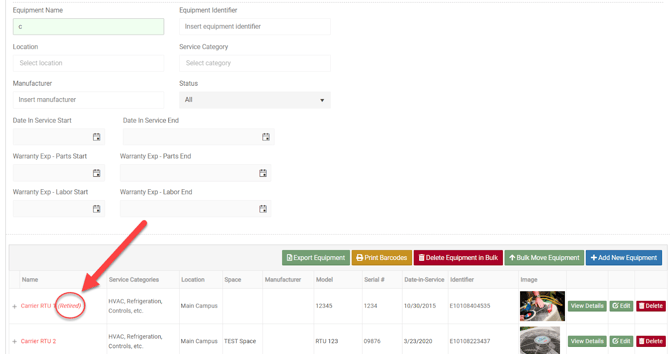
Now anytime you search for that Equipment you will see the word "Retired" in the name
Retiring Vehicles
The same is true for retired vehicles. For those that are on a subscription that includes Vehicle Pro, you can enter in vehicles as separate from your equipment, You will also have access to fields that are vehicle-specific for better tracking purposes. Learn more: Vehicle Pro Feature Overview