Dashboard Settings is where each user can define if the default view for each grid is expanded or collapsed. They can even hide grids if they choose.
Update your Dashboard Settings by clicking here, as shown below:

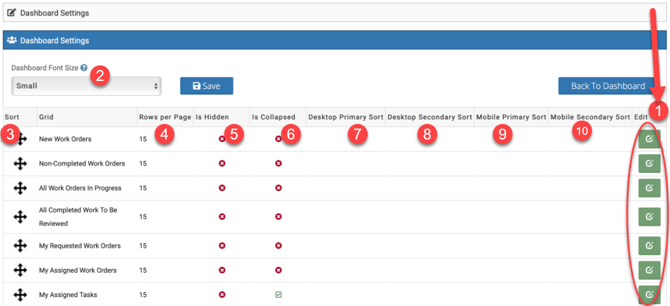
To the right of each Dashboard Grid, click the Edit button to make these changes
- Edit each grid
- Adjust the font size
- Set the number of rows per page you want to see
- Set if you want any grid to be completely hidden
- Set if you want any grid to be collapsed when initially loaded
- Set which column of the grid you want to be the primary sort (for Desktop)
- Set another column of the grid to be the secondary sort (for Desktop)
- Set which column of the grid you want to be the primary sort (for Mobile)
- Set another column of the grid to be the secondary sort (for Mobile)
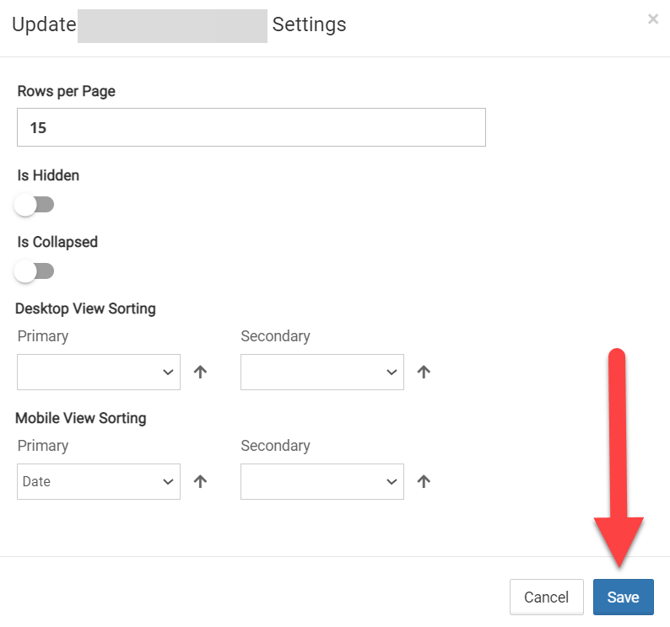
On #1 above, after clicking Edit, all settings can be modified for each grid (see below), then click Save
Reset All Grids - This option is located on the top of your dashboard, under your name. If you find that information is missing from any of your grids, click on the Reset All Grids button (shown below) and this should correct the issue, as sometimes the dashboard gets cached. However, resetting the grid does not refresh your whole eSPACE account or the full webpage.
Expand Grids to see More Information
You can expand each grid by clicking the "+" to see the work orders associated within.

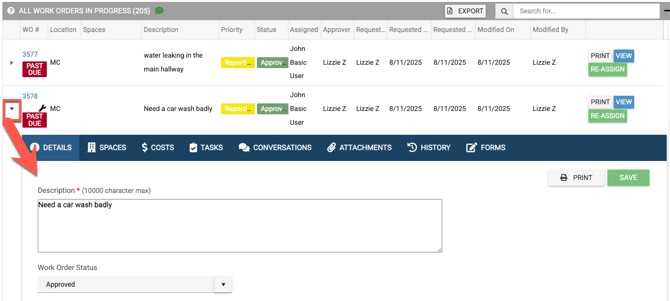
You can also expand each work order to see all of the tabs associated.