An Admin (and/or Sub-Admin based on their user permissions) can search for any completed work order within their "All Completed Work to be Reviewed" grid. Work orders are meant to be updated the the status "Completed" once the assigned user has finished the work.
- Once the assigned user marks the work order as "Complete" if the work order requires approval, then it will move to the assigned user's "My Completed Work Waiting to be Reviewed & Closed". It will also appear in the admin's "All Completed Work to Be Reviewed" grid. (If a sub-admin has the ability to manage work orders then they will also see the completed work order in the "All Completed Work to Be Reviewed" grid on their dashboard.)
- If the work order doesn't require approval, when the assigned user updates the work order to the "Completed" status, the work order will automatically move to the "Closed" status and be removed from the dashboard.
- Admins can default all work orders to need approval under Settings > Advanced > General > Work Order Workflow, "Default Require Approval after Completion for Work Orders".
- Related article: Warning | Skipping the "Complete" Status on a Work Order
To open the work order and review the details, click on the work order number OR click the green view button. There are also options to print, close, or not accept a work order (see below).
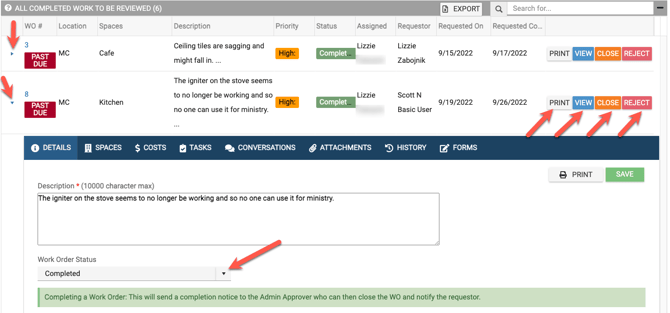
If you're happy with the completed work and choose to 'Close" the work order, it will go to your "Closed Work Orders" folder, located on the top right of your dashboard.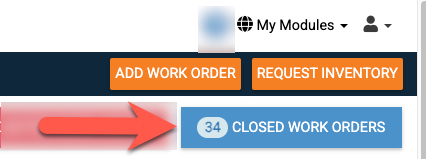
If you choose "Do Not Accept", you will have the opportunity (see below) to add a reason why you are not accepting the work that was done, which will then be sent to the person who performed the work.

The unaccepted work order will then show on the person performing the work's dashboard under their "My Work Not Accepted" grid whereby the can restart the work (see below).

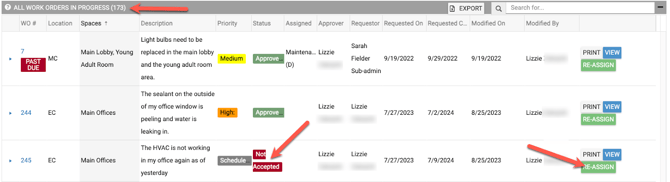
It will also show on the Administrator's dashboard (see below), under "All Work Orders in Progress", until the work order has been completed and the administrator closes. NOTE: The Administrator has the option to re-assign the work order, if desired.