Billing & Invoicing is a great feature available on certain subscription tiers of Event Scheduler!
- In order to know if this feature is included in your eSPACE subscription tier, please contact support@espace.cool.
- Related articles:
Sections in this article:
- Overview
- A. Creating an Invoice From an Event
- B. Creating an Invoice From Billing & Invoicing
- 1. Invoice in Draft State
- 2. Payment Due Date
- 3. Deposits
- 4. A. Send Proposal
- 4. B. Skipping the Proposal and Sending the Invoice Right Away
- 5. Recipient Receives Proposal Email
- 6. Proposal Accepted or Declined
- 7. Send Invoice
- 8. Customer Pays Deposit
- 9. Resend Partially Paid Invoice
- 10. Customer Pays Invoice
- 11. Paying By Check & Not Credit Card
Overview
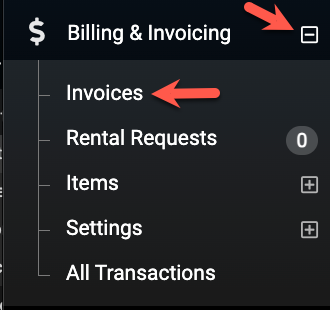
For those that are on an eSPACE subscription tier which includes Billing & Invoicing, users with access will be able to create a new invoice either on an event OR by going to Billing & Invoicing > Invoices in your left side menu bar inside Event Scheduler.
- When creating an invoice on an event you can choose to either generate the invoice for one OR all the occurrences. After the invoice is created you can make any additional edits that you need on the invoice in the Billing & Invoicing section under the Invoices section. Read more below.
Editing an Event After an Invoice Has Already Generated
An existing invoice does not update when you add another billable item to the event or when you . Invoices are a snapshot taken at "Generate Invoice" time. If the event changes afterward, the workflow is to generate a new invoice, add notes on the new one if payment has been already made on the old invoice, discount the new invoice by the amount that they have already paid, and delete the old invoice. Alternatively, you can add the additional space to the event and then click "Add Item" on the invoice and manually add an item and price that represents that spaces that you added to the event.
A. Creating an Invoice From an Event
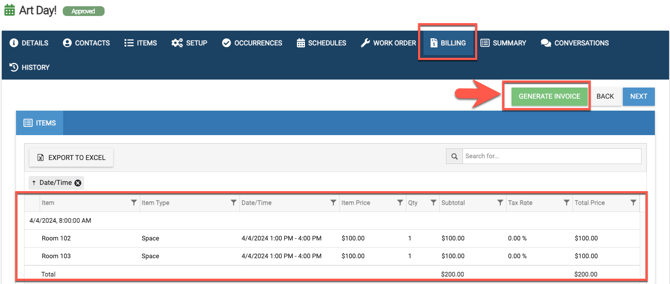
1. A. When creating an invoice from an event, go to the Billing tab and select "Generate invoice".
- Only space, resources, and services are billable on an event. They will be billable for the duration between the start time and end time of an event. The setup time and end tear down time are excluded from the billable time calculated on events.
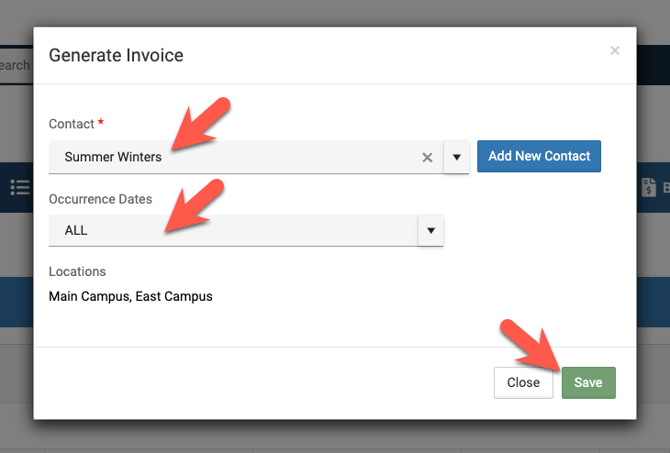
- Then you will be presented with a pop up box where you can either choose to generate an invoice for all occurrences or a specific one.
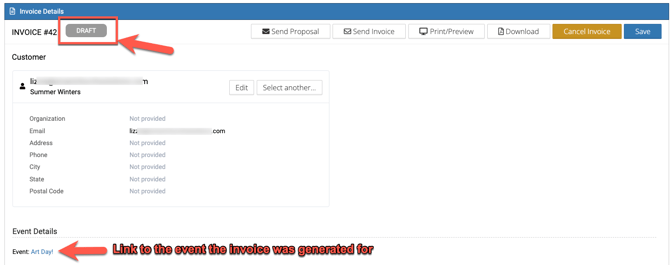
- Once you click Save then you will be navigated to the invoice within the Billing & Invoicing feature in your left side menu bar. At that point the invoice will be in a draft state, ready for you to make adjustments before sending the proposal and then the invoice.
B. Creating an Invoice From Billing & Invoicing
B. If you need to create an invoice and not have it ties to an event, then go to Billing & Invoicing in your left side menu bar, expand and select Invoices. On the Invoices page select the Create Invoice button and complete the form (search or add contact, funding account and add one or more locations) form and SAVE. Once saved, the invoice will be in a draft status. All users with access to Billing & Invoicing will be able to see all invoices, whether they are in a draft status or another status, under the Billing & Invoicing feature in the left side menu bar under Invoices.
- Each tab represents the status of the invoice and each tab has different fields within, applicable to the status.

1. Invoice in Draft State
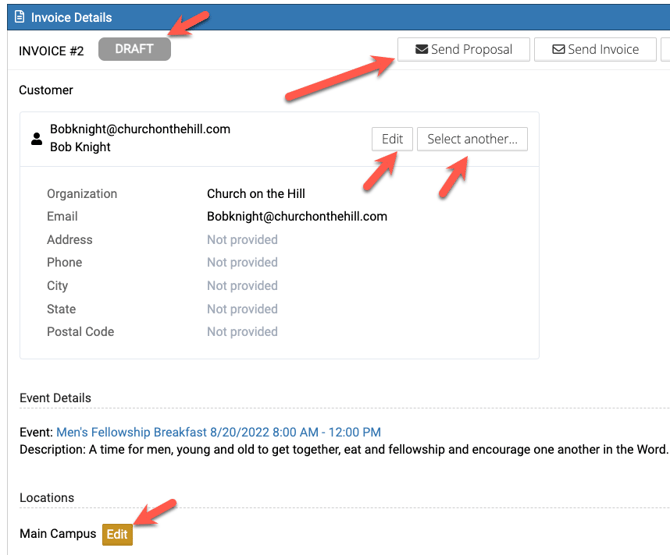
Once the invoice is created, it will be in a draft status within on the Drafts tab. There you can view and/or edit the Invoice Details (customer contact information and locations) within the form.
- Notice the DRAFT status badge to the right of the invoice number!
2. Payment Due Date
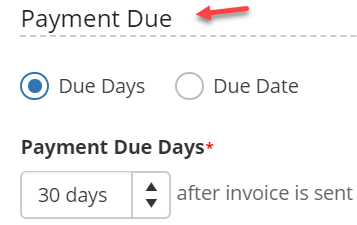
Next, select a Payment Due option. You can select Due Days and select the desired number of days after the invoice is sent OR or select Due Date and enter the desired payment due date!
3. Deposits
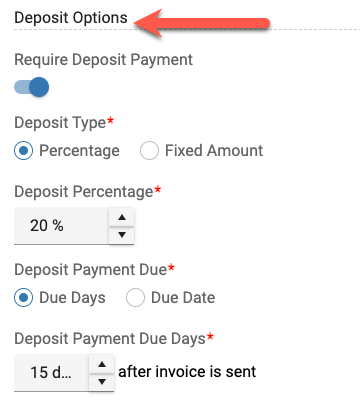
If you want to Require a Deposit, be sure to select this option below Deposit Options. You will then be able to choose a Deposit Type. You can select Percentage and add desired percentage OR you can select Fixed Amount and add desired deposit amount.
Be sure to SAVE any changes to the invoice.

4. A. Send Proposal
Next, click Send Proposal. If you have set up a SafeSave funding account and added that to your Billing & Invoicing feature then you will be able to bypass the proposal status.

- Then a new window will open where you can view the invoice and send a copy of the invoice to others. Simply separate each email by a comma! You can also include a note.
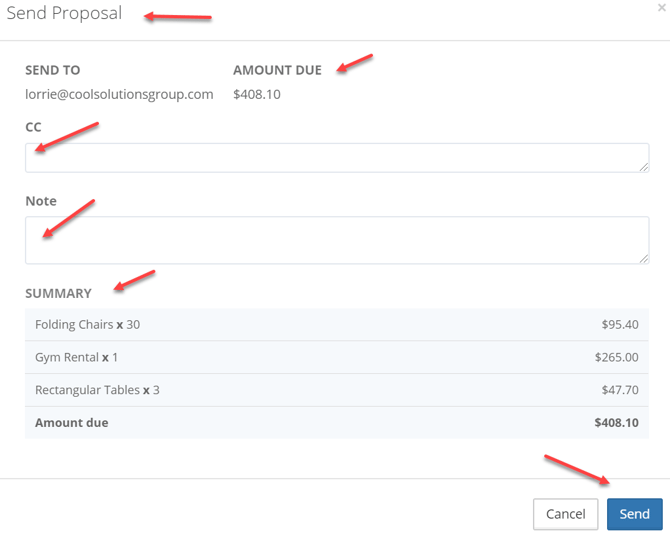
When finished filling out all the information for the proposal, select Send to send the Proposal.
4. B. Skipping the Proposal and Sending the Invoice Right Away
If you have set up a SafeSave account and entered that information under the Funding Account section under Billing & Invoicing then you will be able to skip the proposal step and go straight to sending the Invoice.
5. Recipient Receives Proposal Email
When the invoice is sent, the recipient will get an email with the details of the proposal and a link to accept or decline the proposal.
- All emails from eSPACE, including proposals and invoices are sent from mailer@espace.cool.
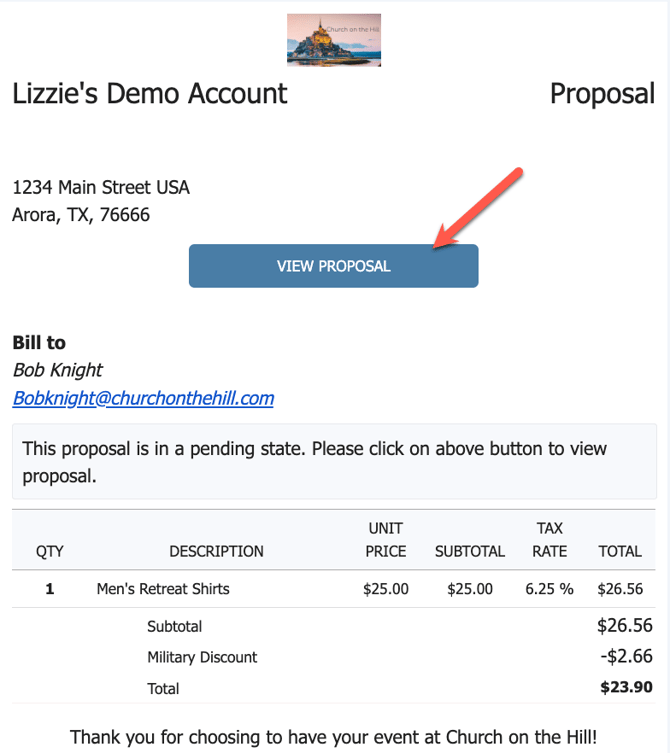
- When the recipient receives the proposal, they can click "VIEW PROPOSAL" as shown above, to then either ACCEPT or DECLINE.
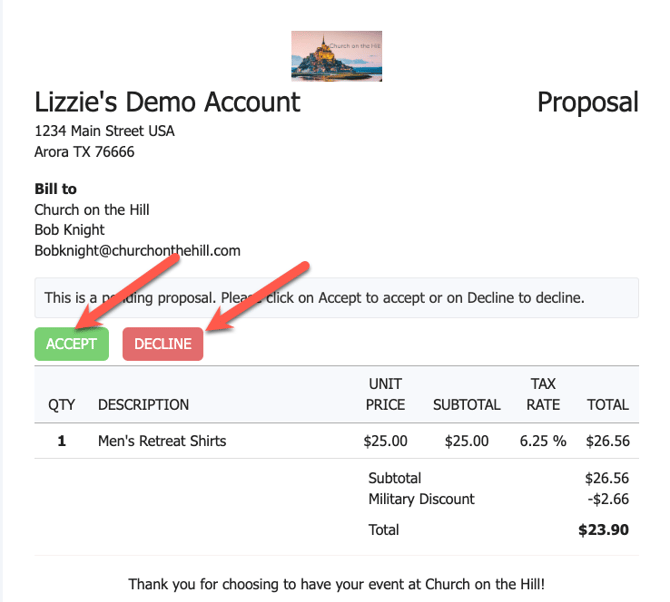
- If they decline the proposal, they can give a reason.
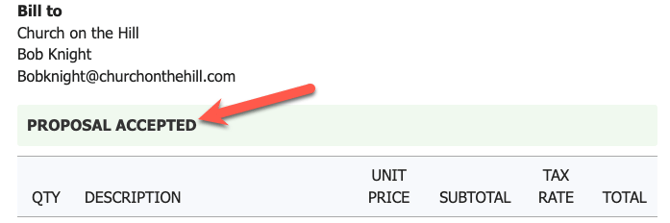
- If they accept the proposal, they will see the following within the proposal.....
- Back in eSPACE, the invoice will now be in a Proposed status. Within the proposed state, you have the options to Change Status, Send Invoice, Print/Preview, Download, Cancel, Save or Resend Proposal.

6. Proposal Accepted or Declined
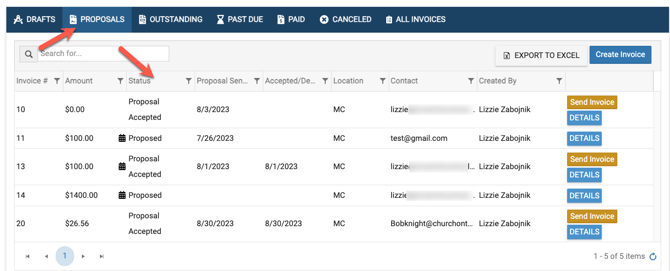
If you go back to to Billing & Invoicing > Invoices, you will find the proposal listed under the Proposals tab and will be able to see when the proposal has been accepted or declined here.
7. Send Invoice
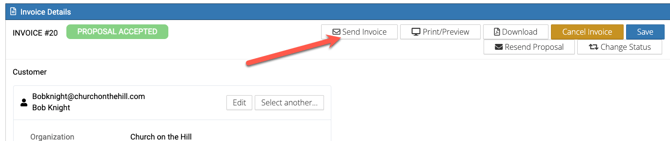
Once your proposal has been accepted, you are ready to send the invoice!
-
- Notice here that you can also manually change the status of an invoice, print/preview, download, cancel and resend the proposal.
- When you click on Send Invoice, a new window will open where you can review the invoice and carbon copy the invoice to others. Simply separate each email by a comma! You can also include a note. When you are ready, select SEND.
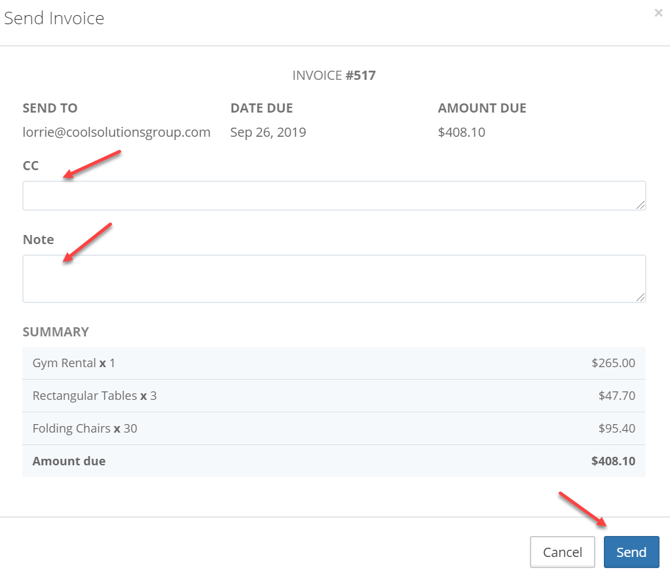
- Once an invoice has been sent, but has not yet been paid, the Send Invoice button becomes a Resend Invoice button, and by clicking it the same process for sending an invoice follows.

- Now that the invoice has been sent, it moves to an OUTSTANDING status...
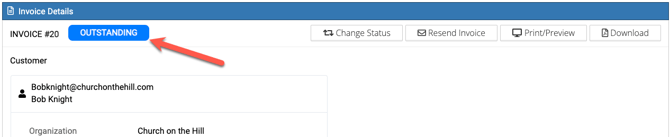
- ....and continues to move along the different statuses, based on the activity such as payment.

8. Customer Pays Deposit
When you send the invoice, the customer will get another email from eSPACE with the invoice and the options to either pay the deposit (if there is one) or pay the invoice.
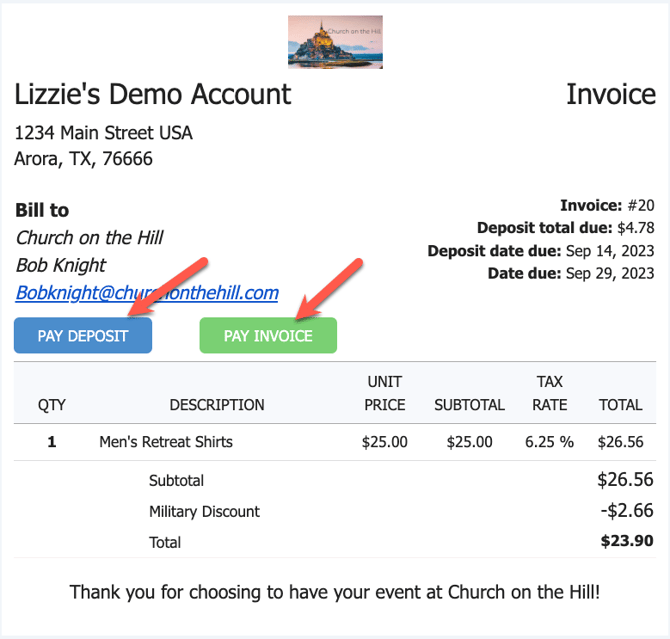
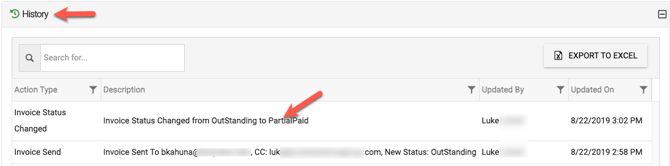
- If the customer decides to pay for the deposit only at first then the status of the invoice will change to "Partially Paid".

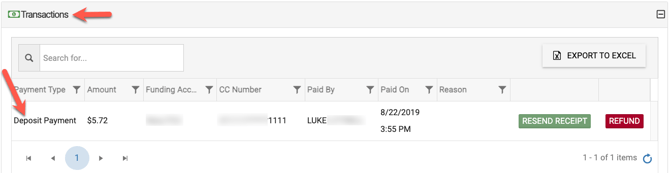
- You will see the "partially paid" transaction under the Transaction tab of the invoice in the Billing & Invoicing module.
You will also see that update recorded in the History tab of the invoice.
9. Resend Partially Paid Invoice
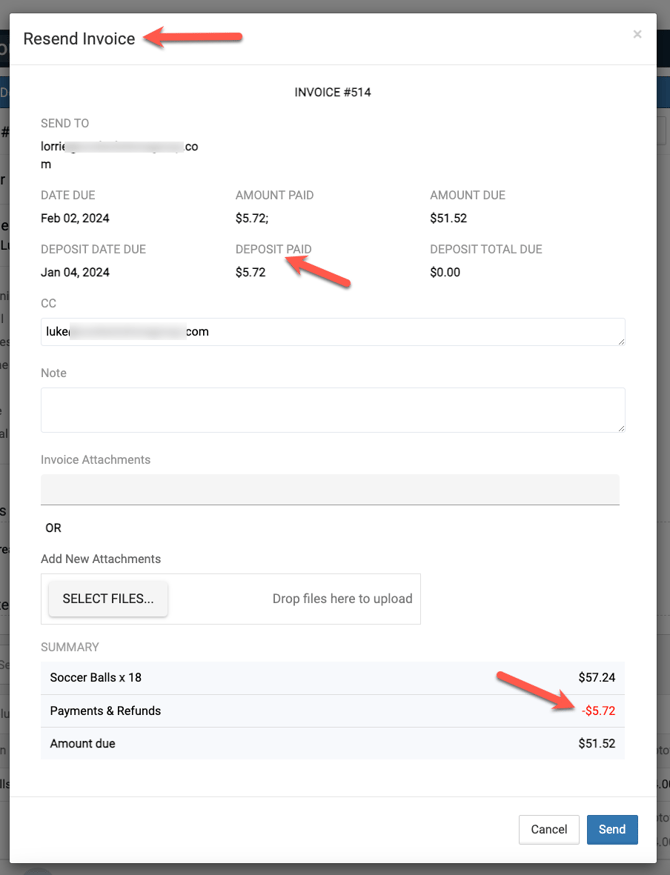
If you need to resend the invoice for any reason after the deposit has been paid, you can choose to "Resend Invoice" and the amount remaining will be properly reflected.
10. Customer Pays Invoice
When the customer receives the invoice, they could decide to pay the full amount and not just the deposit.
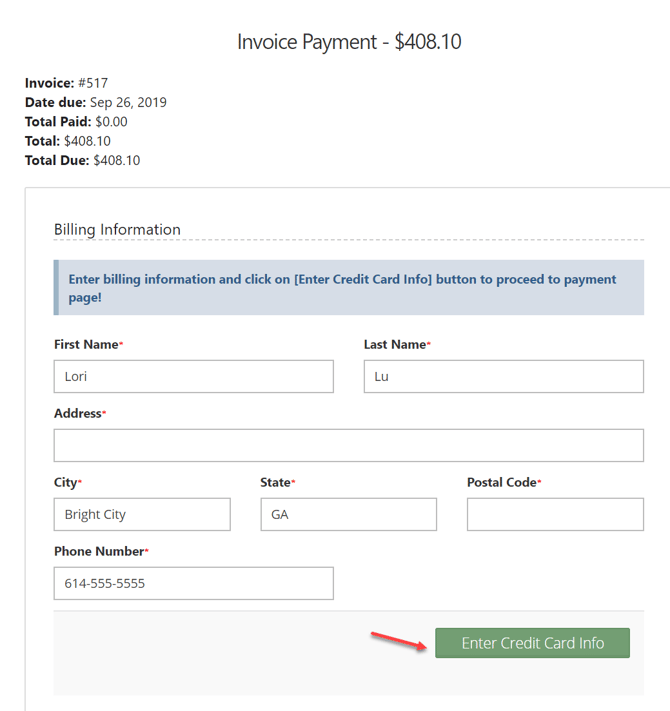
- When they click on PAY INVOICE, they can review the invoice and choose Enter Credit Card Info to add their credit card information...
- ...then select PAY to submit payment!
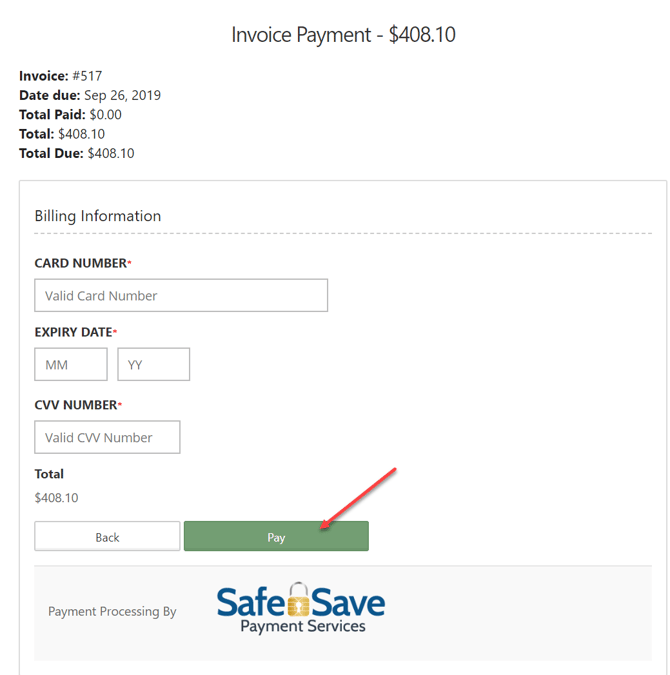
- All payments and transactions in eSPACE are made possible by SafeSave.
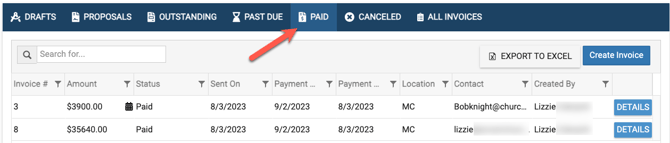
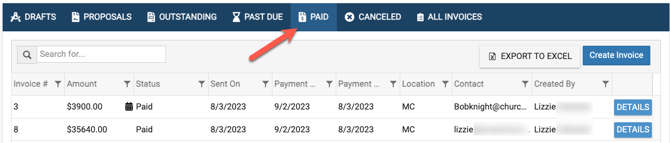
Once the invoice has been paid, it will show within the PAID tab.
11. Paying By Check & Not Credit Card
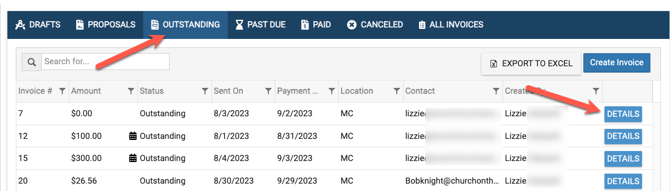
If an invoice is being paid by check or cash, you can manually change the Outstanding status to Paid by clicking the blue Details button to the right of the outstanding invoice (shown below).....
- ...then select the Change Status button...

- ...select Paid from the New Status drop-down menu and Save Changes.
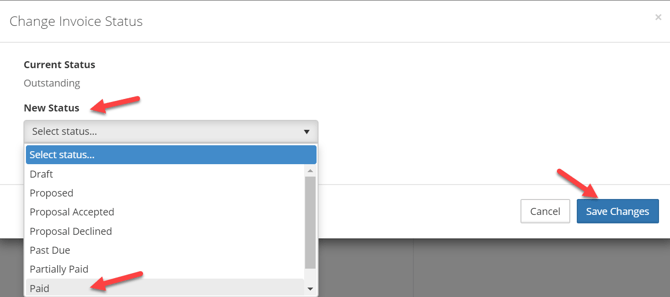
- The invoice will then show as Paid and be displayed within the Paid tab.
Different eSPACE Subscription Tiers include Different Features
Viewing Your Subscription Details
- Each eSPACE admin with access to Billing can view what subscription tier your organization currently has and everything that is included in their account under Settings > Other > Billing > Manage.