Asset Pro is a great feature available on certain subscription tiers of Work Order & Asset Management!
- In order to know if this feature is included in your eSPACE subscription tier, please contact support@espace.cool.
For those that are on an eSPACE subscription tier which includes Asset Pro, you will see an option to Scan Barcode on your Dashboard both on the desktop view and mobile app view.

Once you click Scan Barcode, your computer's camera will attempt to open and if for the first time you will need to choose to Allow
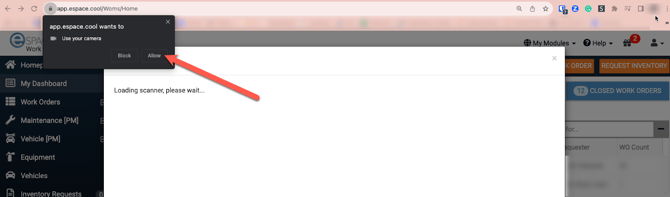
Once you have allowed the camera, you can scan a piece of Equipment
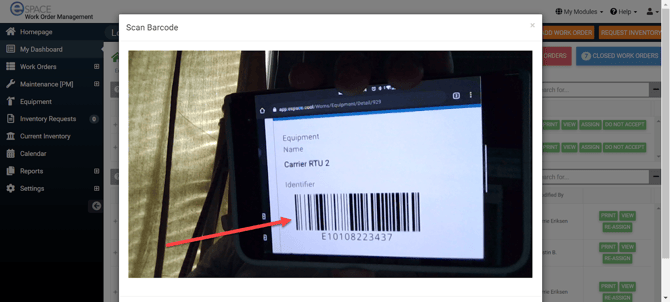
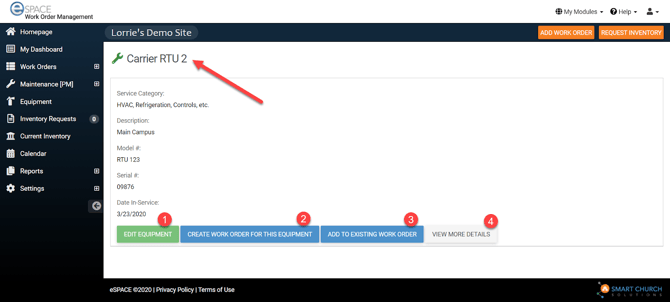
After the scan is complete the results page gives you the following options
- Edit Equipment
- Create a Work Order from this Equipment
- Add the Equipment to existing Work Order
- View More Details
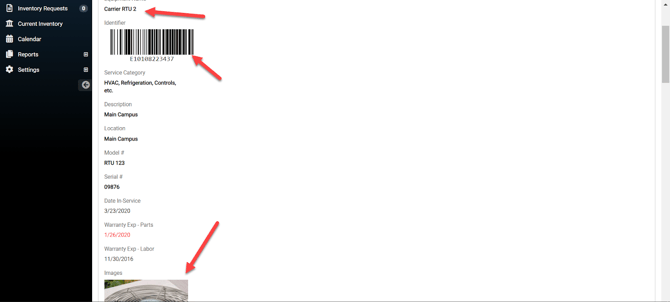
When clicking View More Details, you can see the barcode, image if attached, and more
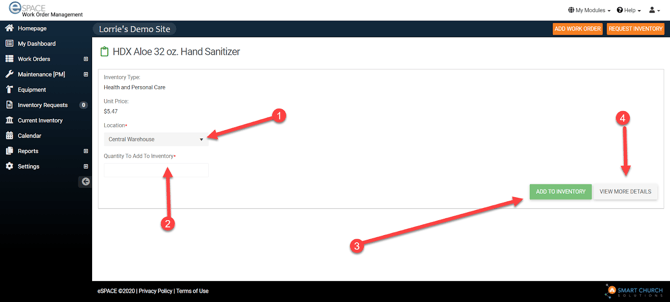
When scanning the barcode of Inventory, the results page gives you the following options
- Adjust Location
- Quantity to Add to Inventory
- Add To Inventory
- View More Details
Different eSPACE Subscription Tiers include Different Features
- In order to know if this feature is included in your eSPACE subscription tier, please contact support@espace.cool.
Viewing Your Subscription Details
- Each eSPACE admin with access to Billing can view what subscription tier your organization currently has and everything that is included in their account under Settings > Other > Billing > Manage.