Different eSPACE Subscription Tiers include Different Features
- In order to know if this feature is included in your eSPACE subscription tier, please contact support@espace.cool.
Viewing Your Subscription Details
- Each eSPACE admin with access to Billing can view what subscription tier your organization currently has and everything that is included in their account under Settings > Other > Billing > Manage.
-
Related article: Inventory Items | Adding, Editing, Viewing Current & Setting Up Notifications
Inventory Request Forms
For those that are on an eSPACE subscription tier which includes Asset Pro, begin by clicking on "Request Inventory" at the top right of your Work Order & Asset Management Dashboard.
- Choose your Item Type from the drop-down, then choose your Inventory Item
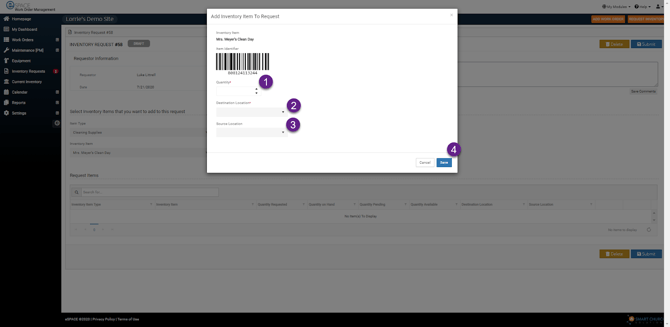
- Once you have selected your Inventory Item a new window appears for you to enter the following
- Quantity
- Destination Location
- Source Location
- Then, click Save
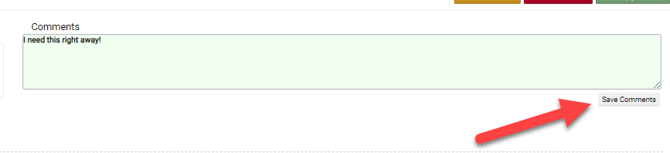
You can additionally enter a comment into the Comments field
- To add another Inventory Item, simply repeat the steps above
- Once your Inventory Request is complete, click Submit
-
Your request will now go to
 status
To give permissions to a Sub-Admin or Admin User to Manage Inventory Requests, go to Settings>Basic>Users
- Choose a User and click Edit
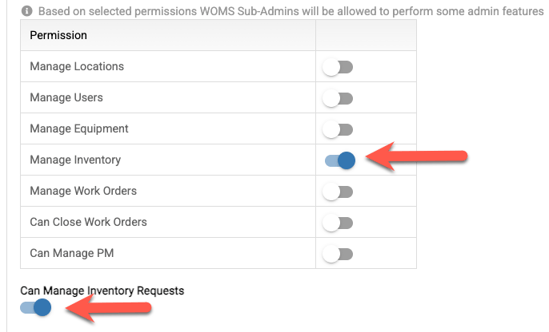
- Go to User Access Permissions and in the Permission grid, check the box Manage Inventory
- Then, underneath the Permissions grid a new item will appear that says Can Manage Inventory Requests, and check the box
Granting Access to Inventory Requests to Users
To give permissions to a standard User in Work Order Management to make Inventory Requests, go to Settings>Basic>Users
- Choose a User and click Edit
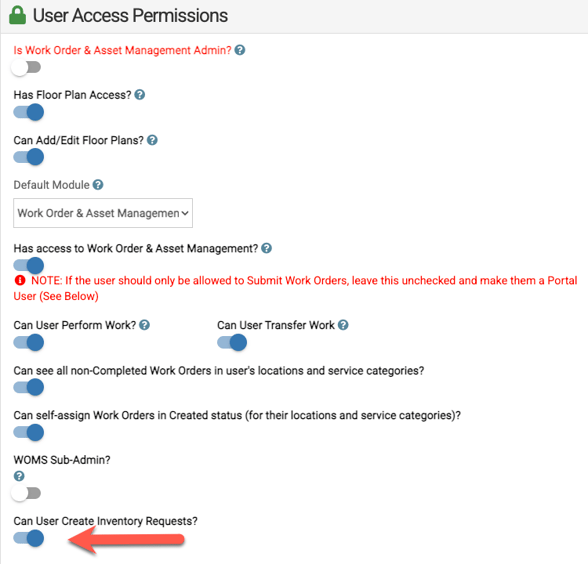
- Go to User Access Permissions and check the box for Can User Create Inventory Requests?
Where to View Inventory Requests
All Inventory Requests appear in the left Navigation Bar as  and the workflow is as follows
- Once on the Pending Tab, click the plus sign to the left of each Inventory Request to see what inventory is requested and the quantity of each
- You can click Edit, Decline or Approve
- If Approve, the Inventory Request moves to the Approved Tab
- Once on the Approved Tab, click the Details button
- Then, click on
 to start working on completing the Inventory Request
 - Enter your Work Time, then click Complete
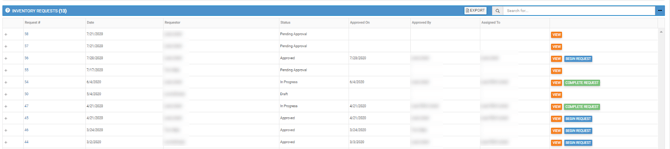
- This workflow can be seen and done from the Dashboard grid as well
Printing Inventory Requests
You can also Print your Inventory Request.
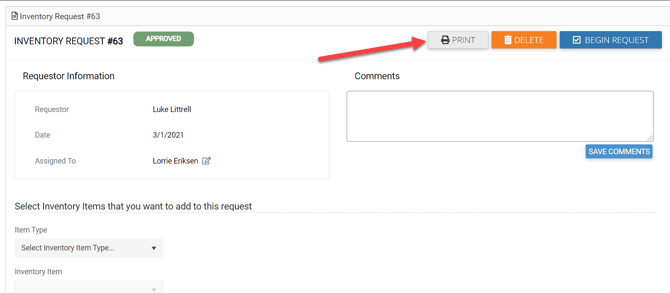
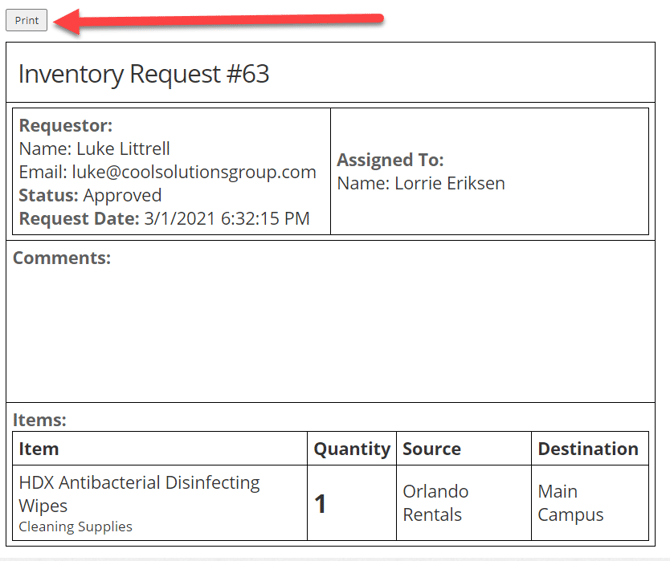
After clicking the Print button, the printable form appears and then click Print again:
Inventory Request Reports
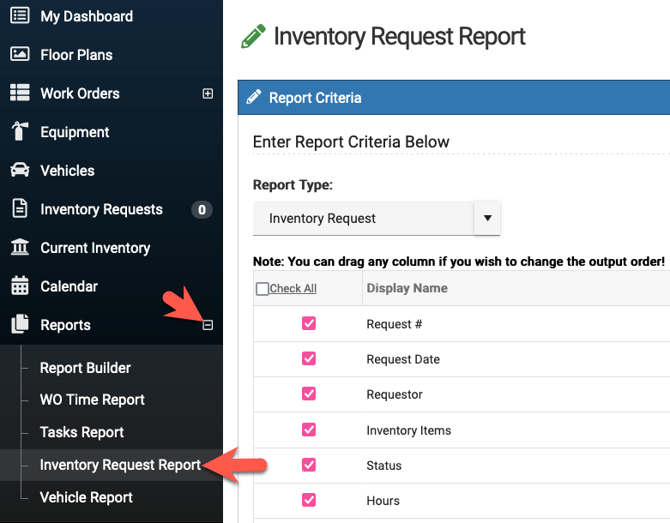
- Admins, sub-admins, and regular users can all run a report to see inventory requests in the desktop view of Work Order & Asset Management. This option is located in the left side menu under Reports.
- There is an "Inventory Request Report", that includes two different report types.
- The "Inventory Request" report type, includes the "status" for the inventory request, based on the criteria you select. So for example, you can see what inventory items are pending approval, approved, in progress, completed, etc.).
- The "Inventory Request Items" report type includes the request number, item and quantity requested, costs, total quantity on hand, etc.
- However, this report will only display the quantity for items once the overall request is marked completed. It will still list those items, but without quantity, even if those requests are not yet completed.
-
- When running a report in Inventory Request Report and using the Inventory Request Items report type, that report will only include values for the quantity column for inventory requests that are completed.
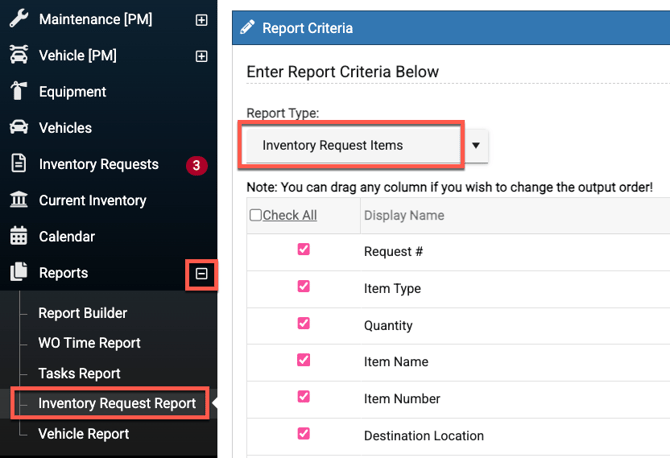
- When running a report in Inventory Request Report and using the Inventory Request Items report type, that report will only include values for the quantity column for inventory requests that are completed.
-
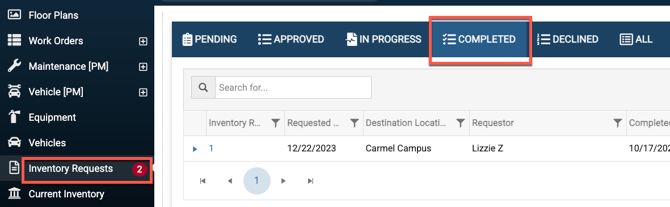
- You can see all the complete inventory requests under Inventory Request when selecting the Completed tab. While all inventory requests will show on the report, only those that are marked as completed will have a quantity included.
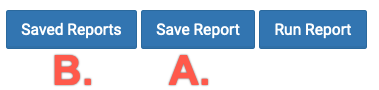
- There users will see all the filter options available along with the ability to A. "Save" filter selection and then B. "Load" preset filter selection when returning to this page next time.
Different eSPACE Subscription Tiers include Different Features
- In order to know if this feature is included in your eSPACE subscription tier, please contact support@espace.cool.
Viewing Your Subscription Details
- Each eSPACE admin with access to Billing can view what subscription tier your organization currently has and everything that is included in their account under Settings > Other > Billing > Manage.