Many companies, including Smart Church Solutions, provide Open API requests for external developers, partners, or customers to creatively use on their own. The types of requests (API calls) that are offered and the information included in them vary from company to company, as different companies allow their customers to interact with their software in different ways. These requests are designed to enable interaction with the company's software, services, or data in a controlled and standardized manner, sometimes beyond what the native features or products made by the company offer.
Rules for API Usage
- Website Integration: Many customers use our open API requests to get event information from their eSPACE account so they can then push that event information on their website in a more customized way than what our Public Calendar feature offers.
- Updating Event or Work Order Statuses via the API: Status for events and work orders are NOT meant to be updated directly via API. Status transitions for events and work orders are driven by business rules and permissions in the app and therefore must be changed in eSPACE by an appropriate user.
-
HVAC, Door Access, & Digital Signage: Our API calls are not meant to be used to create your own HVAC, door, or digital signage integration. If you are interested in an integration, please reach out to support to find out about the list of companies who we have built an integration with. support@smartchurchsolutions.com
- Different eSPACE Subscription Tiers include Different Features Including Access to Our API's
- In order to know if this feature is included in your eSPACE subscription tier, please contact support@smartchurchsolutions.com.
- Viewing Your Subscription Details
- Each eSPACE admin with access to Billing can view what subscription tier your organization currently has and everything that is included in their account under Settings > Other > Billing > Manage.
API Version
- The only API version that eSPACE offers is Version 2 (v2). Version 2 uses JWT (Java Web Token) as authorization in API calls.
Training & Support
- Using our open API requests is recommended for those who already have a good working knowledge of API requests, as there is no training available on this subject or development support for any integrations that you want to build. Like many companies, we offer API calls for customers to creatively use on their own so they can get their eSPACE account data in "raw" form and use it how they like.
- We recommend that customers work with someone who is knowledgeable on how API calls work both for the initial setup, long-term use, and for any troubleshooting that may need to happen down the road.
- If you need help beyond this article, please contact support and we will respond in the time allotted based on which Customer Care plan you have on your eSPACE subscription: Billing :: Customer Care Plan Options
- In order for support to help troubleshoot, please email us the exact API call you are using along with the response you are getting when you test in Swagger from within your eSPACE account (see more below).
1 Generating an API Key to Test/Use API Calls
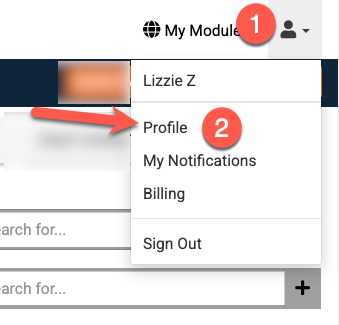
- An admin can navigate to their "Profile" by going to the left side navigation bar or by going to the top right of your dashboard and selecting "Profile" from the person icon drop-down menu.
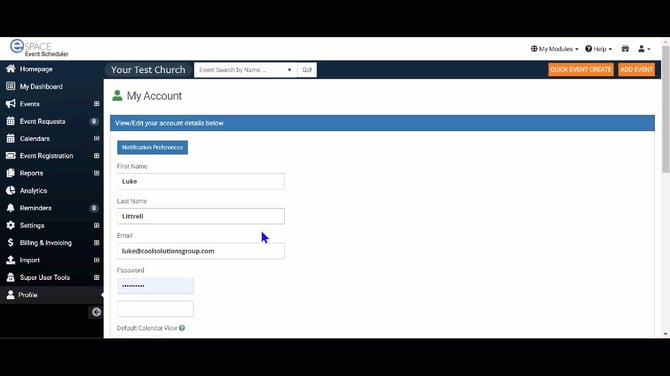
2. Then, scroll to the bottom and expand API Keys
3. Once you have read the information on our API Keys, you can choose to Create New Key:
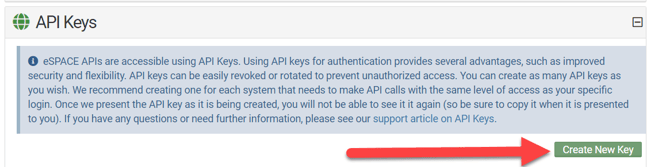
4. After clicking Create New Key, you can do the following:
- A. Copy the new key and keep it somewhere secure
- B. Enter Description (i.e. a name for the key you will understand, like "HR" or "Website")
- C. Click Save | REMEMBER, you can no longer see the full key after save, so be sure to copy it first!

You can create as many API keys as you desire. We recommend creating one for each system that needs to make API calls with the same level of access as your specific login!
2 Using the API Key to Create an API Token
- Admins can go to the left side navigation bar > Settings > Other > Developer. There they will see the list of API calls that we provide.
- In order to know if this feature is included in your eSPACE subscription tier, please contact support@espace.cool.
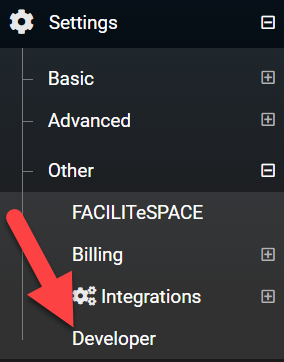
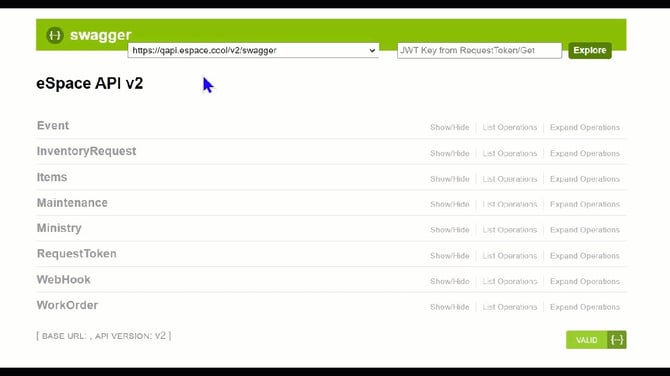
2. After reading the Welcome information, scroll down to where you see "swagger" and you can...
3. Click on the selector
- We only offer V2 of API calls so that is the one that should be selected.

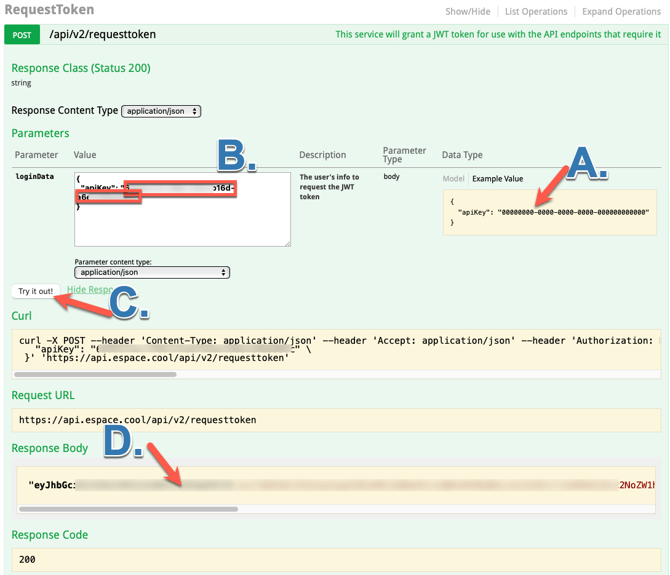
4. Scroll down to "/api/v2/requesttoken".
- A. Click the "Example Value" .
- B. Replace the 0's with your API key.
- C. Click "Try it Out".
- D. Copy the long set of numbers and letter between the "" in the Response Body.
- E. Paste that response body in the box to the left of "Explore" near the top of the page and G. click "Explore".

5. As you can see Version 2 uses JWT (Java Web Token) for authentication instead of Basic Authentication (HTTP based).
3 Using API Calls to Test
- Now you start using API calls as well as test any in Swagger. When you expand each one you will see a template of what data is included in that API call.
- Updating Event or Work Order Statuses via the API: Status for events and work orders are NOT meant to be updated directly via API. Status transitions for events and work orders are driven by business rules and permissions in the app and therefore must be changed in eSPACE by an appropriate user.
Reminder:
- Using our open API requests is recommended for those who already have a good working knowledge of API requests, as there is no training available on this subject.
- We recommend that customers work with someone who is knowledgeable on how API calls work both for the initial setup, long-term use, and for any troubleshooting that may need to happen down the road.