
Sections in this article:
- User Roles at a Glance
- How to Add a User
- Permissions Every Worker Needs
- Extra Settings for Sub-admins
- Admin Dashboard Grids
- Portal Users
- External Vendors
- Bundled Clients (Event Scheduler + Work Order)
Work Order & Asset Management has four user roles: Admin, Sub-admin, User and Portal User. You can also add external vendors, like an HVAC contractor, to receive work orders.
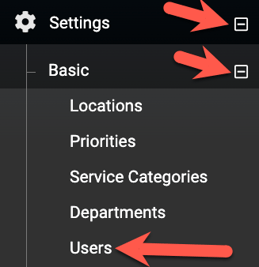
Admins add and manage users under Settings > Basic > Users. A sub-admin can too, if an admin gives them the Manage Users permission; they can manage sub-admins and users, but not admins.
User Roles at a Glance
Users and sub-admins only see work orders that match their service categories, departments and locations. Admins see everything.
|
What they can do |
Admin |
Sub-admin |
User |
Portal User |
|---|---|---|---|---|
|
Submit work order requests |
Yes |
Yes |
Yes |
Yes (their only access) |
|
See and update work orders they're assigned |
Yes, if they can perform work |
Yes, if they can perform work |
Yes, if they can perform work |
No |
|
Assign, reassign or reject new work orders |
Yes |
If given Manage Work Orders |
No |
No |
|
Review completed work and close work orders |
Yes |
If given Can Close Work Orders |
No |
No |
|
Manage preventive maintenance (PM) |
Yes |
If given Can Manage PM |
No |
No |
|
Manage locations, users, equipment, inventory |
Yes |
If given each permission |
No |
No |
|
All other Settings |
Yes |
No |
No |
No |
|
Run reports and see the calendar |
Yes |
Yes |
Yes |
No |
|
Add conversations to their work orders |
Yes |
Yes |
Yes |
Yes |
How to Add a User
- Go to Settings > Basic > Users.
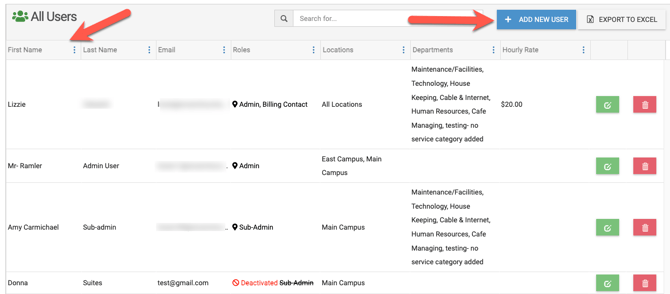
- Click Add New User. (This page also lists every current user and what they can access.)
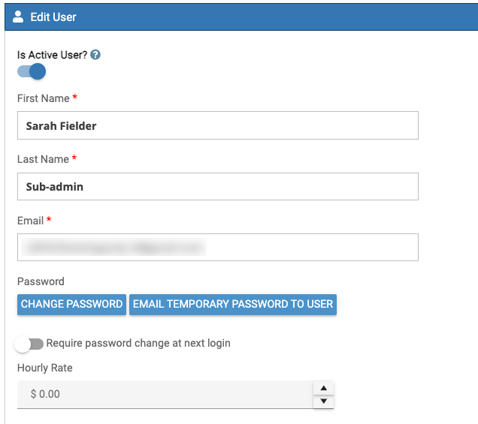
- Make sure Is Active User? is on, then enter their first name, last name and email.
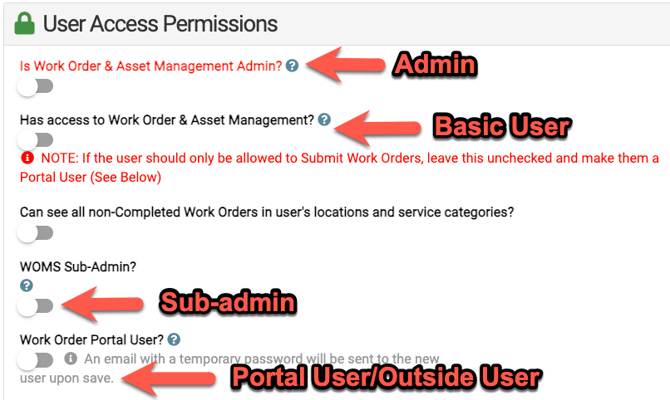
- Under User Access Permissions, choose the role:
- Admin: turn on Is Work Order & Asset Management Admin?
- User: turn on Has access to Work Order & Asset Management?
- Sub-admin: turn on WOMS Sub-Admin?, then see article Extra Settings for Sub-admins.
- Portal User: turn on Work Order Portal User? only. See article Portal Users.
- If this person will do the work, set up the permissions below, then click Save. New users get an email with a temporary password.
Permissions Every Worker Needs
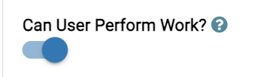
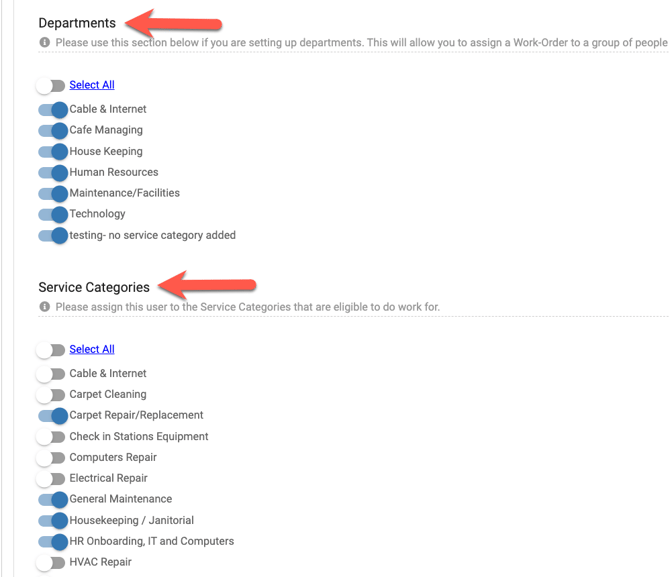
For admins, sub-admins and users who do the work, turn on Can User Perform Work? Then give them access to the right:
- Service categories: they'll see work orders in these categories.
- Departments: they'll see their department's work orders and can Accept them.
- Locations: they'll see work orders at these locations.
A work order shows on their dashboard only when its service category, department and location all match what they have access to. If someone says they can't see a work order, check these three first.
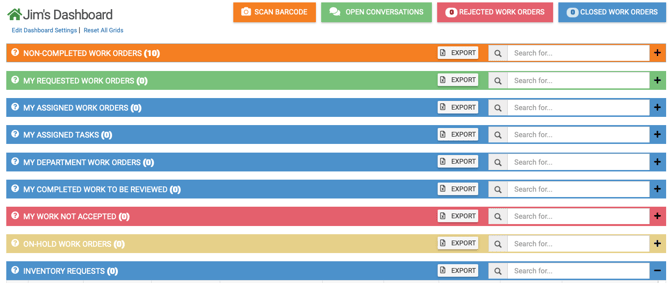
Here's what a user's dashboard looks like:
Extra Settings for Sub-admins
A sub-admin gets only the permissions you turn on, and only for their locations:
- Manage Locations: add, edit and delete locations (Settings > Basic > Locations).
- Manage Users: add, edit and delete sub-admins and users, but not admins (Settings > Basic > Users).
- Manage Equipment: add, edit, delete and export equipment (Settings > Basic > Equipment).
- Manage Inventory: manage inventory item types and items and adjust counts (Settings > Advanced > Inventory).
- Manage Work Orders: see the New Work Orders and All Work Orders in Progress grids and assign work orders to a user, department or vendor. Turn on Restrict work orders based on assigned Service Categories to limit them to their categories.
- Can Close Work Orders: see the All Completed Work to be Reviewed grid, then print, view, not accept or close completed work orders.
- Can Manage PM: add and manage preventive maintenance. Turn on Restrict PM based on assigned Service Categories to limit them to their categories.
Admin Dashboard Grids
Admins (and sub-admins with Manage Work Orders or Can Close Work Orders) get extra grids on their dashboard:
- New Work Orders: submitted but not assigned yet. Assigning a work order approves it. You can also Reject it and give the requester a reason.
- All Work Orders in Progress: assigned but not completed.
- All Completed Work to be Reviewed: marked complete and ready to review and close.
- All Event Work Orders: only for accounts that also have Event Scheduler.


Portal Users
Portal users can submit work orders and add conversations to them, without access to the full dashboard. They're a good fit for people like a security guard or a ministry leader who just needs to report issues. Learn more: Giving Someone Limited Access to Work Order & Asset Management | Portal Users
External Vendors
External vendors are companies outside your church that you assign work to, like an HVAC or plumbing contractor. Add them under Settings > Basic > External Vendors. Learn more: Viewing, Adding & Communicating with External Vendors
Bundled Clients (Event Scheduler + Work Order)
If you have both Event Scheduler and Work Order & Asset Management:
- Each person's role is set separately in each module. Someone can be a sub-admin in one and an admin in the other.
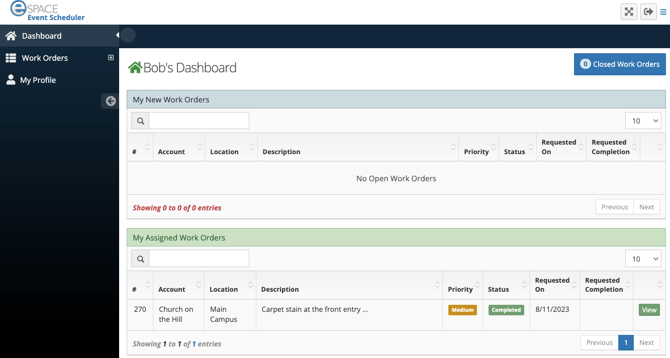
- Everyone with Event Scheduler access can already submit work orders from the Work Order Portal button on their Event Scheduler dashboard. You don't need to add them as portal users.
- Sub-admins with Manage Work Orders also see the All Event Work Orders grid.