
- Who Can Set Up SSO
- How SSO Works for Your Users
- Set Up Google Workspace SSO
- Test Your Connection
- Have Others Authenticate Before Using
- Different eSPACE Subscription Tiers include Different Features Including Single Sign On
-
-
In order to know if this feature is included in your eSPACE subscription tier, please contact support@smartchurchsolutions.com.
-
- Viewing Your Subscription Details
- Each eSPACE admin with access to Billing can view what subscription tier your organization currently has and everything that is included in their account under Settings > Other > Billing > Manage.
If your eSPACE subscription includes Single Sign-On, you can let people sign in with their Google Workspace account instead of a separate eSPACE password. This article covers Google Workspace.
-
Learn more: How SAML Single Sign-On Works
Who Can Set Up SSO
- Only eSPACE Admins can get to the SSO Integration Setup page in eSPACE
How SSO Works for Your Users
- People who already have an eSPACE account: If their email in Google matches their email in eSPACE, they sign in to that existing account.
- People who don’t have an eSPACE account yet: eSPACE may create one, depending on the user provisioning setting on the SSO setup page.
- SSO only works after each person opens the eSPACE app from the Google Workspace app menu once. That connects their Google account to eSPACE. After that, they can sign in to eSPACE with Google.
Set Up Google Workspace SSO
Add eSPACE in Google
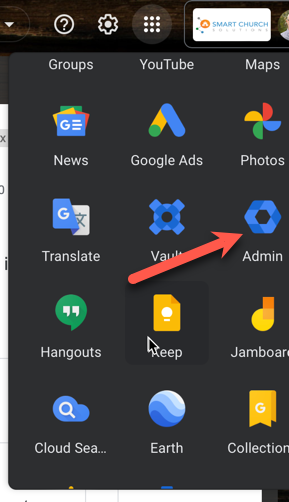
- Navigate to your Google Workspace Admin Homepage
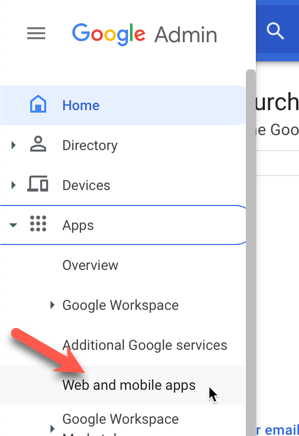
- Click "Apps" option then the "Web and mobile apps"
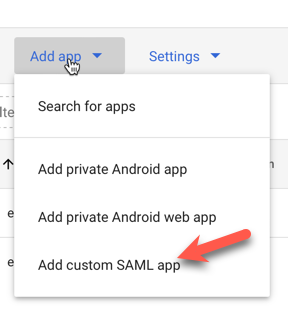
- Click "Add App" >> Add Customer SAML App
- On App Details page:
- Enter App Name: eSPACE
- Upload App Icon
- Click Continue
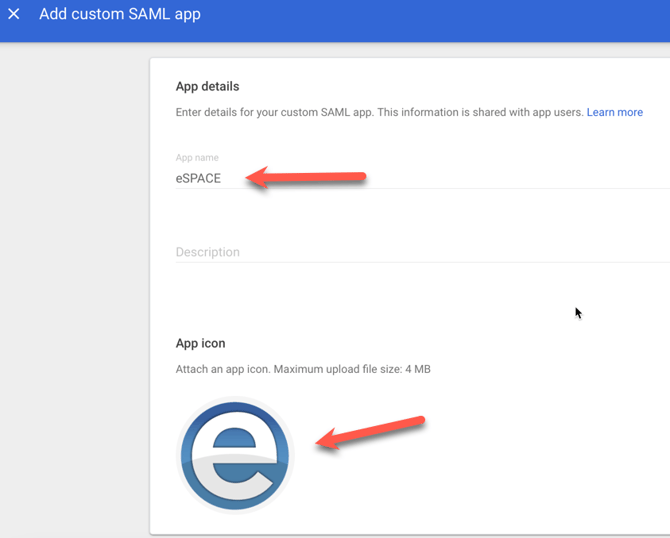
Feel free to download this image to use for uploading an App icon:
- Download the Metadata file.
Connect Google to eSPACE
- In eSPACE, navigate to the SSO Setup page under Settings >> Other >> Integrations >> SSO Setup.
- Enter the Identity Provider as "Google".
- Upload the Metadata file you just downloaded from Google. The certificate and Single Sign-On Service URL should fill in automatically.
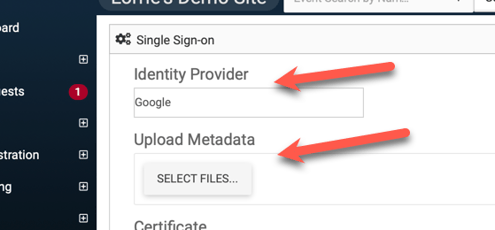
If Google later changes that URL, update it here to match or people will get an error when they try to sign in with Google.
- You can also paste the certificate by hand. Leave out the header and footer.
- You can also paste the certificate by hand. Leave out the header and footer.
- Copy the Assertion Consumer Service URL (feel free to use the copy icon on the right of it)

Finish the Google App
- ACS URL: paste the value you copied from eSPACE.
- Entity ID: https://app.espace.cool
- Name ID format: Email
- Name ID: Basic Information > Primary email
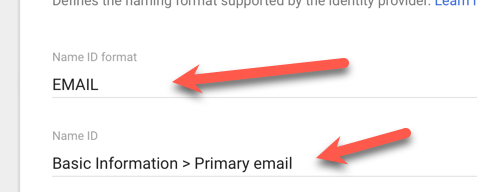
5. Click "Continue" to open "Attribute mapping".
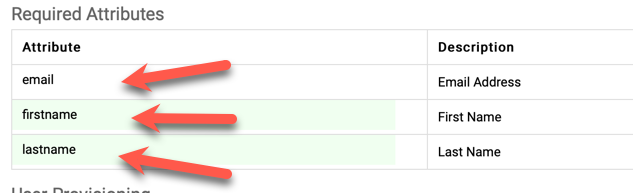
Google and eSPACE must send the same three attributes, with the same names (spelled exactly the same):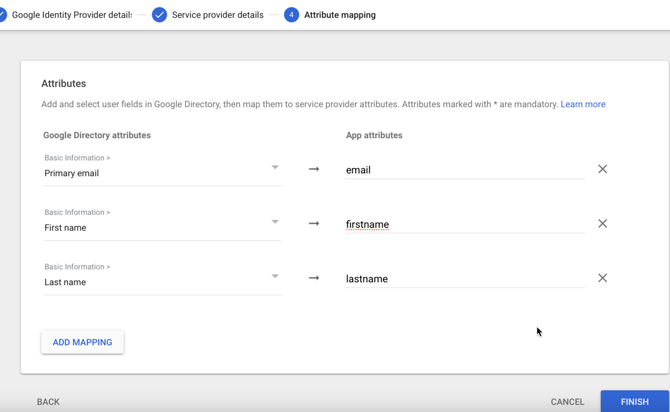
6. Click Add Mapping for each one, then click Finish.
Complete SSO Settings in eSPACE
- On the SSO setup page, confirm the attribute names match: email, firstname, lastname.
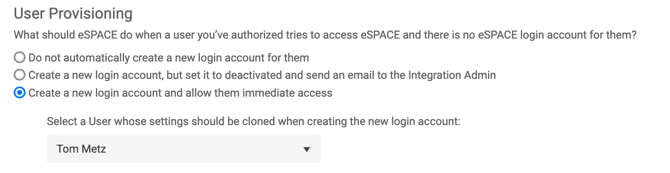
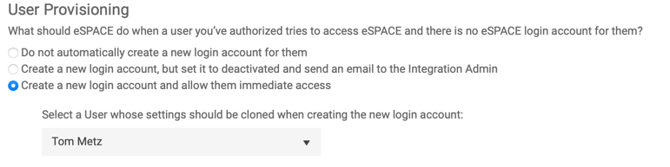
- Set User Provisioning as you want. If you choose the 2nd or 3rd option, pick the user whose permissions new accounts should copy.
- Turn Require all logins to go through SSO Identity Provider on or off. Learn more: How SAML Single Sign-On Works
- Learn more in this article: How SAML Single Sign-On Works
- Set an "Integration Admin".
- Click the "Save" button to save all the settings and enable SSO.
Test Your Connection
- Open a private or incognito window in your browser. Don’t log out of eSPACE in your main browser, if SSO isn’t set up correctly, you could get locked out of the setup page.
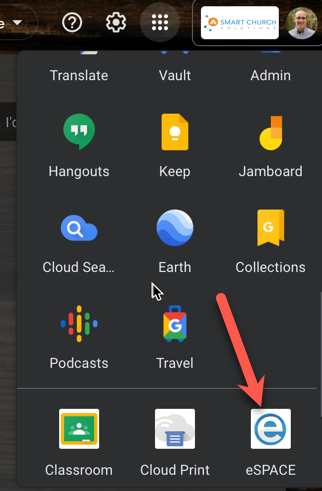
- Click on the eSPACE app in your Google Workspace account menu. This will authenticate eSPACE in your Google account and thus allow you to then click "Login with Single Sign On" on the eSPACE sign in page.
- If SSO is set up correctly, clicking the eSPACE app in your Google workspace account will direct you to a page where you can sign into Google.

- Next, you should be directed to the eSPACE homepage where you can then sign in with Google into your eSPACE account.

Have Others Authenticate Before Using
1. In order for others to be able to sign into eSPACE through Google SSO, they too will need to first click on the eSPACE app in their Google Workspace menu and follow the steps.
2. After they authenticate from Google's side, they will be able to click "Login with Single Sign On" on the eSPACE homepage.