Sections in this article:
- Overview
- All Users Dashboards
- Admin Specific Grids
- Internal Vendor
- Portal Users
- Dashboard Settings
- Expand Grids to see More Information
Your Dashboard in Work Order & Asset Management is a great way to track work orders based on the grids that are provided. Admins will see all unassigned work orders in the "New Work Orders" grid. Once they are assigned or if they are automatically assigned to a user, department or external vendor they will appear in the "All Work Orders in Progress" grid as well as other appropriate grids such as "My Assigned Work Orders" or "My Department Work Orders" if the work order is assigned to an admin with access to one or more departments.
- Related articles:
Dashboard Buttons
-
All users will see the following options above the grids on their dashboard.
-

Open Conversations will alert you when one of your work orders (either requested by you or assigned to you) has a new unread commend on it on the Conversations tab.
-
Rejected Work Orders will allow you to see all the work orders that you requester that have been rejected. In order to see work orders that are assigned to other users that have been rejected, click on Work Orders in the left side menu bar, choose All Work Orders and use the filter options there.
-
Closed Work Orders will allow you to see all your requested work orders that have been closed aka archived. This status happens after a work order has been updated to the status of Completed by the assigned worker.
-
Scan Barcode option, will appear in addition to the ones above for those on an eSPACE subscription that includes Asset Pro. Reach out to support@smartchurchsolutions.com to lear more.
Dashboard Grids
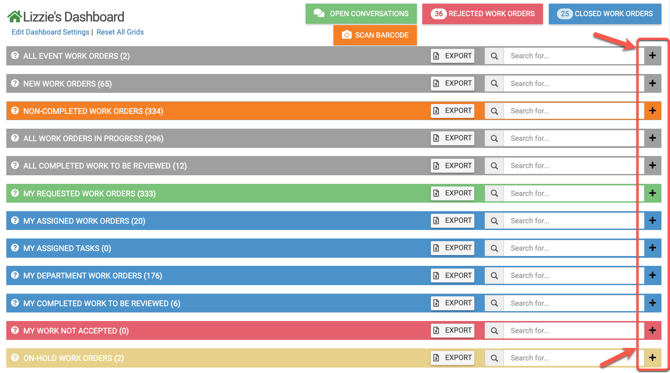
- My Requested Work Orders - All work orders that you have personally requested.
- My Assigned Work Orders - ALL work orders that have been assigned to you personally or automatically through a Routing Rule set up by an admin and that need to be completed.
- My Department Work Orders -These are work orders that have been assigned to your Department manually or by a Routing Rule to be accepted or rejected. Once accepted by a user within your department that can perform the work based on the Service Category selected, it will go to their "My Assigned Work Orders" and will be removed from "My Department Work Orders". If the work order is rejected, it will go to "Rejected Work Orders".
- Non-Completed Work Orders - All work orders that are unassigned (which appear in the New Work Orders grid) and assigned (which appear in the My Assigned or My Department Work Order) that are NOT yet completed.
- My Assigned Tasks - These are tasks that have been assigned to you personally within a work order that need to be completed.
- My Completed Work Waiting to be Reviewed & Closed - All work orders that you have personally performed the duties of and have marked complete that are ready to be reviewed, accepted, not accepted, or closed by an Admin.
- My Work Orders Not Accepted - All work orders that have been completed by you personally (can perform work), but have not been accepted for a given reason. You can select "Restart Work", complete it, and it will then be reviewed again by an Administrator.
- On-Hold Work Orders - These are work orders that you have personally put on Hold.
- Inventory Request - This will be included for those on a tier that includes inventory items. Learn more in this article: Inventory Request Form & Request Reports
You can easily expand every grid on your dashboard by clicking the expand button "+" to view all work orders associated within. You can also collapse each grid.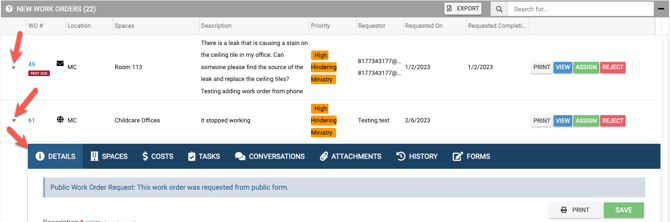
Admin Specific Grids
- New Work Orders - Any new requested work orders that can be viewed, printed, not accepted and/or assigned to a department or person to perform the duties.
-
- Sub-admins who are given permissions to manage work orders will also see this grid.
-
- All Event Work Orders - If you are a bundled client, using Event Management and Work Order Management and have selected the setting within Event Management to Allow Work Order to be created from events, all new work orders generated from an event will be displayed here.
- All Work Orders In Progress - ALL work orders in progress that have either been auto-assigned to a department or user based on Routing Rules OR have been manually reviewed and assigned to a department or appropriate person to perform the duties. You have the option to print, view, or re-assign them.
- If a work order is PAST DUE, this will be indicated below the WO #.
- If there is an attachment within the work order, this will be indicated by a paperclip icon below the WO #.
- If there is an unread conversation within the work order, this will be indicated by a red comment icon below the WO #.
- Sub-admins who are given permissions to manage work orders will also see this grid.
- All Completed Work to be Reviewed - These are work orders that have been completed and can be reviewed, printed, not accepted, and/or closed by an Admin. If you choose not to accept, enter your reason and it will go back to the person performing the work. Once they have performed the work to your satisfaction and marked the work order as complete, you can review it again and close it. Once you close a work order, it automatically is sent to the "Closed Work Orders" grid at the top of your dashboard so that you have a history of all of your closed work orders.
Assigning/Approving a Work Order
- Related article: Assigning/Approving a Work Order to a User, Department, or External Vendor
- Creating Routing Rules to Auto Assigned a Work Order
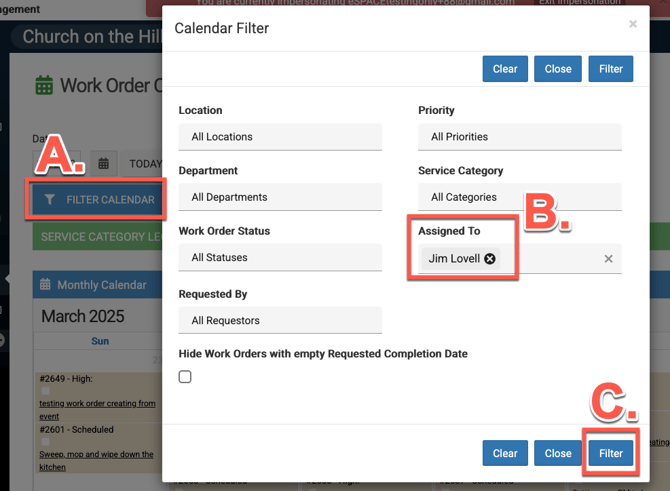
Viewing Work Orders on the Calendar
Sub-admins can view all generated work orders on the calendar and filter the work orders by the ones assigned to them, by a certain service category, etc...
- Work orders generated from preventative maintenance [PM} will only show after they have been generated.
Viewing Work Orders on Reports
A sub-admin can filter the work orders in a report by which ones are assigned to themselves in order to get an export of all their assigned work orders.
-
Related articles: Report Builder | Building and Saving Customized Reports in Work Order & Asset Management
-
Scheduled Reports to be Emailed | Work Order & Asset Management